Parameters and tools
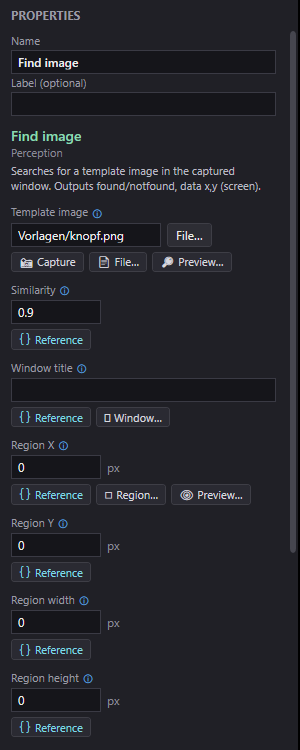
The field types in the properties panel and the tool buttons next to them — drag a region, pick a point, eyedropper, capture, choose a window, insert a reference.
After this article you know what every field in the properties panel accepts and what the small buttons next to them are for — above all the ones that grab regions and templates straight from the screen.
Field types
| Type | What you enter | Example |
|---|---|---|
| Text | free text.{name} and {Node.output} are replaced |
Hello {name} |
| Text (multi-line) | several lines, e.g. name=value lists or messages |
level=3 |
| Number | a number — or a calculation with references | 10*{level} |
| Yes/No | switch | on |
| Choice | one value from a fixed list | Seconds |
| Region | x, y, width, height — a rectangle on the screen |
drag with the tool |
| Colour | hex colour like #3FA9F5 |
with the eyedropper |
| File / template image | path to a file. Templates as PNG | via "File…" or "Capture" |
| Key combination | one key or a combination | Ctrl+S |
| Window | window title or part of it | Clicker Heroes |
| Anchor | name of an anchor from this bot | HUD |
Next to every field is an ⓘ — hovering it shows the help for exactly this field. The same texts are in the module reference.
The tool buttons
 Play video0:44
| Button | Where | What happens |
|---|---|---|
| Region… | region fields (x, y, width, height) | still image with zoom: drag a rectangle, pull its edges, type the numbers — see below |
| Point… | coordinate fields (target X/Y) | you click a point on the screen |
| Eyedropper | colour fields | you click a colour on the screen |
| Capture | template image | drag a rectangle → saved as PNG and entered into the field |
| File… | file and template fields | file picker |
| Preview… | template image | shows the chosen template enlarged |
| Window… | window fields | list of all open windows — click instead of typing the title |
| Capture key | key fields | press the desired combination, it is entered |
| States… | Button state | manage the states (name + image) of a button |
| Arc… | Health bar (arc) | set centre, start, end and fill colour of a round bar with three clicks |
| Target… | target X/Y of a click node | shows anchor, computed target point and the line between them on screen |
| Matrix workshop… | Read matrix | set up grid, sample points and recognition (colours, templates, text) with live preview — guide |
| Choose cell… | Matrix cell | click the cell in the grid of the connected matrix node |
| Sweep… | Sweep area | set rectangle, rows/columns and direction on the screenshot. Measure the grid from two cells — guide |
| { } | text and number fields | reference picker: lists variables, node outputs, anchors and counters to insert |
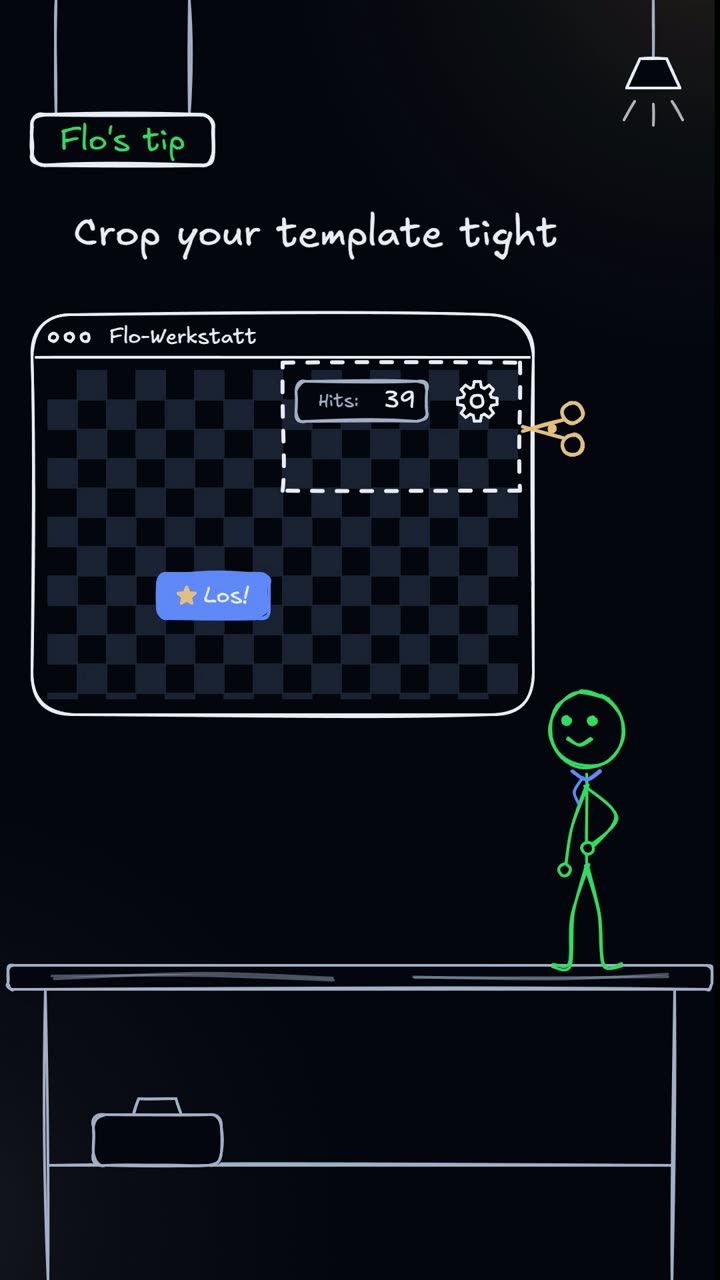
Capture is the most important button for perception nodes. Drag the rectangle tightly around an unmistakable detail (an icon, a button) — not around text that changes, and not around background. The smaller and more distinctive the template, the more reliably the app finds it again.
The region designer: when it has to be exact
Regions used to be set on the live screen: everything dimmed and you dragged a rectangle freehand. That is fine for rough areas — not for a health bar nine pixels tall.
Since version 1.4.8 the tool freezes a still image instead, and only of the target window:
- The mouse wheel zooms up to 16×, the middle mouse button pans.
- Eight handles on edges and corners pull individual sides. Grab the inside and you move the whole region without losing its size.
- Arrow keys nudge by one pixel (Shift: ten, Ctrl: resize instead of move).
- The four numbers below are input fields — if you know the value, just type it.
- Zoom to selection fills the view with the marked region. Open the tool on a region that is already set and this happens automatically.
With Read bar the footer shows live what the note currently reads: „reads 67 % filled". Drag the edge and watch the number — if it jumps to 100 on a full bar and 0 on an empty one, the region sits right. That saves you the guesswork and the trial run.
Fields that only appear when …
Many nodes only show fields when another field is set accordingly: "Click" shows Target X/Y only when Move there first is on. "Wait" shows to only with Random duration. In the module reference such fields say "Only visible if …".
Window fields: empty means "the target window"
 Play video1:27
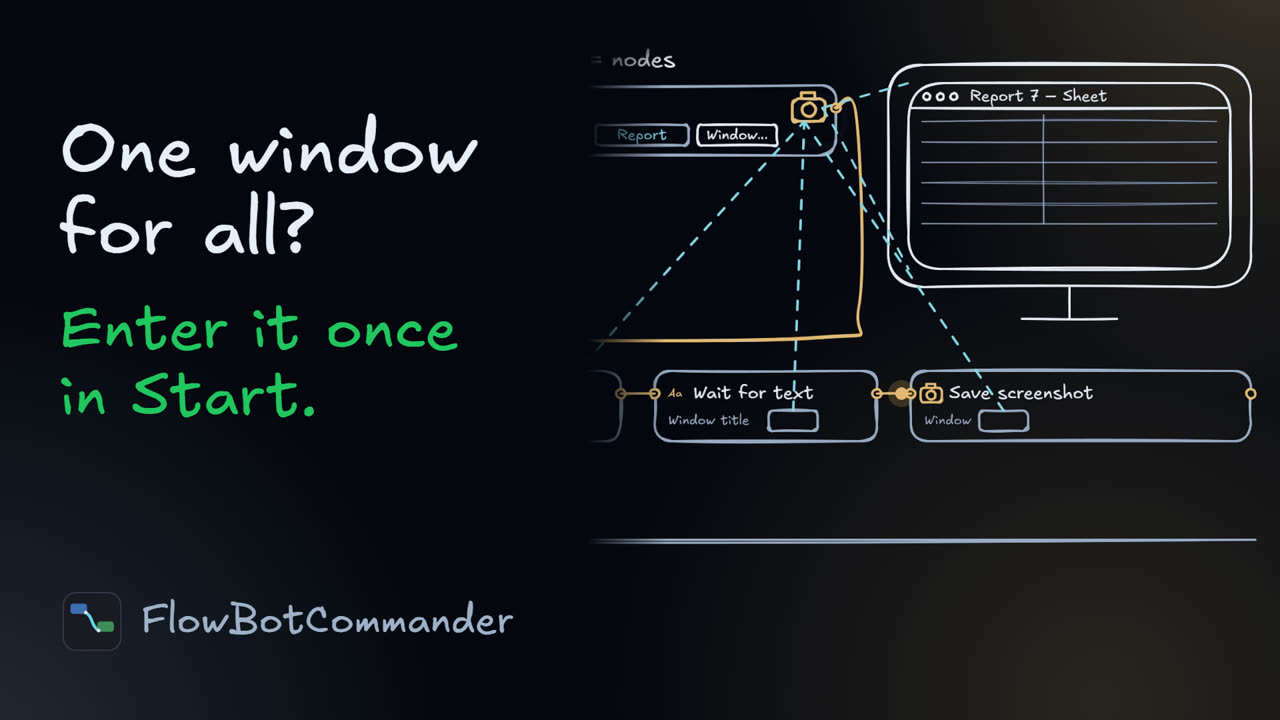
An empty window field means for almost all nodes: use the target window from the Start node. So you enter the game only once. More in Window and image source.
If it doesn't work
 Play video0:43
- The region is off: the target window was moved after dragging. Either drag again or make the region relative to an anchor.
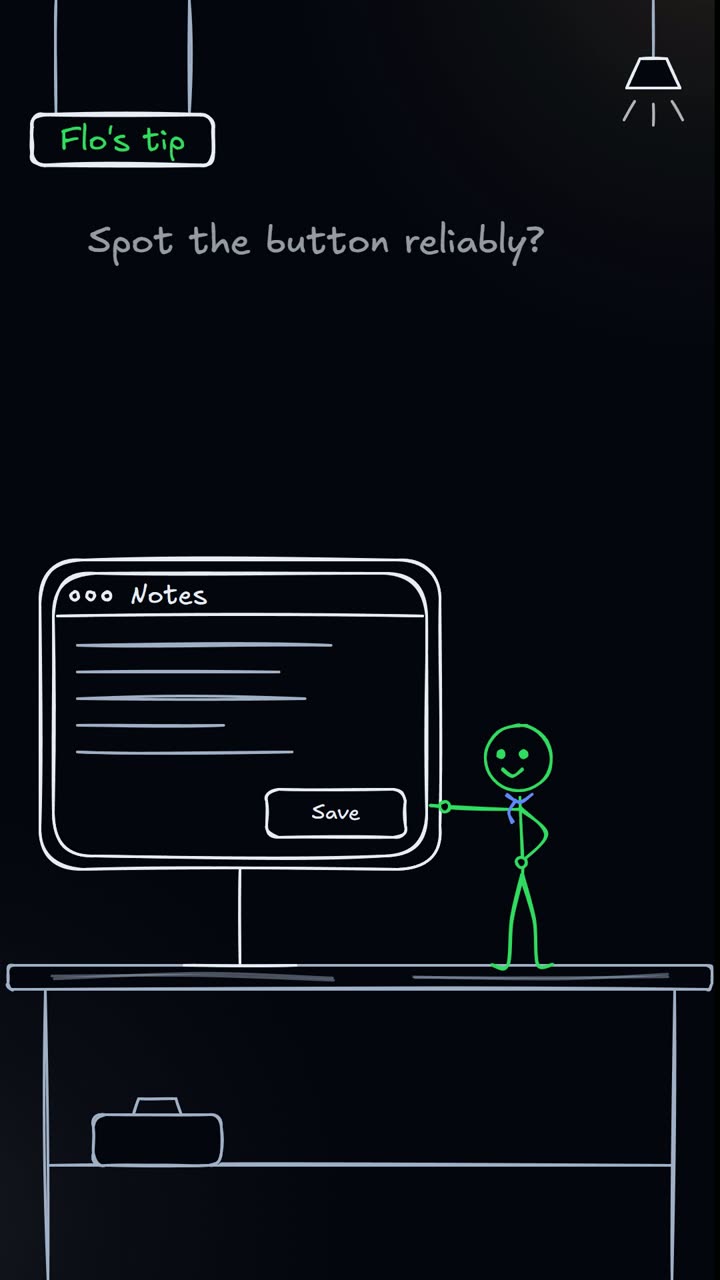
- The template is not found: lower the similarity a bit (default 0.95 → 0.9 or 0.85), turn on Scale tolerant, capture the template more tightly. In detail: Image is not found.