Perception modules
Find image, check colour, read text, measure bars: how the bot sees what happens on the screen.
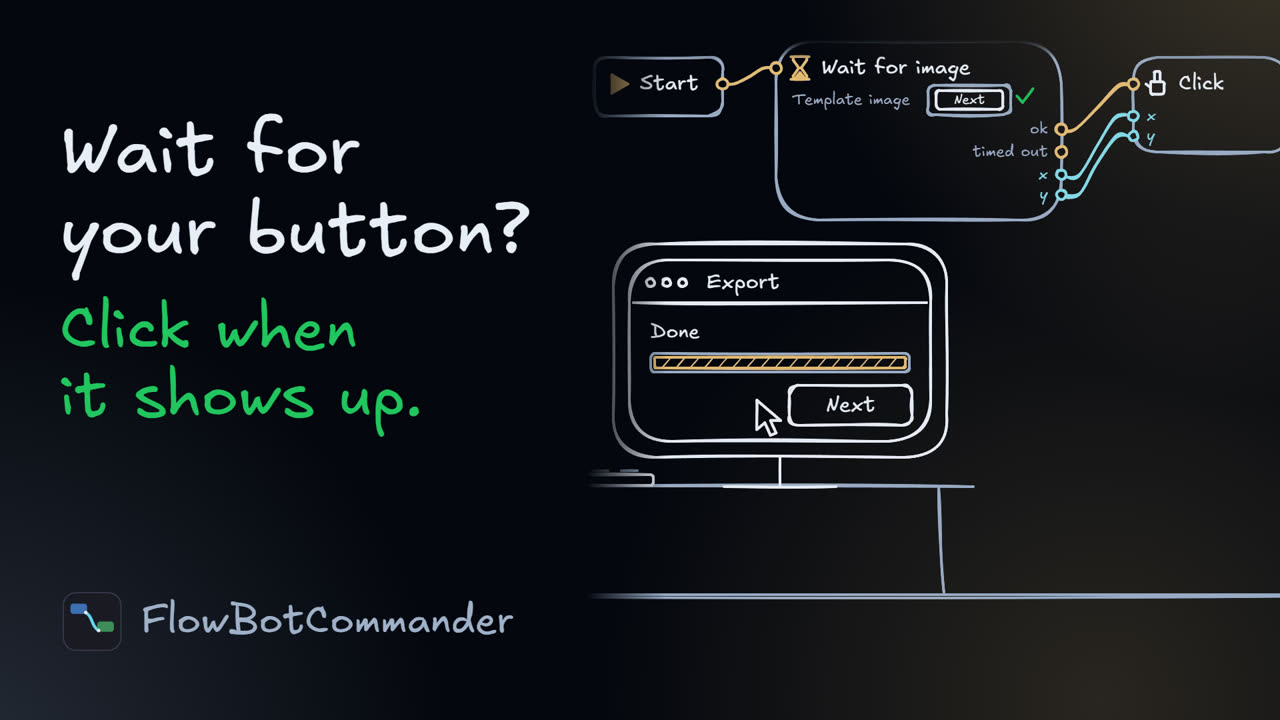
Perception modules are the eyes of your bot. Each one takes a fresh image of the target window itself (which you set once in the Start node) and delivers results as outputs: "found / not found" as flow, positions and values as data. For almost all tasks three of them are enough: Find image, Wait for image and Read text (OCR).
 Play video1:32
Which one when?
| You want to … | Module |
|---|---|
| find a button or an icon on the screen | Find image |
| wait until something appears (loading screen over) | Wait for image |
| work through all occurrences of an image one after the other | For each match |
| read a number or a word from the screen | Read text (OCR) |
| check whether a spot has a certain colour | Pixel color / Search color |
| how full a health or progress bar is | Read bar |
| react at a certain fill level (top up from 95 %, alarm below 20 %) | Read bar, field „Full" from — the full output then applies from that percentage |
| make positions robust when the interface moves | Find anchor (image) |
| read a game board, a button bar or inventory slots as a grid (colour, template or text per cell) | Read matrix — set up in the Matrix workshop |
| wait until a cell shows a certain state | Wait for cell |
All modules of this category
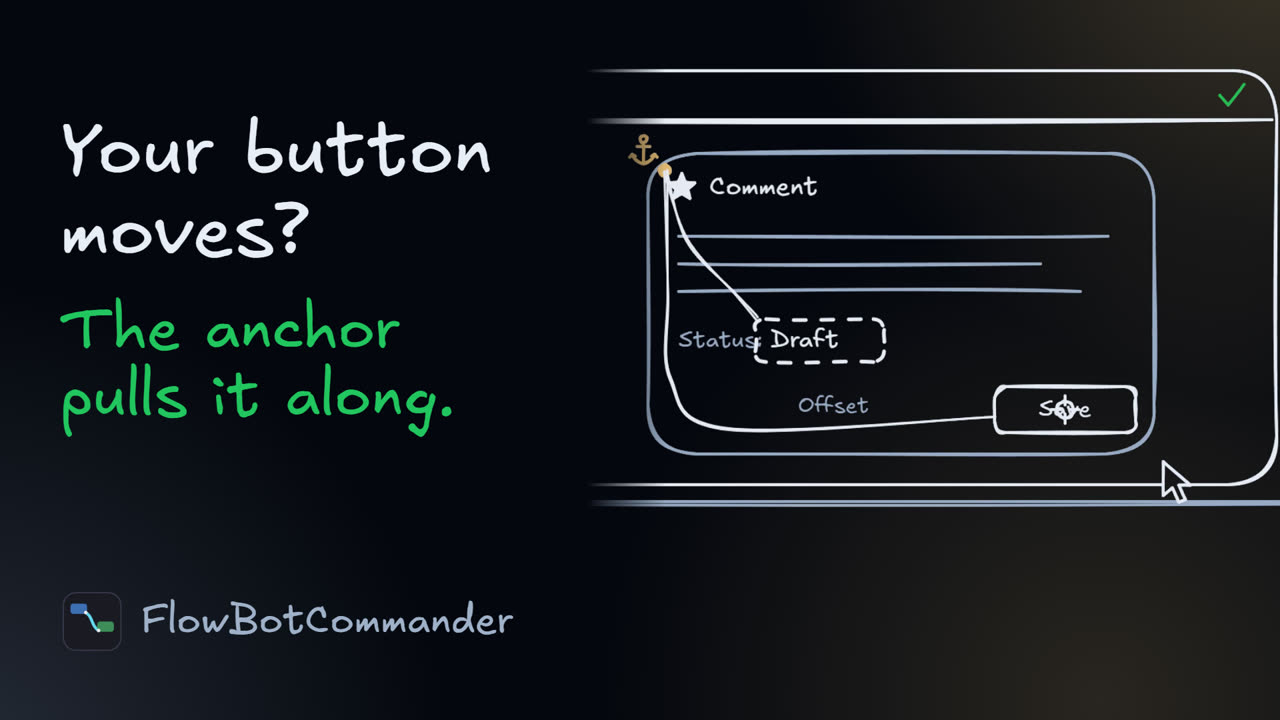
⚓ Find anchor (image) Free
Finds a stable anchor image and derives a reference point (top-left corner, image-relative). Area nodes with 'relative to anchor' align to it. Outputs gefunden/nicht, data x,y (screen) + gefunden.
Inputs: in (flow) · Outputs: found (flow), not found (flow), x, y, found
| Field | Type | Default | Meaning |
|---|---|---|---|
| Anchor name | Text | Standard |
Name under which this anchor is published for the whole workflow. Other nodes pick it from their 'Anchor' dropdown. Give different anchors different names — otherwise they overwrite each other. Example: HUD |
| Window title | Window | — | Title (or part) of the window to capture fresh. Example: Notepad |
| Anchor template | File | — | PNG of the stable anchor element (e.g. a fixed HUD icon). 'Capture' to save a screen crop as the anchor template, or 'File…' to choose one. Wrap it as tightly as possible around a unique, immovable detail. |
| Similarity | Number (0.5–1) | 0.95 |
Minimum similarity of the anchor match (0.95 = 95%). Higher = stricter, but more sensitive to small changes. |
| Scale-tolerant | Yes/No | off | Also searches the template at several sizes (about 0.8x–1.2x). Makes matching robust against a different resolution / UI scale / monitor, but is a bit slower. |
| Grayscale | Yes/No | off | Compares in grayscale — more robust against lighting/color differences. |
 Play video1:32
⏳ Wait for image Free
Waits until a template image appears in or disappears from the window, then continues.
Inputs: in (flow) · Outputs: ok (flow), timed out (flow), x, y
| Field | Type | Default | Meaning |
|---|---|---|---|
| Template image | File | — | PNG to wait for. The window from the last 'Capture window' is captured automatically — no extra window field needed. |
| Similarity | Number (0–1) | 0.95 |
How exact the match must be (0–1). 0.9 = very exact, 0.7 = tolerant. |
| Wait for | Choice: appears, disappears | appears | appears = wait until the image shows up. Disappears = wait until it's gone. appears — wait until the image shows up disappears — wait until the image is gone |
| Wait indefinitely | Yes/No | off | On = wait with no time limit (until the image is there/gone or the bot/app is stopped). Off = the 'Time limit' below applies. |
| Time limit | Number (≥ 0) | 30 |
How long to wait at most (unit on the right) before 'timeout' fires. Only visible if Wait indefinitely = off. |
| Unit | Choice: Milliseconds, Seconds, Minutes, Hours | Seconds | Time unit of the limit. Milliseconds — 1000 ms = 1 second Only visible if Wait indefinitely = off. |
| Check interval | Integer (ms) | 300 |
Pause between two checks. Smaller = react faster, more CPU. |
| Scale-tolerant | Yes/No | off | Also searches the template at several sizes (about 0.8x–1.2x). Makes matching robust against a different resolution / UI scale / monitor, but is a bit slower. |
| Grayscale | Yes/No | off | Compares in grayscale — more robust against lighting/color differences. |
⌛ Wait for color Free
Polls and waits until a color (± tolerance) appears in the region. Outputs gefunden/timeout, data x,y (screen coordinates of the match). Time limit 0 = unlimited.
Inputs: in (flow) · Outputs: found (flow), timed out (flow), found, x, y
| Field | Type | Default | Meaning |
|---|---|---|---|
| Color | Colour | — | The color to find (HEX #RRGGBB). The eyedropper picks it straight from the screen. Use the tolerance below to control how much it may deviate. Example: #20C0C0 |
| Tolerance | Integer (0–128) | 12 |
Allowed deviation per channel (0–128). 8–20 is a good start. 0 = exact. |
| Window title | Window | — | Title (or part) of the window to capture fresh. Example: Notepad |
| Region X | Integer (px) | 0 |
Left edge of the search region. 0 = leftmost. |
| Region Y | Integer (px) | 0 |
Top edge. 0 = topmost. |
| Region width | Integer (px) | 0 |
Width. 0 = to the right edge. |
| Region height | Integer (px) | 0 |
Height. 0 = to the bottom edge. |
| Relative to anchor | Yes/No | off | On = the coordinates are stored as an OFFSET to the anchor found by 'Find anchor (image)'. If the interface moves, the area moves with it. Off = fixed coordinates. |
| Anchor | Anchor | — | Which named anchor to use. The list shows the anchors declared in this workflow. Empty = the anchor that ran last (behaviour of older profiles). Only visible if Relative to anchor = on. |
| Grid step | Integer (1–20, px) | 2 |
Check only every n-th pixel (faster). 1 = every pixel, 2–4 recommended. |
| Time limit | Number (≥ 0) | 30 |
How long to wait at most (unit on the right) before 'timeout' fires. 0 = unlimited. |
| Unit | Choice: Milliseconds, Seconds, Minutes, Hours | Seconds | Time unit of the limit. Milliseconds — 1000 ms = 1 second |
| Check interval | Integer (ms) | 300 |
Pause between two checks. Smaller = react faster, more CPU. |
🕰 Wait for text Free
Polls and waits until text appears in the region. Outputs gefunden/timeout, data x,y (screen coordinates of the match center), treffer. Time limit 0 = unlimited. Tip: best to search for a single word/number.
Inputs: in (flow), suchtext · Outputs: found (flow), timed out (flow), found, x, y, treffer
| Field | Type | Default | Meaning |
|---|---|---|---|
| Search text | Text | — | Word/number whose appearance is awaited (case-insensitive, partial match counts). The data input takes precedence. Example: Approach |
| Window title | Window | — | Title (or part) of the window to capture fresh. Example: Notepad |
| Region X | Integer (px) | 0 |
Search region left edge. 0 = leftmost. |
| Region Y | Integer (px) | 0 |
Top edge. 0 = topmost. |
| Region width | Integer (px) | 0 |
Width. 0 = to the right edge. |
| Region height | Integer (px) | 0 |
Height. 0 = to the bottom edge. |
| Upscaling | Choice: 1x, 2x, 3x, 4x | 2x | Upscale the image before OCR — helps with small text. 2x — recommended |
| Grayscale | Yes/No | on | Remove colors — usually better recognition. |
| Invert | Yes/No | on | Light text on dark background → on. |
| Language | Choice: Automatic, German, English, Russian | Automatic | OCR language (language pack must be installed). |
| Relative to anchor | Yes/No | off | On = the coordinates are stored as an OFFSET to the anchor found by 'Find anchor (image)'. If the interface moves, the area moves with it. Off = fixed coordinates. |
| Anchor | Anchor | — | Which named anchor to use. The list shows the anchors declared in this workflow. Empty = the anchor that ran last (behaviour of older profiles). Only visible if Relative to anchor = on. |
| Time limit | Number (≥ 0) | 30 |
How long to wait at most (unit on the right) before 'timeout' fires. 0 = unlimited. |
| Unit | Choice: Milliseconds, Seconds, Minutes, Hours | Seconds | Time unit of the limit. Milliseconds — 1000 ms = 1 second |
| Check interval | Integer (ms) | 500 |
Pause between two checks. OCR is compute-heavy — don't choose too small. |
📊 Read bar Free
Measures the fill level of a bar (health/mana) in percent → 'prozent' (0..100) and 'voll'.
Inputs: in (flow) · Outputs: next (flow), prozent, voll
| Field | Type | Default | Meaning |
|---|---|---|---|
| Region X | Integer (px) | 0 |
Left edge of the bar region (pixels in the window). Fit it as tightly as possible around the bar. |
| Region Y | Integer (px) | 0 |
Top edge of the bar region. |
| Region width | Integer (px) | 0 |
Width of the bar. 0 = up to the right edge. |
| Region height | Integer (px) | 0 |
Height of the bar. 0 = up to the bottom edge. |
| Region relative to anchor | Yes/No | off | On = x/y (or center) are offsets relative to the reference point last found by 'Find anchor'. The region then moves along with the HUD. |
| Anchor | Anchor | — | Which named anchor to use. The list shows the anchors declared in this workflow. Empty = the anchor that ran last (behaviour of older profiles). Only visible if Region relative to anchor = on. |
| Orientation | Choice: horizontal, vertical | horizontal | Direction in which the bar fills up. horizontal — bar fills from left to right vertical — bar fills from bottom to top |
| Fill color | Colour | #20C020 |
Color of the FILLED part (HEX #RRGGBB). The eyedropper picks it straight from the bar. Example: #20C020 |
| Tolerance | Integer (0–255, ±) | 40 |
How far a pixel may differ from the fill color per channel and still count as 'filled'. 0 = exact, 40 = tolerant. |
| „Full“ from | Integer (0–100, %) | 99 |
From this percentage the output „full“ becomes true. Set it to what matters for your bot: 95 to top up a health bar in good time, or 20 to raise the alarm while there is still room to react. Example: 95 = react from 95 % · 20 = react from 20 % |
 Play video0:31
🔭 Watch area for changes Subscription
Remembers the image of a fixed area and waits until enough of it changes — for example when a display flips over, loot appears or a progress bar finishes. Sensitivity (colour distance per pixel) and minimum share (how many pixels) filter out noise. Outputs changed/timeout, data share, x, y (screen centre). Optionally sends a key to a target window at random intervals while watching.
Inputs: in (flow) · Outputs: geändert (flow), zeitüberschreitung (flow), anteil, x, y
| Field | Type | Default | Meaning |
|---|---|---|---|
| Window title | Window | — | Title (or part of it) of the window to watch. Leave empty to use the workflow's global target window from the start node. Example: Notepad |
| Area X | Integer (px) | 0 |
Left edge of the watched area. Use 'Area' to drag it directly on screen — Y/width/height are filled in automatically. |
| Area Y | Integer (px) | 0 |
Top edge of the watched area. |
| Area width | Integer (px) | 0 |
Width of the watched area in pixels. Keep it as small as possible — a small area reacts more precisely and costs less time. |
| Area height | Integer (px) | 0 |
Height of the watched area in pixels. |
| Relative to anchor | Yes/No | off | On = the coordinates are stored as an OFFSET to the anchor found by 'Find anchor (image)'. If the interface moves, the area moves with it. Off = fixed coordinates. |
| Anchor | Anchor | — | Which named anchor to use. The list shows the anchors declared in this workflow. Empty = the anchor that ran last (behaviour of older profiles). Only visible if Relative to anchor = on. |
| Sensitivity | Integer (0–255) | 30 |
How far a pixel's colour has to differ before it counts as changed (0–255). Small values react to the tiniest difference, larger ones ignore noise such as compression artefacts or soft edges. 30 is a good starting point. |
| Minimum share | Number (0–100, %) | 1 |
How much of the area has to change before it counts as changed (per cent of pixels). Raise it if a blinking cursor or a small animation triggers it too early. Lower it if a subtle change is missed. |
| Wait without limit | Yes/No | off | On = wait until the area changes, no matter how long it takes. The run can still be stopped at any time. |
| Time limit | Number (≥ 0) | 30 |
How long to watch at most. If nothing changes by then, the flow continues at the 'timeout' output. Only visible if Wait without limit = off. |
| Unit | Choice: Milliseconds, Seconds, Minutes, Hours | Seconds | Unit of the time limit. Milliseconds — 1000 ms = 1 second Only visible if Wait without limit = off. |
| Check interval | Integer (ms) | 500 |
How often the area is compared with the remembered image. Shorter intervals notice a change sooner but need more computing power. |
| Sampling step | Integer (1–20) | 1 |
1 checks every pixel. 3 checks only every third one in each direction — a ninth of the points, and correspondingly faster. Useful for a large area with a short interval: what changes visibly never changes at a single pixel only. |
| Send a key while watching | Yes/No | off | On = while waiting for the change, a key or key combination is sent again and again at random intervals — e.g. to keep a game from going idle or to trigger an action regularly. Off = the node only watches, exactly as before. |
| Key / combination | Key combination | Space |
The key or combination to send, joined with +. Click the field and press the keys to record them. Example: F1, Space, Ctrl+S, Shift+F5Only visible if Send a key while watching = on. |
| How to send | Choice: Background (no focus change), Foreground (bring window to front) | Background (no focus change) | 'Background' sends the key straight to the target window without switching to it — you can keep working. Not every game reacts to this, and combinations with Ctrl/Shift/Alt are less reliable there. 'Foreground' brings the target window to the front if needed and presses the key for real — more reliable, but the window takes the focus. Background (no focus change) — Sends the key straight to the target window. You can keep working meanwhile. Foreground (bring window to front) — Brings the target window to the front if needed and presses the key for real. More reliable in games and with Ctrl/Shift/Alt. Only visible if Send a key while watching = on. |
| Target window for the key | Window | — | The window that receives the key. Leave empty to use the same window that is being watched. Part of the title is enough. Example: Notepad, Clicker HeroesOnly visible if Send a key while watching = on. |
| Interval from | Number (≥ 0) | 5 |
Shortest waiting time between two key presses. Each time, a random time between 'from' and 'to' is chosen. Never shorter than 100 ms. Only visible if Send a key while watching = on. |
| Interval to | Number (≥ 0) | 10 |
Longest waiting time between two key presses. Same value as 'from' = a fixed rhythm. Only visible if Send a key while watching = on. |
| Interval unit | Choice: Milliseconds, Seconds, Minutes, Hours | Seconds | Unit for 'from' and 'to'. Milliseconds — 1000 ms = 1 second Only visible if Send a key while watching = on. |
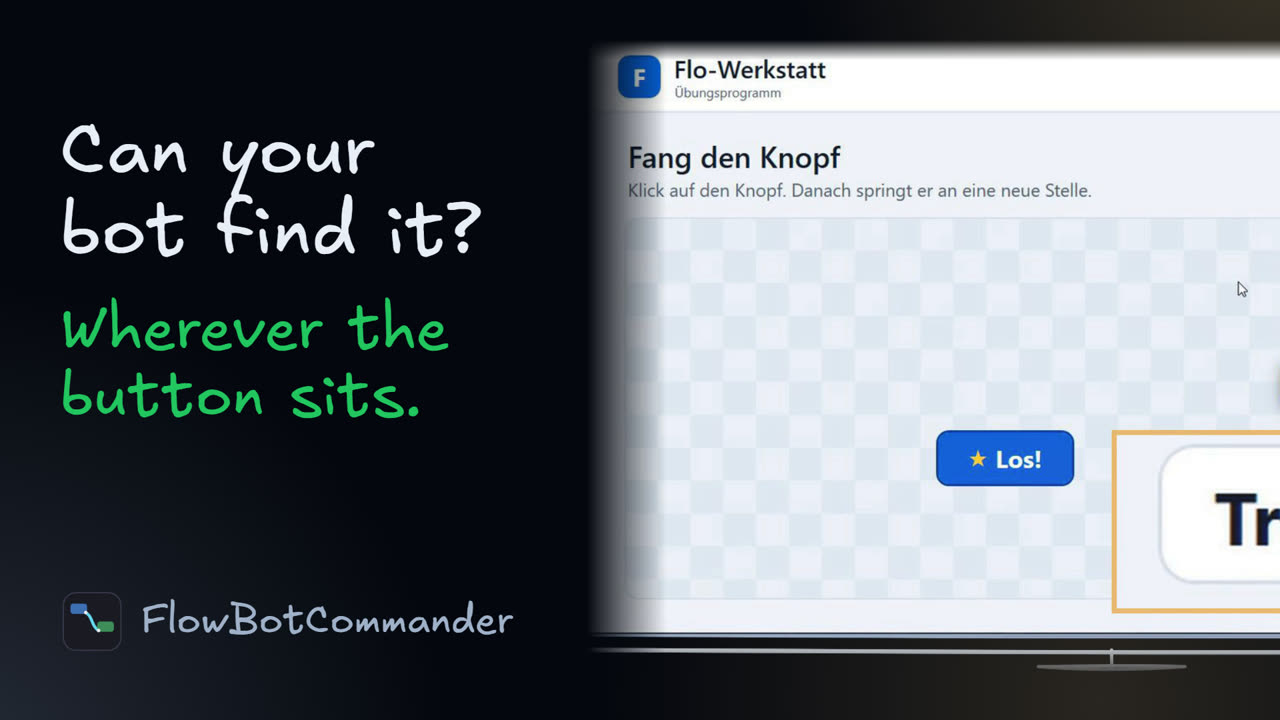
🖼 Find image Free
Searches for a template image in the captured window. Outputs found/notfound, data x,y (screen).
Inputs: in (flow) · Outputs: found (flow), not found (flow), x, y
| Field | Type | Default | Meaning |
|---|---|---|---|
| Template image | File | — | PNG to search for. 'File…' to choose one, or 'Capture' to save a screen snippet as a template. |
| Similarity | Number (0–1) | 0.95 |
How exact the match must be (0–1). 0.9 = very exact, 0.7 = tolerant. |
| Window title | Window | — | Title (or part) of the window to capture. Example: Notepad |
| Region X | Integer (px) | 0 |
Search region left edge (0 = leftmost). 0/0/0/0 = whole source. |
| Region Y | Integer (px) | 0 |
Top edge of the search region. |
| Region width | Integer (px) | 0 |
Width of the search region. 0 = to the right edge. |
| Region height | Integer (px) | 0 |
Height of the search region. 0 = to the bottom edge. |
| Region relative to anchor | Yes/No | off | On = x/y (or center) are offsets relative to the reference point last found by 'Find anchor'. The region then moves along with the HUD. |
| Anchor | Anchor | — | Which named anchor to use. The list shows the anchors declared in this workflow. Empty = the anchor that ran last (behaviour of older profiles). Only visible if Region relative to anchor = on. |
| Offset X | Integer (px) | 0 |
Shifts the result horizontally — NEGATIVE values go left. Handy pattern: find a marker and click or measure NEXT to it (e.g. marker + 56 px = the box to its right, marker − 56 px = the one to its left). |
| Offset Y | Integer (px) | 0 |
Vertical offset relative to the match center. |
| Scale-tolerant | Yes/No | off | Also searches the template at several sizes (about 0.8x–1.2x). Makes matching robust against a different resolution / UI scale / monitor, but is a bit slower. |
| Grayscale | Yes/No | off | Compares in grayscale — more robust against lighting/color differences. |
| Only active (bright) matches | Yes/No | off | Ignores matches that are markedly darker than the template. Typical use: your template comes from an ACTIVE button — greyed-out (unaffordable, disabled) copies of it are then skipped. Without this, image matching finds both, because it ignores brightness. |
| How much darker counts as inactive (%) | Number (0–100) | 8 |
How much darker than the template a match may be before it is rejected. E.g. 8 = reject a match that is more than 8% darker. Larger = more tolerant. Only visible if Only active (bright) matches = on. |
 Play video2:57
🔘 Button state Subscription
Detects by template matching which state (active/inactive/cooldown) applies to a region → 'zustand', 'score'.
Inputs: in (flow) · Outputs: next (flow), zustand, score
| Field | Type | Default | Meaning |
|---|---|---|---|
| Region X | Integer (px) | 0 |
Left edge of the button region (pixels in the window). Fit it as tightly as possible around the button. |
| Region Y | Integer (px) | 0 |
Top edge of the button region. |
| Region width | Integer (px) | 0 |
Width of the region. 0 = up to the right edge. |
| Region height | Integer (px) | 0 |
Height of the region. 0 = up to the bottom edge. |
| Relative to anchor | Yes/No | off | On = the coordinates are stored as an OFFSET to the anchor found by 'Find anchor (image)'. If the interface moves, the area moves with it. Off = fixed coordinates. |
| Anchor | Anchor | — | Which named anchor to use. The list shows the anchors declared in this workflow. Empty = the anchor that ran last (behaviour of older profiles). Only visible if Relative to anchor = on. |
| States | Text (multi-line) | — | One state per line in the format label=fullImagePath.png. Easiest to manage via the 'States…' tool (per state, choose or capture a name + image). |
| Threshold | Number (0–1) | 0.95 |
Minimum similarity (0..1) for a valid match. If the best score is below it, the state counts as unknown (empty). |
| Scale-tolerant | Yes/No | off | Also searches the template at several sizes (about 0.8x–1.2x). Makes matching robust against a different resolution / UI scale / monitor, but is a bit slower. |
| Grayscale | Yes/No | off | Compares in grayscale — more robust against lighting/color differences. |
| Only active (bright) matches | Yes/No | off | Ignores matches that are markedly darker than the template. Typical use: your template comes from an ACTIVE button — greyed-out (unaffordable, disabled) copies of it are then skipped. Without this, image matching finds both, because it ignores brightness. |
| How much darker counts as inactive (%) | Number (0–100) | 8 |
How much darker than the template a match may be before it is rejected. E.g. 8 = reject a match that is more than 8% darker. Larger = more tolerant. Only visible if Only active (bright) matches = on. |
🌈 Search color Free
Searches for a color (± tolerance) in the captured window. 'gefunden' = true/false, x,y = first match (screen coordinates).
Inputs: in (flow) · Outputs: found (flow), not found (flow), found, x, y
| Field | Type | Default | Meaning |
|---|---|---|---|
| Color | Colour | — | The color to find (HEX #RRGGBB). The eyedropper picks it straight from the screen. Use the tolerance below to control how much it may deviate. Example: #20C0C0 |
| Tolerance | Integer (0–128) | 12 |
Allowed deviation per channel (0–128). A picked color often differs by a few values in the screenshot — 8–20 is a good start. 0 = exact. |
| Window title | Window | — | Title (or part) of the window to capture fresh. Example: Notepad |
| Region X | Integer (px) | 0 |
Left edge of the search region. 0 = leftmost. |
| Region Y | Integer (px) | 0 |
Top edge. 0 = topmost. |
| Region width | Integer (px) | 0 |
Width. 0 = to the right edge. |
| Region height | Integer (px) | 0 |
Height. 0 = to the bottom edge. |
| Region relative to anchor | Yes/No | off | On = x/y (or center) are offsets relative to the reference point last found by 'Find anchor'. The region then moves along with the HUD. |
| Anchor | Anchor | — | Which named anchor to use. The list shows the anchors declared in this workflow. Empty = the anchor that ran last (behaviour of older profiles). Only visible if Region relative to anchor = on. |
| Grid step | Integer (1–20, px) | 2 |
Check only every n-th pixel (faster). 1 = every pixel, 2–4 recommended. |
🔁 For each match Free
Finds ALL occurrences of an image and outputs them one by one. Wiring: 'body' → your actions (use x,y) → last action back to THIS node. 'done' continues once all are done.
Inputs: in (flow) · Outputs: each (flow), done (flow), x, y, index, score
| Field | Type | Default | Meaning |
|---|---|---|---|
| Template image | File | — | PNG to search for in the window. 'File…' to choose one, or 'Capture' to save a screen snippet as a template. |
| Similarity | Number (0–1) | 0.95 |
How exact the match must be (0–1). 0.9 = very exact, 0.7 = tolerant. |
| Max. matches | Integer (≥ 1) | 20 |
How many occurrences are iterated at most. |
| Region X | Integer (px) | 0 |
Search region left edge (0 = leftmost). 0/0/0/0 = whole source. |
| Region Y | Integer (px) | 0 |
Top edge of the search region. |
| Region width | Integer (px) | 0 |
Width of the search region. 0 = to the right edge. |
| Region height | Integer (px) | 0 |
Height of the search region. 0 = to the bottom edge. |
| Region relative to anchor | Yes/No | off | On = x/y (or center) are offsets relative to the reference point last found by 'Find anchor'. The region then moves along with the HUD. |
| Anchor | Anchor | — | Which named anchor to use. The list shows the anchors declared in this workflow. Empty = the anchor that ran last (behaviour of older profiles). Only visible if Region relative to anchor = on. |
| Order | Choice: best first, top → bottom, left → right | top → bottom | In which order the matches are processed. best first — by similarity, descending top → bottom — by Y position (recommended) left → right — by X position |
| Search again | Yes/No | off | Search again on every pass (more robust, slower). |
| Scale-tolerant | Yes/No | off | Also searches the template at several sizes (about 0.8x–1.2x). Makes matching robust against a different resolution / UI scale / monitor, but is a bit slower. |
| Grayscale | Yes/No | off | Compares in grayscale — more robust against lighting/color differences. |
| Only active (bright) matches | Yes/No | off | Ignores matches that are markedly darker than the template. Typical use: your template comes from an ACTIVE button — greyed-out (unaffordable, disabled) copies of it are then skipped. Without this, image matching finds both, because it ignores brightness. |
| How much darker counts as inactive (%) | Number (0–100) | 8 |
How much darker than the template a match may be before it is rejected. E.g. 8 = reject a match that is more than 8% darker. Larger = more tolerant. Only visible if Only active (bright) matches = on. |
🌙 Health bar (arc) Subscription
Measures the fill level of a curved HP ring (e.g. health, mana or stamina ring) in percent → 'prozent' (0..100). Set center, radius and angle via the '◠ Arc…' tool.
Inputs: in (flow) · Outputs: next (flow), prozent
| Field | Type | Default | Meaning |
|---|---|---|---|
| Window title | Window | — | Title (or part) of the window to capture fresh. Example: Notepad |
| Center X | Integer (px) | 0 |
Center of the ring (X, image-relative). Easiest to set everything with the '◠ Arc…' tool in 3 clicks. |
| Center Y | Integer (px) | 0 |
Center of the ring (Y, image-relative). |
| Region relative to anchor | Yes/No | off | On = x/y (or center) are offsets relative to the reference point last found by 'Find anchor'. The region then moves along with the HUD. |
| Anchor | Anchor | — | Which named anchor to use. The list shows the anchors declared in this workflow. Empty = the anchor that ran last (behaviour of older profiles). Only visible if Region relative to anchor = on. |
| Radius | Integer (≥ 1, px) | 40 |
Distance of the ring from the center (pixels). |
| Start angle | Number (-360–360, °) | 0 |
Start angle of the arc in degrees. 0° = right, increasing clockwise (90° = bottom, 180° = left, −90°/270° = top). |
| End angle | Number (-360–360, °) | 180 |
End angle of the arc in degrees. Sampling runs CLOCKWISE from start to end. |
| Band width | Integer (≥ 1, px) | 6 |
Width of the sampled ring across the arc (pixels). Choose about as wide as the visible ring. |
| Fill color | Colour | #20C0C0 |
Color of the FILLED part of the ring (HEX #RRGGBB). The eyedropper picks it straight from the ring. Example: #20C0C0 |
| Tolerance | Integer (0–128, ±) | 20 |
How far a pixel may differ from the fill color per channel and still count as 'filled' (0 = exact, 20 = tolerant). |
| Gap tolerance | Integer (0–30, °) | 5 |
For dashed bars: maximum angular gap (degrees) still bridged as filled — larger when the dashes have bigger spacing. |
✨ Detect glowing button Subscription
Recognises a button whose active state is shown as a pulsing glowing border. Takes several samples across a short time window, so the dark moment of the pulse can no longer fool it. Outputs active/inactive plus the centre coordinates.
Inputs: in (flow) · Outputs: aktiv (flow), inaktiv (flow), aktiv, x, y, helligkeit, amplitude
| Field | Type | Default | Meaning |
|---|---|---|---|
| Window title | Window | — | Title (or part of it) of the window to capture. Leave empty to use the workflow's global target window from the start node. Example: Notepad |
| Area X | Integer (px) | 0 |
Left edge of the button area. Use 'Area' to drag it directly on screen — Y/width/height are filled in automatically. |
| Area Y | Integer (px) | 0 |
Top edge of the button area. |
| Area width | Integer (px) | 0 |
Width of the button area in pixels. |
| Area height | Integer (px) | 0 |
Height of the button area in pixels. |
| Button shape | Choice: Rectangle, Round / oval | Rectangle | Roughly how the button is shaped. Only its BORDER ring is measured — that is where the glow sits, not in the filling. Rectangle — Square or rectangular button — the border frame of the area is measured. Round / oval — Round or oval button — the elliptical ring inscribed in the area is measured. |
| Border width | Integer (1–64, px) | 3 |
How many pixels inwards from the edge count as the glow border. Roughly the visible thickness of the glow — too large mixes the button filling in and weakens the signal. |
| Samples | Integer (2–60) | 6 |
How many images are taken across the time window. More = more reliable, but the node takes correspondingly longer. 5-8 is usually enough to catch a bright moment of the pulse. |
| Sampling time | Integer (0–60000, ms) | 1200 |
Over how long the samples are spread. Should cover at least one full pulse cycle — if in doubt set it a bit longer rather than shorter. |
| Brightness threshold | Number (0–255) | 180 |
From which border brightness (0-255) the button counts as active, even without a pulse. Read the measured value from the log after a test run and put the threshold between the off and on values. |
| Pulse threshold | Number (0–255) | 12 |
How much the border brightness has to swing (brightest minus darkest sample) for the button to count as active. That is the actual trick: a switched-off button does not pulse. 0 = use the brightness threshold only. |
| Relative to anchor | Yes/No | off | On = the coordinates are stored as an OFFSET to the anchor found by 'Find anchor (image)'. If the interface moves, the area moves with it. Off = fixed coordinates. |
| Anchor | Anchor | — | Which named anchor to use. The list shows the anchors declared in this workflow. Empty = the anchor that ran last (behaviour of older profiles). Only visible if Relative to anchor = on. |
🧮 Read matrix Subscription
Overlays a grid (rows×columns) on the captured image and recognises each cell by colour, template or text → matrix, text, rows, cols. Set it up in the Matrix Workshop.
Inputs: in (flow) · Outputs: next (flow), matrix, text, rows, cols
| Field | Type | Default | Meaning |
|---|---|---|---|
| Rows | Integer (1–200) | 6 |
Number of rows in the grid. Set it visually on the screenshot via 'Grid…'. |
| Columns | Integer (1–200) | 7 |
Number of columns in the grid. |
| Grid X | Integer (px) | 0 |
Left edge of the grid rectangle (pixels in the window). 'Grid…' opens the preview for dragging. |
| Grid Y | Integer (px) | 0 |
Top edge of the grid rectangle. |
| Grid width | Integer (px) | 0 |
Width of the grid rectangle. 0 = up to the right edge. |
| Grid height | Integer (px) | 0 |
Height of the grid rectangle. 0 = up to the bottom edge. |
| Recognition | Choice: Colour (palette), Image (template per state), Text / number (OCR), Raw value (hex) | Colour (palette) | How each cell is recognised: by colour (palette), by template image per state, by text (OCR) or as raw hex colour. Set up palette, states and sample points in the Matrix Workshop. Colour (palette) — Average colour at the sample point → nearest palette name (no palette = hex). Image (template per state) — Each cell is compared with the state templates. Best match above the threshold wins. Text / number (OCR) — Reads the text in each cell with Windows OCR (numbers, words). Raw value (hex) — Only the hex colour at the sample point — for experts. |
| Sample field | Integer (1–64, px) | 6 |
Edge length of the square (N×N pixels) over which the average color is computed per cell. Only visible if Recognition = „Colour (palette)“ or „Raw value (hex)“. |
| Tolerance | Integer (0–255, ±) | 40 |
Maximum RGB distance to the nearest palette color. Beyond that, '?' is output. Only visible if Recognition = „Colour (palette)“. |
| Similarity threshold | Number (0.5–1) | 0.9 |
Minimum similarity (0.5–1.0) for a state template to count as recognised. Lower = more tolerant. Only visible if Recognition = „Image (template per state)“. |
| Compare in greyscale | Yes/No | off | Ignores colour when comparing templates — useful when only the shape matters. Only visible if Recognition = „Image (template per state)“. |
| OCR magnification | Integer (1–4) | 3 |
Scales the grid image up before reading (1–4). Small digits read better at 3–4. Only visible if Recognition = „Text / number (OCR)“. |
| Digits only | Yes/No | off | Keeps only digits, decimal separators and minus — for score/quantity fields. Only visible if Recognition = „Text / number (OCR)“. |
| Invert (light text on dark) | Yes/No | off | Turn on when the cells show light text on a dark background. Only visible if Recognition = „Text / number (OCR)“. |
| Relative to anchor | Yes/No | off | On = the coordinates are stored as an OFFSET to the anchor found by 'Find anchor (image)'. If the interface moves, the area moves with it. Off = fixed coordinates. |
| Anchor | Anchor | — | Which named anchor to use. The list shows the anchors declared in this workflow. Empty = the anchor that ran last (behaviour of older profiles). Only visible if Relative to anchor = on. |
⏳ Wait for cell Subscription
Waits until a cell of the chosen matrix shows a label → fulfilled/timeout, row, column, x, y.
Inputs: in (flow) · Outputs: fulfilled (flow), timed out (flow), row, column, x, y
| Field | Type | Default | Meaning |
|---|---|---|---|
| Matrix node | Text | — | Which 'Read matrix' node's grid and recognition to use. Empty = the only/first one in the flow. |
| Row (−1 = any) | Integer (≥ -1) | -1 |
Row index (0 = first). −1 = any row. |
| Column (−1 = any) | Integer (≥ -1) | -1 |
Column index (0 = first). −1 = any column. |
| Wait for label | Text | — | The label the cell must show (several with |). Example: ready |
| Time limit | Number (≥ 0) | 30 |
How long to wait at most. 0 = unlimited. |
| Unit | Choice: Milliseconds, Seconds, Minutes, Hours | Seconds | Unit of the time limit. Milliseconds — 1000 ms = 1 second |
| Check every | Integer (≥ 50, ms) | 500 |
Milliseconds between two checks (each check captures the window again). |
| Case-sensitive | Yes/No | off | Off (default): 'Red' and 'red' are the same label. |
🖱 Mouse cursor Free
All around the mouse cursor shape, in one block: read the current symbol (debug), WAIT for a symbol, move in a direction (X±/Y±) until a symbol appears (e.g. find a window edge), and optionally drag there to resize a window. Outputs 'out'/'nicht'. Data: symbol, istHand, x, y.
Inputs: in (flow) · Outputs: next (flow), not found (flow), symbol, istHand, x, y
| Field | Type | Default | Meaning |
|---|---|---|---|
| Action | Choice: Read (debug), Wait for symbol, Move until symbol, Resize window (find + drag) | Read (debug) | What to do with the cursor shape. |
| Target symbol | Choice: groesse-we ↔, groesse-ns ↕, groesse-nwse ⤡, groesse-nesw ⤢, groesse-alle ✥, hand ✋, text I, pfeil ↖, warten ⏳, nicht ⃠ | groesse-we ↔ | Cursor shape to look for (find its name via the 'Read' action). Only visible if Action = „Wait for symbol“ or „Move until symbol“ or „Resize window (find + drag)“. |
| Direction | Choice: → X+, ← X−, ↓ Y+, ↑ Y− | → X+ | Which way to move while searching. Only visible if Action = „Move until symbol“ or „Resize window (find + drag)“. |
| Step | Integer (≥ 1, px) | 3 |
Pixels per search step. Only visible if Action = „Move until symbol“ or „Resize window (find + drag)“. |
| Max distance | Integer (≥ 1, px) | 400 |
Give up after this many pixels. Only visible if Action = „Move until symbol“ or „Resize window (find + drag)“. |
| Timeout | Integer (≥ 0, ms) | 3000 |
Maximum wait time. Only visible if Action = „Wait for symbol“. |
| Drag X | Integer (px) | 0 |
Horizontal drag when resizing (+ right, − left). Only visible if Action = „Resize window (find + drag)“. |
| Drag Y | Integer (px) | 0 |
Vertical drag when resizing (+ down, − up). Only visible if Action = „Resize window (find + drag)“. |
🎨 Pixel color Free
Reads the color at (x,y) in the captured window → r,g,b.
Inputs: in (flow) · Outputs: next (flow), r, g, b, match
| Field | Type | Default | Meaning |
|---|---|---|---|
| X | Integer (px) | 0 |
X position of the pixel in the window. |
| Y | Integer (px) | 0 |
Y position of the pixel in the window. |
| Relative to anchor | Yes/No | off | On = the coordinates are stored as an OFFSET to the anchor found by 'Find anchor (image)'. If the interface moves, the area moves with it. Off = fixed coordinates. |
| Anchor | Anchor | — | Which named anchor to use. The list shows the anchors declared in this workflow. Empty = the anchor that ran last (behaviour of older profiles). Only visible if Relative to anchor = on. |
| Target color | Colour | — | Color to compare as HEX (#RRGGBB). No HEX at hand? Click the eyedropper and pick it from the screen. Empty = no comparison. Example: #00FFFF |
| Tolerance | Integer (0–255, ±) | 30 |
How much the color may deviate and still count as a match. 0 = exact, 40 = tolerant. |
Colour at image
When an element moves (other window, other resolution, a scrolling list), a fixed pixel position no longer
fits. Colour at image first finds a template image — say a symbol or a label — and then reads the colour
at a fixed offset from it: the fill of a bar right of the symbol, the lamp next to the text, the border of
a button. With a target colour the node branches directly via match/different. Without one it
delivers the colour as #RRGGBB and r/g/b.
🎯 Colour at image Subscription
Finds a template image and reads a colour at an offset from it (optionally compares it with a target colour). Outputs match/different/notfound, data colour, r,g,b, x,y.
Inputs: in (flow) · Outputs: match (flow), different (flow), not found (flow), colour, r, g, b, x, y, match, score
| Field | Type | Default | Meaning |
|---|---|---|---|
| Template image | File | — | The image to look for — e.g. a symbol or label next to the colour you want to read. Record it with “Capture…”. |
| Threshold | Number (0–1) | 0.95 |
Minimum similarity (0..1) for the image to count as found. 0.95 = very exact, 0.8 = tolerant. |
| Offset from | Choice: Centre of the image, Top-left corner | Centre of the image | Where the offset starts: the centre of the found image, or its top-left corner. Centre of the image — Default. Top-left corner — Handy for “x px right of the image”. |
| Offset X | Integer (px) | 0 |
Horizontal distance from the reference point to the measuring point (positive = right, negative = left). Example: 40 = 40 px to the right of the image |
| Offset Y | Integer (px) | 0 |
Vertical distance from the reference point to the measuring point (positive = down, negative = up). |
| Measuring area | Integer (1–15, px) | 1 |
Edge length of the square around the measuring point whose colours are averaged. 1 = exactly one pixel. 3–5 evens out noise and anti-aliasing. |
| Target colour (optional) | Colour | — | If set, the colour read is compared with it: “match” if every channel is within the tolerance, otherwise “different”. Empty = only read the colour (always “match”). Example: #3FB950 |
| Tolerance | Integer (0–255, ±) | 30 |
Allowed deviation per colour channel (0–255) for the comparison with the target colour. |
| Window (optional) | Window | — | Window title (or part) to capture for this node. Empty = the start node's target window. |
| Search area X | Integer (px) | 0 |
Optional search area (0/0/0/0 = whole image). Pick with “Region…”. |
| Search area Y | Integer (px) | 0 |
Top edge of the search area. |
| Search area width | Integer (px) | 0 |
0 = to the right edge. |
| Search area height | Integer (px) | 0 |
0 = to the bottom edge. |
| Search area relative to anchor | Yes/No | off | Shifts the search area by the anchor found last (“Find anchor”). |
| Anchor | Anchor | — | Which named anchor to use. The list shows the anchors declared in this workflow. Empty = the anchor that ran last (behaviour of older profiles). Only visible if Search area relative to anchor = on. |
| Scale-tolerant | Yes/No | off | Also searches the template at several sizes (about 0.8x–1.2x). Makes matching robust against a different resolution / UI scale / monitor, but is a bit slower. |
| Grayscale | Yes/No | off | Compares in grayscale — more robust against lighting/color differences. |
| Only active (bright) matches | Yes/No | off | Ignores matches that are markedly darker than the template. Typical use: your template comes from an ACTIVE button — greyed-out (unaffordable, disabled) copies of it are then skipped. Without this, image matching finds both, because it ignores brightness. |
| How much darker counts as inactive (%) | Number (0–100) | 8 |
How much darker than the template a match may be before it is rejected. E.g. 8 = reject a match that is more than 8% darker. Larger = more tolerant. Only visible if Only active (bright) matches = on. |
🔎 Find text (position) Subscription
Searches for text in the captured window and returns the screen position (x,y) (fits into Move mouse / Click). Outputs gefunden/nicht. Tip: best to search for a single word or a number.
Inputs: in (flow), suchtext · Outputs: found (flow), not found (flow), found, x, y, treffer
| Field | Type | Default | Meaning |
|---|---|---|---|
| Search text | Text | — | Word/number whose position is searched (case-insensitive, partial match counts). The data input takes precedence. Example: Approach |
| Region X | Integer (px) | 0 |
Search region left edge (window pixels). 0 = leftmost. |
| Region Y | Integer (px) | 0 |
Top edge. 0 = topmost. |
| Region width | Integer (px) | 0 |
Width. 0 = to the right edge. |
| Region height | Integer (px) | 0 |
Height. 0 = to the bottom edge. |
| Region relative to anchor | Yes/No | off | On = x/y (or center) are offsets relative to the reference point last found by 'Find anchor'. The region then moves along with the HUD. |
| Anchor | Anchor | — | Which named anchor to use. The list shows the anchors declared in this workflow. Empty = the anchor that ran last (behaviour of older profiles). Only visible if Region relative to anchor = on. |
| Upscaling | Choice: 1x, 2x, 3x, 4x | 2x | Upscale the image before OCR — helps with small text. 2x — recommended |
| Grayscale | Yes/No | on | Remove colors — usually better recognition. |
| Invert | Yes/No | on | Light text on dark background → on. |
| Language | Choice: Automatic, German, English, Russian | Automatic | OCR language (language pack must be installed). |
🔤 Read text (OCR) Free
OCR on a region (x,y,w,h) of the captured window → 'text'.
Inputs: in (flow) · Outputs: next (flow), text, lines, lineCount
| Field | Type | Default | Meaning |
|---|---|---|---|
| Region X | Integer (px) | 0 |
Left edge of the read region (pixels in the window). 0 = leftmost. |
| Region Y | Integer (px) | 0 |
Top edge of the read region. 0 = topmost. |
| Region width | Integer (px) | 0 |
Width of the region. 0 = to the right edge. |
| Region height | Integer (px) | 0 |
Height of the region. 0 = to the bottom edge. Tip: fit it as tightly as possible around the text. |
| Region relative to anchor | Yes/No | off | On = x/y (or center) are offsets relative to the reference point last found by 'Find anchor'. The region then moves along with the HUD. |
| Anchor | Anchor | — | Which named anchor to use. The list shows the anchors declared in this workflow. Empty = the anchor that ran last (behaviour of older profiles). Only visible if Region relative to anchor = on. |
| Upscaling | Choice: 1x, 2x, 3x, 4x | 2x | Upscale the image before OCR — helps with small text. 1x — Original 2x — double (recommended) 3x — triple 4x — quadruple (slower) |
| Grayscale | Yes/No | on | Remove colors — usually better recognition. |
| Contrast | Number (0.5–3) | 1 |
Increase contrast (1.0 = unchanged). Higher = harder edges. |
| Invert | Yes/No | on | Light text on dark background → on. |
| Threshold | Choice: off, automatic (Otsu), fixed value | off | Reduce the image to black/white — helpful with heavy background noise. off — no binarization automatic (Otsu) — Determine the threshold automatically fixed value — Specify a fixed threshold below |
| Threshold value | Integer (0–255) | 128 |
Fixed threshold (0–255). Pixels brighter than this value turn white. Only visible if Threshold = „fixed value“. |
| Language | Choice: Automatic, German, English, Russian, French, Spanish, Italian, Chinese (Simplified) | Automatic | OCR language. 'Automatic' = Windows display language. For other languages the Windows language pack must be installed (Settings → Time & language → Language). Automatic — Windows default language |
 Play video3:28