Window and image source
How the bot knows which program to operate and watch — the target window in the Start node, match types, {bildschirm} and "Switch image source".
After this article you have set the target window correctly once — and never have to enter it in any other node again.
 Play video1:27
The target window in the Start node
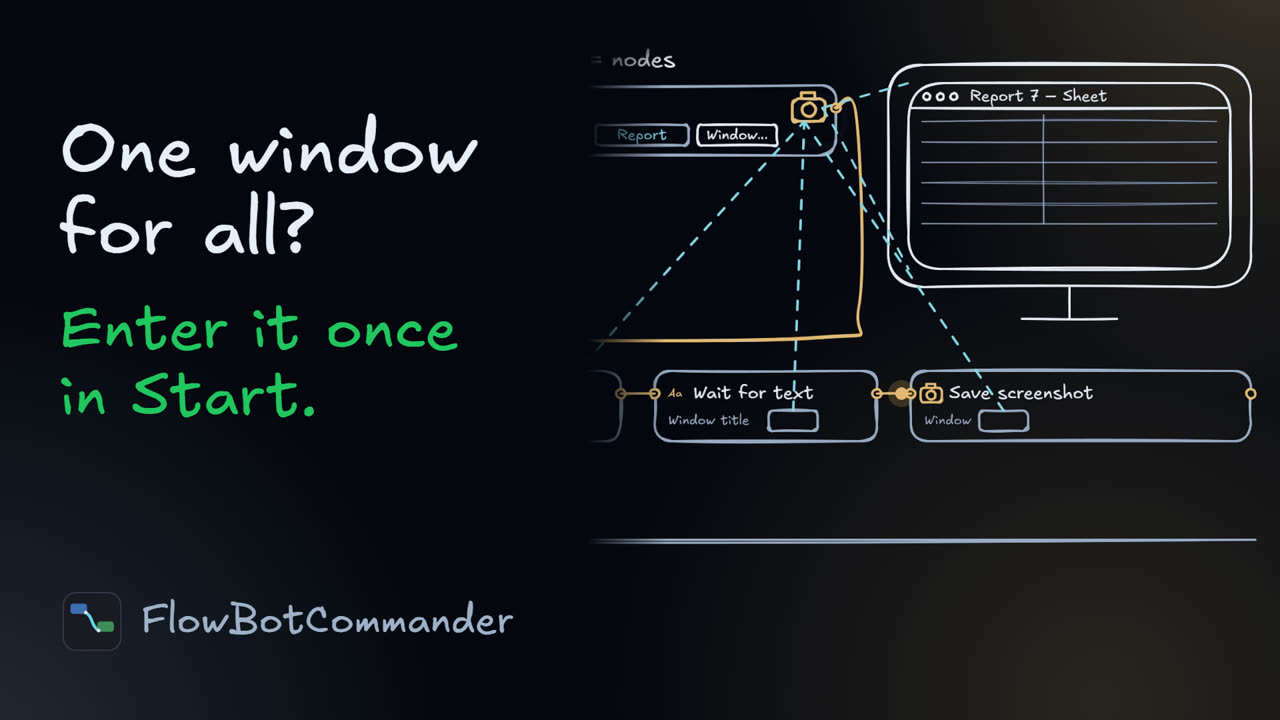
Click the Start node. In the field Target window (global) enter the window title of the program the bot should operate — or just part of it. With Window… you choose from the list of open windows instead of typing.
From now on: every node whose own window field is empty uses this target window — find image, OCR, click with "bring to front", screenshot. So you set the game once, not twenty times.
Match type
Window titles change often ("Play Clicker Heroes free online | Clicker Heroes", browser tabs with counters …). That is why Match type (global) defaults to contains: the entered text only has to appear somewhere in the title. Other options: starts with, ends with, is exactly and Regular expression for patterns like "starts with Game, then a number in brackets" — explained plainly in Regular expressions (RegEx).
Choose a part that appears only in the target window. "Chrome" also matches other tabs. "Clicker Heroes" matches exactly the game. If the text matches several windows, the app takes the first one it finds.
How the app sees the window
Perception nodes take a fresh image of the target window before every search — this also works when the window is behind others, it just must not be minimised. Regions (x, y, width, height) in perception nodes refer to this window image. Click coordinates from "Find image" are already screen coordinates.
With games in exclusive full screen the window capture can stay black. Then the game's borderless window mode helps — or you use the whole screen (next section).
The whole screen: {bildschirm}
 Play video0:42
Enter {bildschirm} in a window field and the node works on the entire screen instead of one window. Handy for
overlays that belong to no window, or when a game cannot be captured. {startFenster} conversely stands
explicitly for the target window of the Start node.
Temporarily another window: "Switch image source"
If part of the flow needs a second program (launcher, chat, second game), put the Switch image source node (Window category) before it: from there all perception nodes take their image from the window entered there. With Reset to Start node in the same node you return to the target window of the Start node. For normal flows you don't need this node.
Window nodes for the rest
- Wait for window — until the program has started (outputs ok / timed out)
- Bring window to front — before keyboard input, so it lands in the right program
- Move window / Resize window — fixed position and size so regions stay valid
- Window info — position and size as values, e.g.
{Window info.breite}and{Window info.hoehe}
If it doesn't work
- "Window not found" in the log: check the title — choose it from the list with Window…, then it is certainly right. Is the program minimised? Restore it.
- Find image finds nothing although it is there: possibly another window with a matching title is being captured. Choose a more distinctive part of the title. "Save screenshot" shows what the app sees.
- Black image: exclusive full screen or hardware overlay. Set borderless window in the game or use
{bildschirm}.