Documentation › Module reference
All modules at a glance
Which module categories exist, what Free and Subscription mean and how to read the reference.
Here you find every module (called "node" in the app) with all fields, inputs and outputs — exactly as it appears in the properties panel. The reference is generated directly from the app and is therefore always up to date with the current version.
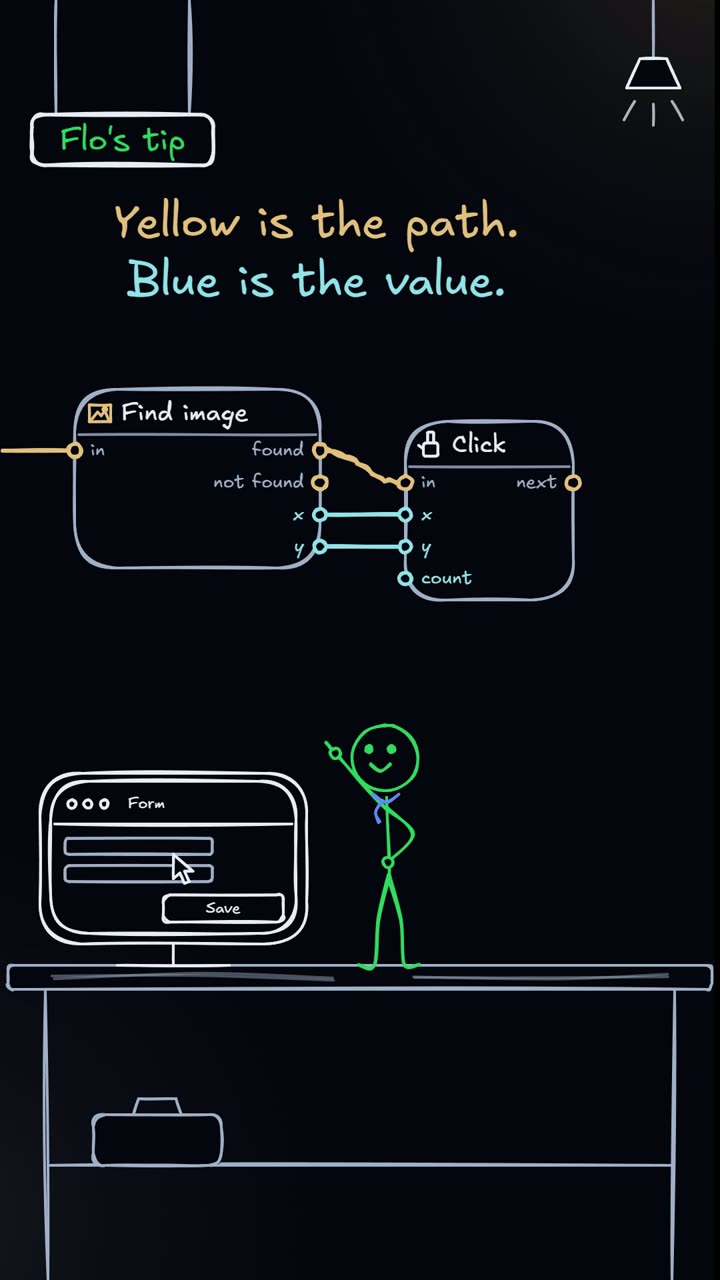 Play video0:39
Categories
 Play video1:29
| Category | What for | Modules |
|---|---|---|
| Flow | Start, wait, repeat, emergency stop: the modules that determine in which order and how often your bot does something. | 24 |
| Action | Click, type, drag, scroll: everything the bot uses to operate mouse and keyboard, with smooth, slightly curved mouse movements. | 8 |
| Perception | Find image, check colour, read text, measure bars: how the bot sees what happens on the screen. | 19 |
| Conditions | If-then, comparisons, case distinction: the modules the bot uses to make decisions. | 12 |
| Data | Calculate, counters, time, split and compose text: create and transform values. | 13 |
| Variables | Remember and reuse values — and how you use them anywhere via {name}. | 3 |
| Window | Find windows, bring them to front, move, close — and switch the image source. | 10 |
| File | Read and write files, save screenshots. | 4 |
| Programs | Start a program, check whether it is running, and stop it again. | 3 |
| AI | Send an image or a question to a language model and use the answer in the flow. | 4 |
| Overlay | Show markers over the game — handy when setting up and for following along. | 2 |
| Audio | React to sounds and raise an alarm yourself. | 6 |
Free or Subscription?
 Play video0:42
Behind every module name is a badge: Free means the module is included in the free plan. Subscription needs the subscription. Beta marks modules still in testing. What exactly is in which plan is shown by the comparison.
How to read an entry
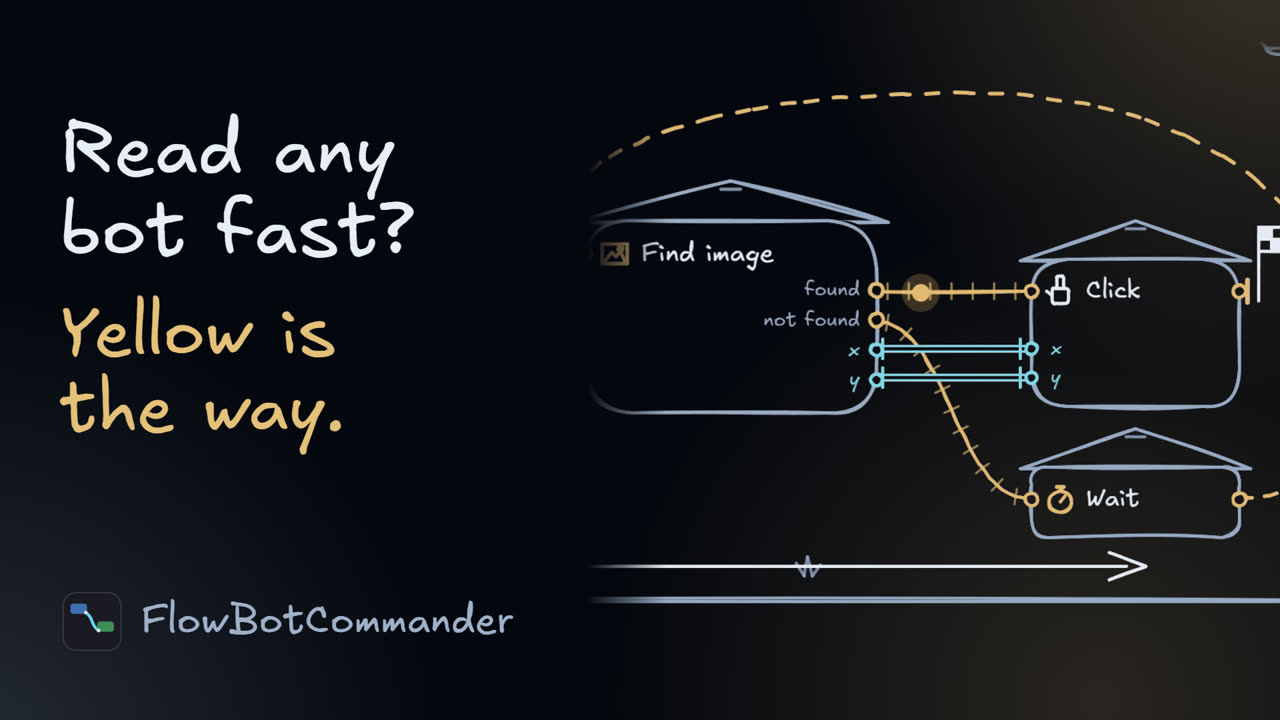
- Inputs / Outputs: flow ports (yellow) determine how it continues. Data ports (blue) carry values. Every data output can be used in other nodes as
{Node name.output}. - Field: the name in the properties panel. Type: what you can enter (number with range, choice, yes/no, file …). Default: the value a new node starts with.
- Only visible if …: some fields only appear when another field is set accordingly — just like in the app.