Sweeping even grids: button bars, inventories, game boards
Click or hover every field of an even grid with a single note — and let the app measure the grid instead of guessing rows and columns.
A lot of what you see on screen sits at even intervals: a game's ability bar, inventory slots, a game board, the rows of a list. You do not need twenty click notes for that — the Sweep area note handles it with one.
What the note does
It places a grid of horizontal rows and/or vertical columns over a rectangle and traces its lines with the mouse. Under Action you choose what happens along the way:
| Action | What for |
|---|---|
| move | just hover — pop up tooltips, unfold menus, highlight items |
| drag | with the button held down — selection rectangles, drawing and marking tools |
| click | click at every grid point — button bars, inventories, game boards |
On top of that come the starting corner, the pattern (serpentine or always the same direction), the order and the movement style you already know from Move mouse.
The key point: the lines sit on the edges
This is the one thing almost everybody trips over the first time. If you set 6 columns, the first vertical line sits exactly on the left edge of the rectangle, the last one exactly on the right, and the other four are spread evenly in between.
Which means: you drag the rectangle from the centre of the first cell to the centre of the last one — not around the cells. That difference decides whether the bot hits anything at all:
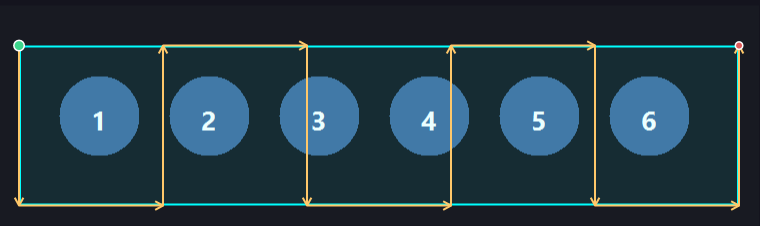
Six columns are set, the path is evenly spread — and still does not hit a single button. Dragged correctly it looks like this:
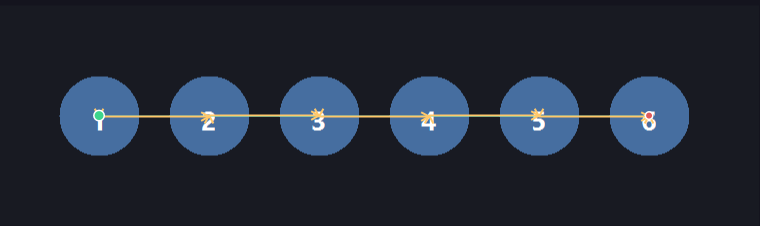
Same grid, same six columns — the rectangle simply starts and ends on a cell centre now.
If there is only one row to sweep (a horizontal button bar), the rectangle may well be one pixel high. The height does not matter while Rows is switched off.
Let the app measure the grid
With six buttons you can count. With an inventory of 9 × 12 slots that gets tedious — and the number has to be exact, otherwise the path slowly drifts out of the cells. So the app measures the grid for you:
- Click the 〰 Sweep… chip on the Region X field. The designer shows a fresh image — if your flow has a target window, you see only that window instead of the whole monitor.
- Use the mouse wheel to zoom in far enough to hit individual cells comfortably. The middle mouse button pans, 🔍 Zoom 100 % shows everything again.
- Drag the rectangle: from the centre of the first cell to the centre of the last one (see above).
- Click 📐 Measure grid.
- Click the centre of the first cell, then the directly neighbouring cell — beside it, below it, or diagonally. Diagonally measures rows and columns in one go.
- Done: the checkboxes for rows/columns and the counts set themselves. The line below tells you what was measured, for example "Measured: 6 columns × — rows (spacing 110/0 px)".
- Check the orange path — it must run through every cell centre. Only then click Apply.
The maths behind it: the distance between your two clicks is the distance between two grid lines; how many of those fit into the rectangle gives the count.
When it does not fit
"The cell you clicked is not on an edge of the rectangle" — the app shows this when the count is right but the grid sits half a cell off. Exactly the case in the first image: the rectangle was dragged around the cells. Drag it from cell centre to cell centre and measure again.
The count is half of what you expected — then the two cells you clicked were not neighbours but two fields apart. Use the directly neighbouring cell.
"The two points are too close together" — both clicks landed on nearly the same spot. That happens easily without zooming; zoom in first, then measure.
The path is right in the designer, but the bot misses during the run — then the window moves between setting up and running. Switch on relative to anchor and put an anchor on an unmistakable detail; more on that in Anchors.
Example: the ability bar in Clicker Heroes
Ten ability buttons in a row, all of them to be pressed one after another:
- Add Sweep area, click the 〰 Sweep… chip.
- Zoom in, drag the rectangle from the centre of the first button to the centre of the tenth — flat, the height does not matter.
- 📐 Measure grid, centre of button 1, then centre of button 2. Result: columns 10, rows off.
- Set Action to click and Interval to about
120 msso the game can keep up. - Apply — done. One note instead of ten.