Recognising images
How "Find image" works, how to capture good templates, what similarity, scale-tolerant and grayscale do — and when to use "Wait for image" or "For each match".
After this article your bot finds buttons, icons and enemies reliably — and you know which knobs to turn when it doesn't for once.
 Play video2:57
How Find image works
The Find image node takes a fresh image of the target window and looks for your template image (a small PNG) in it. If it finds a spot that is at least as similar to the template as the set Similarity, the flow continues at the found output, and the data outputs x / y contain the screen coordinates of the centre of the match. Otherwise: not found.

The image above is the template from the guide Buy a hero: the blue button is found, the grey one is not — which is exactly what turns it into the test "can I afford the hero?".
Capturing a good template
 Play video0:44
- Click the "Find image" node, click Capture in the Template image field.
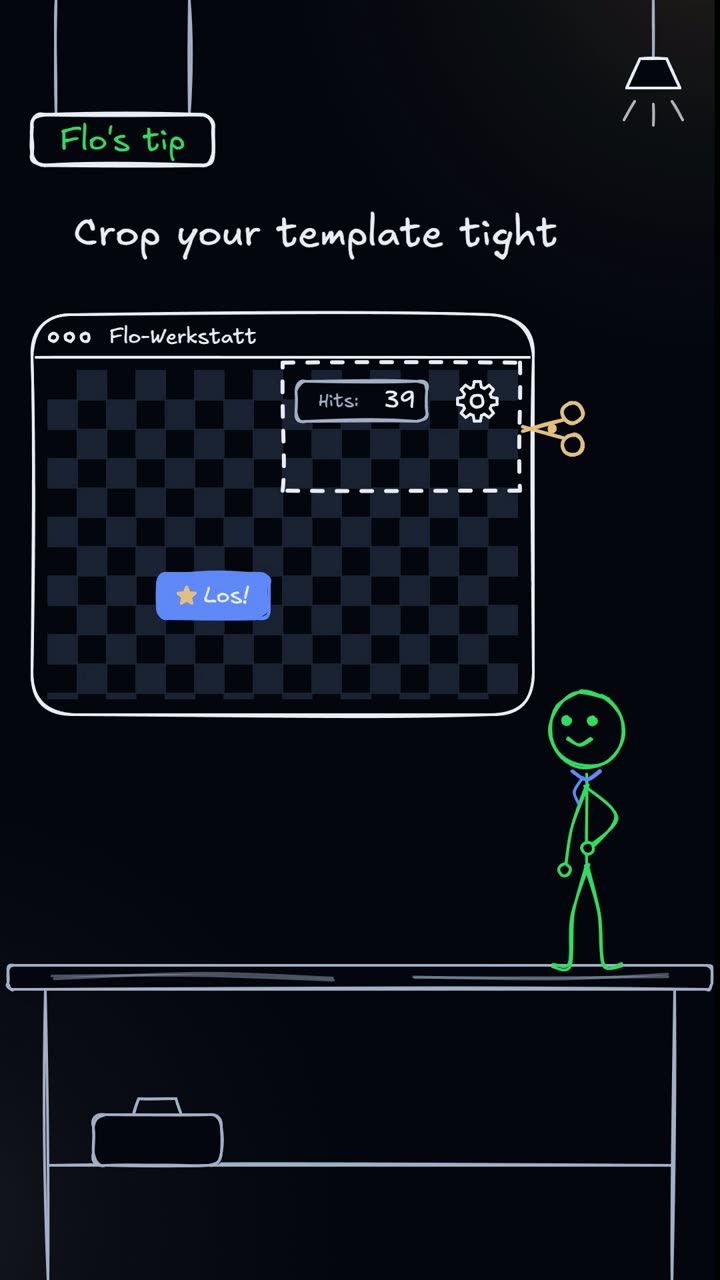
- The screen dims: drag a rectangle tightly around the detail.
- The app saves a PNG and enters the path. Preview… shows it to you.
Good templates are small, high-contrast and unique: an icon, a button, a corner of a frame. Bad templates: background, text that changes, large areas, semi-transparent elements.
Templates are embedded into the bot file when saving. So you can pass a bot on or copy it to another PC — the images travel with it.
The knobs
 Play video0:43
| Field | Effect | Recommendation |
|---|---|---|
| Similarity | 1.0 = pixel-exact, 0.7 = very tolerant | Default 0.95, every new node starts with it. Lower to 0.9 or 0.85 on misses, raise on false hits |
| Scale-tolerant | also searches the template at 0.8 to 1.2 times its size | on if the game runs in different window sizes or Windows scaling changes |
| Grayscale | compares without colour | on with colour changes (day/night, hover effects) |
| Region X/Y/width/height | searches only in this cut-out | set it when the template appears several times or the search should be faster |
| Offset X/Y | shifts the result point | when you want to click next to the found image — e.g. 400 px above a fixed icon because the target itself changes its look |
The pattern: find a marker, act next to it
 Play video0:38
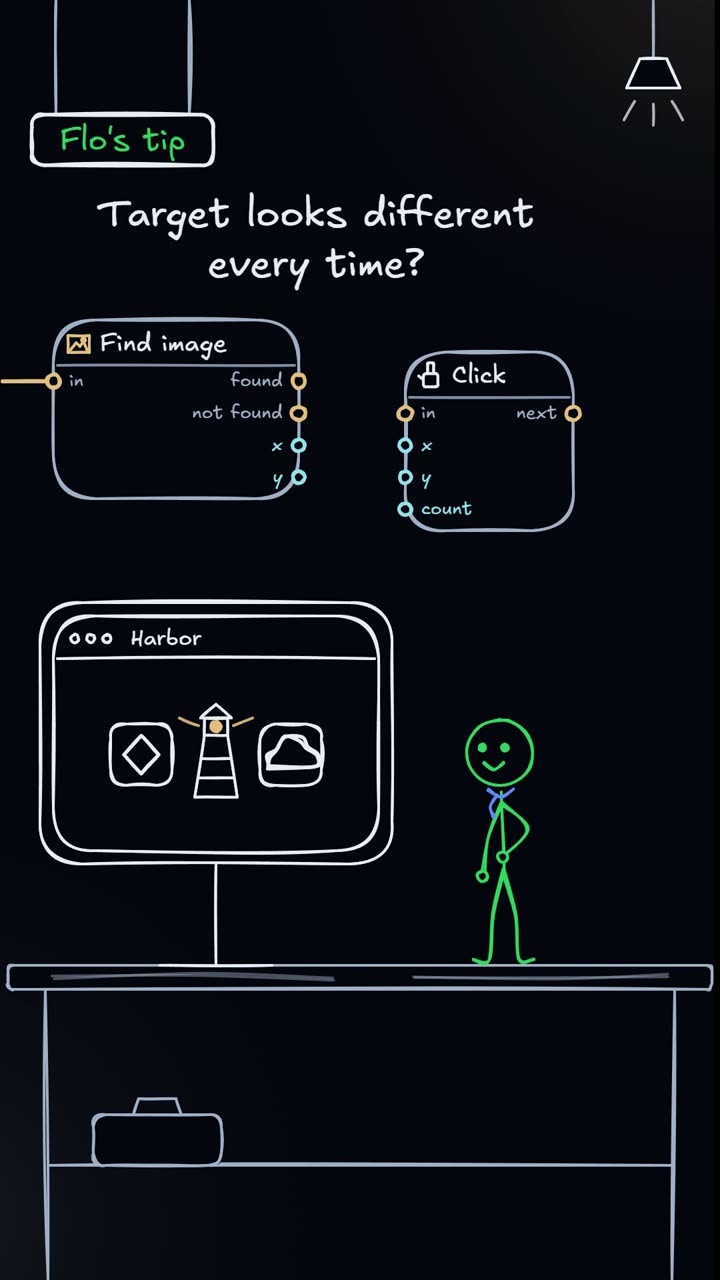
Often the target itself cannot be recognised reliably — the button changes its label, the field its colour, and the number inside it changes constantly anyway. In that case you don't look for the target, you look for an unchanging marker nearby and calculate from there.
That is what offset X/Y is for. They look like fine-tuning, but they are the heart of this pattern:
- Changing zones in a game: the white marker above the current zone always looks the same. The box of the next zone sits 56 px to its right → find the marker, offset X = 56, click.
- One zone back: same template, offset X = −56. Negative values are allowed and go left or up — that is half the trick.
- Reading a value next to an icon: find the icon, offset onto the number field, then read text there or measure the colour with "Colour at image".
The rule of thumb: look for what stays still — act where things change. A marker needs to be neither pretty nor large, it only has to look the same every time.
Wait for image
 Play video1:32
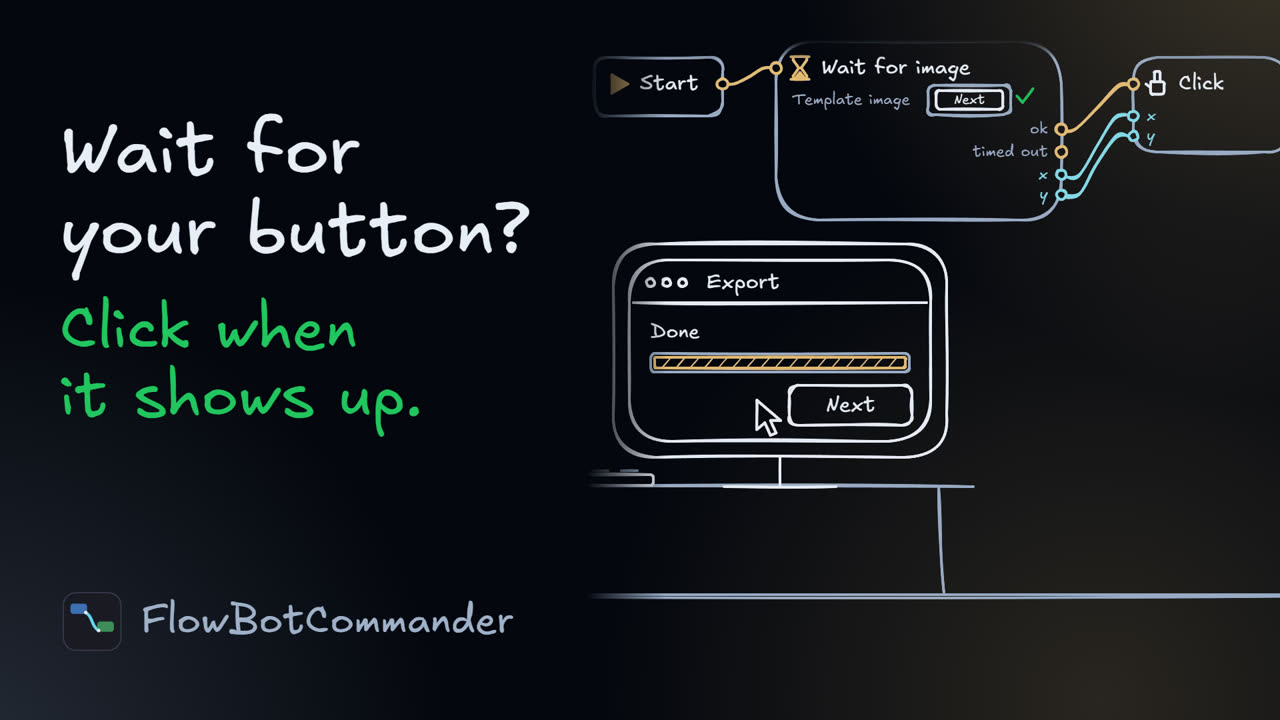
Wait for image searches again and again until the template appears (output ok) or the time runs out (timed out). The classic: wait for a loading screen, wait for a dialog. Check interval determines how often it looks — the default is 300 ms, a good compromise.
For each match
For each match finds all occurrences of a template (up to Max. matches) and goes through them one after the other — output body per match with x / y / index, then done. This is how you click away every collect button on a page, for example.
Visible? for quick decisions
If you only want to know whether something is there, without clicking: Visible? (image/color/text) from the Conditions — it returns yes/no for branches and failsafes.
Test a template before the bot runs
Next to every template field sits 🔎 Test…. The button captures the image exactly as the node would see it at runtime, searches the template in it and shows every match: green for the best one, orange for the others, each with its score above it.
Below you can adjust live:
- Threshold — slide it down until the right spot appears. And back up before wrong ones join in.
- Only active (bright) matches — greyed-out copies (unaffordable, disabled) are skipped.
- Scale-tolerant and Grayscale — as in the node.
If nothing is found, the best score in the image is shown anyway — that tells you whether it was close (0.93 at threshold 0.95) or whether the template simply does not fit (0.4). Apply writes threshold and switches back into the node.
If your template is almost a single colour, the window says so: image matching needs structure — a flat patch "fits" almost anywhere. Pick a section with an edge, a symbol or a frame.
Several templates at once: the studio
Next to every template field sits 🖼 Studio…. It captures one still image — and that image stays put. The game keeps running, your picture does not: you can calmly drag one rectangle after another.
- Capture still image (happens automatically when opening).
- Type a name at the top, then drag the rectangle — the template is saved immediately and appears in the list on the right.
- Type the next name, drag the next rectangle. As many as you need.
- Use selected puts one of them into the field. All others wait in the template folder and can be picked later via File….
This saves the tedious route of recording every template live — especially when a state has to be produced first (an open menu, a boss fight, a full list): produce it once, capture the still image, cut everything from it.
The studio tells you right away when a cut is almost a single colour — such templates are useless because image matching needs structure. Include an edge, a symbol or a frame.
If it doesn't work
 Play video2:05
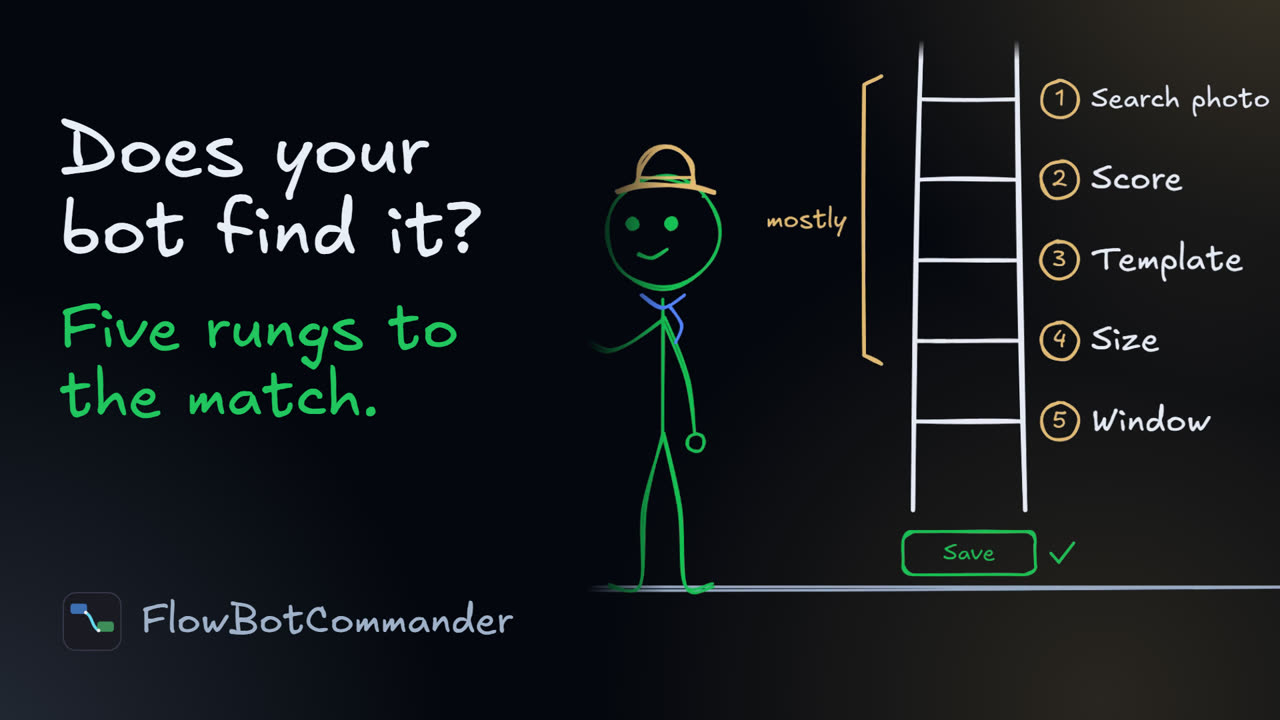
The detailed guide: Image is not found. Short version: lower similarity → turn on scale-tolerant → re-capture the template more tightly → check with "Save screenshot" what the app actually sees.