Action modules
Click, type, drag, scroll: everything the bot uses to operate mouse and keyboard, with smooth, slightly curved mouse movements.
Action modules do what you would otherwise do yourself with mouse and keyboard. The mouse travels to the target on a slightly curved path, starts off gently and slows down before the target. You set how smooth or direct its movement is in the Movement profile field. The target coordinates usually come from a perception node — via a data line or as a reference like {Find image.x}.
Which one when?
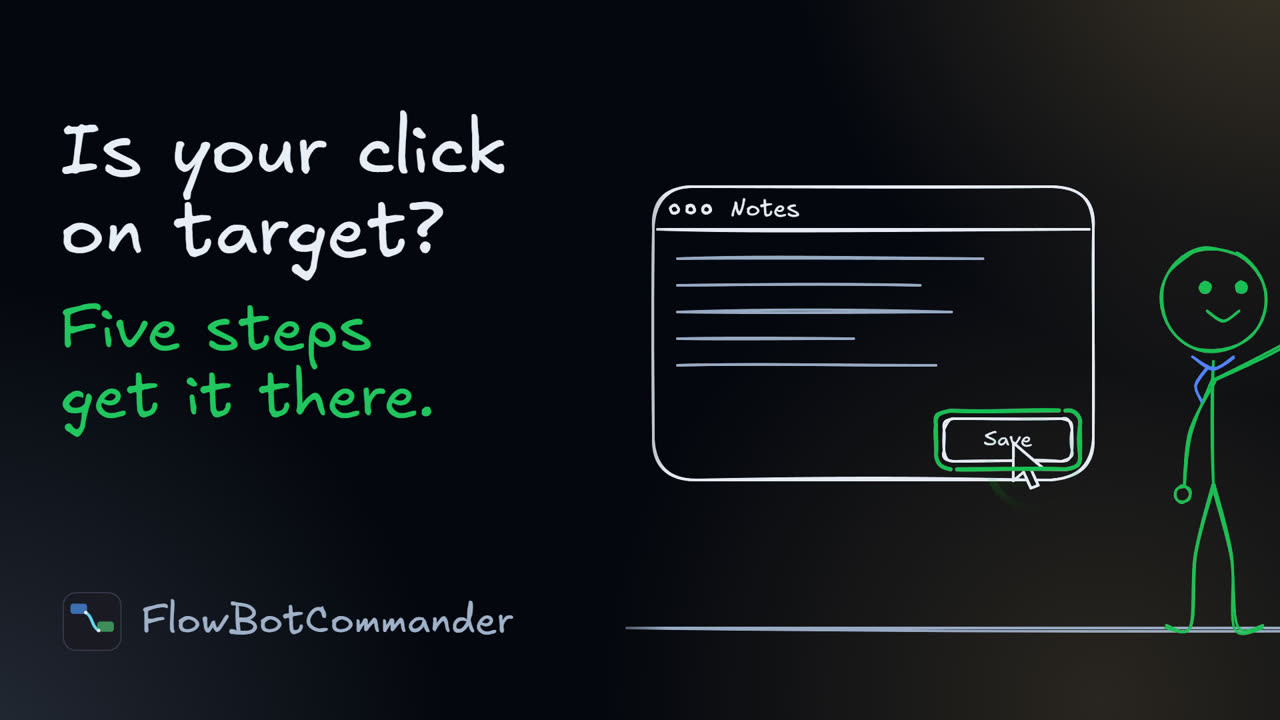 Play video2:15
| You want to … | Module |
|---|---|
| click at a spot that "Find image" has found | Click |
| only move the mouse (e.g. for a tooltip) | Move mouse |
| write text into a field | Type text |
| press a key or combination (Esc, Ctrl+S) | Press key |
| drag something from A to B (inventory, cards) | Drag (A→B) |
| stop a click or a drag from landing in the wrong window | Click or Drag (A→B) with bring target window to front first — optionally minimizing the windows in front and restoring them afterwards |
| click through a whole grid field by field | Sweep area |
All modules of this category
〰 Sweep area Subscription
Moves the mouse across an area along a grid (rows/columns) — move, drag or click at grid points. Pattern, direction and movement style are adjustable. Absolute or relative to the anchor.
Inputs: in (flow) · Outputs: next (flow)
| Field | Type | Default | Meaning |
|---|---|---|---|
| Region X | Integer (px) | 0 |
The rectangle to sweep (screen pixels). Set it with 'Drag region' or the sweep designer. |
| Region Y | Integer (px) | 0 |
|
| Region width | Integer (px) | 0 |
|
| Region height | Integer (px) | 0 |
|
| Coordinates relative to | Choice: Screen, Window | Screen | Screen: the values are absolute screen pixels. Window: they are counted from the top-left corner of the target window — the flow then keeps working when the window is moved. Screen — Absolute screen pixels. Window — From the top-left corner of the target window. |
| Region relative to anchor | Yes/No | off | Sweep relative to the last found anchor (moves with it) instead of fixed screen coordinates. |
| Anchor | Anchor | — | Which named anchor to use. The list shows the anchors declared in this workflow. Empty = the anchor that ran last (behaviour of older profiles). Only visible if Region relative to anchor = on. |
| Rows (horizontal) | Yes/No | on | Draw horizontal lines the mouse sweeps left/right. |
| Number of rows | Integer (1–100) | 3 |
How many horizontal lines, evenly spread over the area. Only visible if Rows (horizontal) = on. |
| Columns (vertical) | Yes/No | off | Draw vertical lines the mouse sweeps up/down. |
| Number of columns | Integer (1–100) | 3 |
How many vertical lines, evenly spread over the area. Only visible if Columns (vertical) = on. |
| Start corner | Choice: Top left, Top right, Bottom left, Bottom right | Top left | Where the sweep starts — sets the primary direction. |
| Pattern | Choice: Snake (there & back), Same direction | Snake (there & back) | Snake = alternate each line (no jump back). Same = every line from the same side. |
| Order (if both) | Choice: Rows first, Columns first | Rows first | When rows and columns are both on: which set to sweep first. |
| Action | Choice: Move (hover), Drag (hold button), Click at points | Move (hover) | What the mouse does along the lines. Move (hover) — Just move the mouse along the lines, no clicking. Drag (hold button) — Hold the button down while sweeping the whole path. Click at points — Click at each grid point (row×column intersections). |
| Movement profile | Choice: Direct, Human, Cautious | Human | Movement profile Direct — Fast & straight, hardly any scatter, no overshoot. Human — Natural curve with random timing (default). Cautious — Slower, more scatter, slight overshoot with correction back. |
| Button | Choice: Left, Right, Middle | Left | Which mouse button to use for clicking/dragging. Only visible if Action = „Click at points“ or „Drag (hold button)“. |
| Double-click | Yes/No | off | Double-click at each point instead of a single click. Only visible if Action = „Click at points“. |
| Click length | Integer (0–5000, ms) | 0 |
How long to hold each click (0 = instant click). Only visible if Action = „Click at points“. |
| Time between clicks | Integer (0–10000, ms) | 50 |
Pause after each point before moving to the next. Only visible if Action = „Click at points“. |
| Pause per point | Integer (0–10000, ms) | 0 |
Extra pause at each waypoint while moving/dragging. |
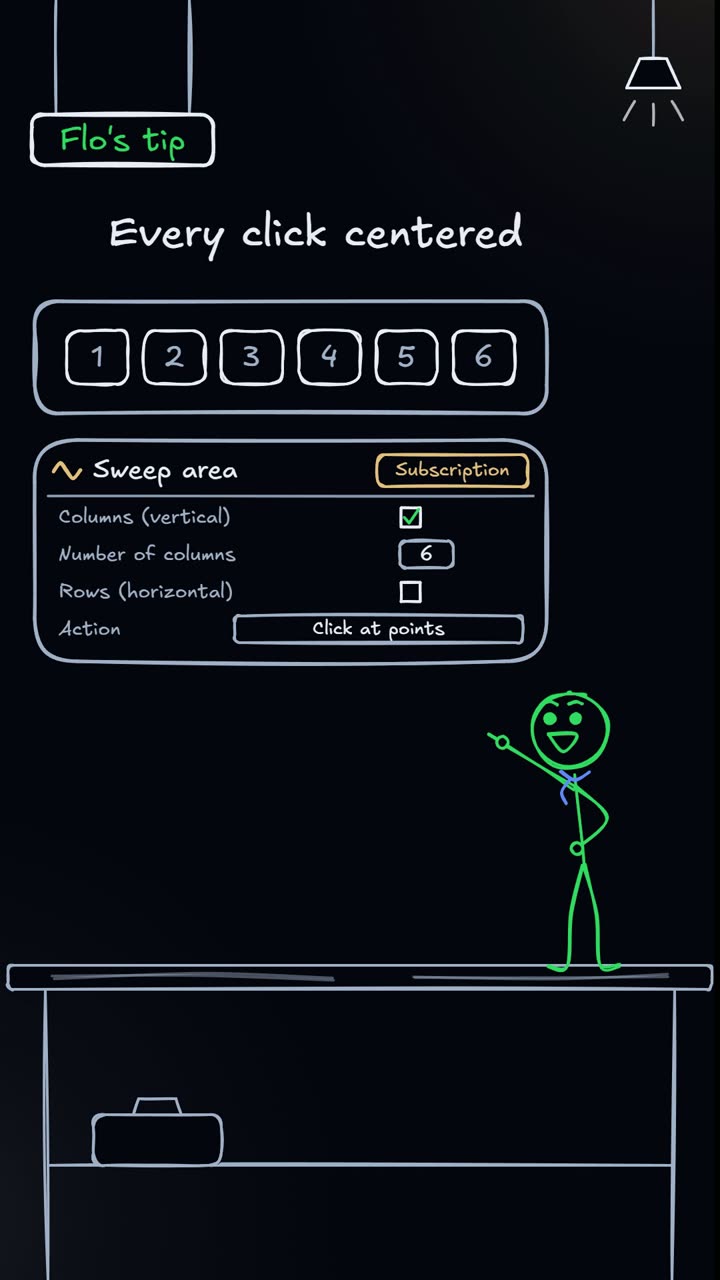 Play video0:41
📥 To clipboard Free
Puts text on the Windows clipboard. Then paste e.g. with 'Press key' Ctrl+V.
Inputs: in (flow), text · Outputs: next (flow)
| Field | Type | Default | Meaning |
|---|---|---|---|
| Text | Text (multi-line) | — | Put on the clipboard. The data input 'text' takes precedence. To paste afterwards, use 'Press key' with Ctrl+V. Example: Hello world |
👆 Click Free
Clicks at the current mouse position with a selectable mouse button — optionally several times in a row with an adjustable gap.
Inputs: in (flow), x, y, count · Outputs: next (flow)
| Field | Type | Default | Meaning |
|---|---|---|---|
| Mouse button | Choice: Left, Right, Middle, X1 (back), X2 (forward) | Left | Which mouse button is clicked. Left — Normal left click. Right — Right click (context menu). Middle — Middle button / mouse-wheel click. X1 (back) — First extra button. X2 (forward) — Second extra button. |
| Click type | Choice: Single click, Double click, Hold down | Single click | Single click, double click, or hold the button down. Single click — One click. Double click — Two quick clicks (e.g. pick up/open an item). Hold down — Press the button, hold it for the set duration, then release (long click). |
| Hold duration | Number (≥ 0) | 1 |
How long the button stays pressed before it is released. Only visible if Click type = „Hold down“. |
| Unit | Choice: Milliseconds, Seconds | Seconds | Unit of the hold duration. Milliseconds — 1000 ms = 1 second. Seconds — Value × 1000 ms. Only visible if Click type = „Hold down“. |
| Move there first | Yes/No | off | On = first move the mouse smoothly to X/Y, then click (like 'Move mouse' + click in one). Off = click at the current position. If x/y are wired from another node (e.g. 'Find image'), the click always goes there — those values are screen pixels, so anchor/window offsets are not applied to them. |
| Number of clicks | Integer (1–10000) | 1 |
How many times to click at this spot in a row (1 = a single click). Can also come from the 'anzahl' data input, e.g. from a calculation. |
| Speed | Choice: Very fast (≈ 50/s), Fast (≈ 20/s), Normal (≈ 10/s), Slow (≈ 4/s), Very slow (≈ 2/s), Custom gap… | Normal (≈ 10/s) | How fast the clicks of a series follow each other. Only matters when the number of clicks is greater than 1. The gap varies slightly (±10 %). Gaps below 20 ms stay exact. The stop key works in the middle of a series. Very fast (≈ 50/s) — 20 ms between clicks. Fast (≈ 20/s) — 50 ms between clicks. Normal (≈ 10/s) — 100 ms between clicks. Slow (≈ 4/s) — 250 ms between clicks. Very slow (≈ 2/s) — 500 ms between clicks. Custom gap… — Enter the gap in milliseconds in the field below. |
| Gap between clicks | Integer (0–60000, ms) | 100 |
Your own pause between two clicks in milliseconds (100 = 10 clicks per second). Only used with speed 'Custom gap…'. Example: 100Only visible if Speed = „Custom gap…“. |
| Bring target window to front first | Yes/No | off | Before clicking, activates the target window (the window field below, otherwise the start node's target window) and waits briefly — so the click doesn't land in a window that has moved in front. |
| Window title | Window | — | Title (or part) of the window to bring to front. Only visible if Bring target window to front first = on. |
| Windows in front of the target | Choice: Leave, Minimize, Minimize, then bring back | Leave | What happens to windows lying in front of the target window (overlapping it) before the click: leave them, minimize them, or minimize them and bring them back after the click — also on abort. FlowBotCommander's own windows are never touched. Leave — Only bring the target to front. Minimize — Minimize them and leave them minimized. Minimize, then bring back — Minimize for the click, restore afterwards. Only visible if Bring target window to front first = on. |
| Target X | Integer (px) | 0 |
X coordinate of the click target. Often wired from the 'Find image' node. Only visible if Move there first = on. |
| Target Y | Integer (px) | 0 |
Y coordinate of the click target. Only visible if Move there first = on. |
| Reference | Choice: Absolute (screen), Window-relative | Absolute (screen) | absolut = screen pixels, fensterrelativ = relative to the last captured window. Absolute (screen) — Real screen pixels. Window-relative — Relative to the last captured window. Only visible if Move there first = on. |
| Relative to anchor | Yes/No | off | On = the coordinates are stored as an OFFSET to the anchor found by 'Find anchor (image)'. If the interface moves, the area moves with it. Off = fixed coordinates. Only visible if Move there first = on. |
| Anchor | Anchor | — | Which named anchor to use. The list shows the anchors declared in this workflow. Empty = the anchor that ran last (behaviour of older profiles). Only visible if Relative to anchor = on. |
| Movement profile | Choice: Direct, Human, Cautious | Human | Character of the mouse movement before the click. Direct — Fast & straight. Human — Natural curve (default). Cautious — Slower, more scatter. Only visible if Move there first = on. |
| Wait afterwards | Number | 0 |
Optional wait time AFTER the click. 0 = off (do not wait). See the unit field below. Example: 500 |
| Unit | Choice: Milliseconds, Seconds, Minutes | Milliseconds | Unit of the wait time after the click. Milliseconds — 1000 ms = 1 second. Seconds — Value × 1000 ms. Minutes — Value × 60000 ms. |
🖱 Move mouse Free
Moves the mouse along a smooth, slightly curved path to screen coordinate x,y.
Inputs: in (flow), x, y · Outputs: next (flow)
| Field | Type | Default | Meaning |
|---|---|---|---|
| Target X | Integer (px) | 0 |
X coordinate (pixels from the left) of the target. Often wired from the 'Find image' node. |
| Target Y | Integer (px) | 0 |
Y coordinate (pixels from the top) of the target. |
| Reference | Choice: Absolute (screen), Window-relative | Absolute (screen) | absolut = screen pixels, fensterrelativ = relative to the last captured window (captureX/captureY). Absolute (screen) — Real screen pixels from the top-left corner. Window-relative — Relative to the top-left corner of the last captured window. |
| Relative to anchor | Yes/No | off | On = the coordinates are stored as an OFFSET to the anchor found by 'Find anchor (image)'. If the interface moves, the area moves with it. Off = fixed coordinates. |
| Anchor | Anchor | — | Which named anchor to use. The list shows the anchors declared in this workflow. Empty = the anchor that ran last (behaviour of older profiles). Only visible if Relative to anchor = on. |
| Movement profile | Choice: Direct, Human, Cautious, Custom | Human | Character of the mouse movement. 'benutzerdefiniert' reveals the detail sliders. Direct — Fast & straight, hardly any scatter, no overshoot. Human — Natural curve with random timing (default). Cautious — Slower, more scatter, slight overshoot with correction back. Custom — Your own values via the detail parameters. |
| Speed/steps | Number (0.2–3) | 1 |
Step density: smaller = faster/coarser, larger = slower/finer. Only visible if Movement profile = „Custom“. |
| Scatter | Number (0–80, px) | 30 |
Lateral curve scatter in pixels (0 = almost straight). Only visible if Movement profile = „Custom“. |
| Overshoot | Number (0–60, px) | 0 |
Overshoot: the mouse first shoots past the target and corrects back (0 = off). Only visible if Movement profile = „Custom“. |
| Curviness | Number (0–1) | 1 |
0 = straight line, 1 = full curvature. Only visible if Movement profile = „Custom“. |
🖲 Scroll Free
Turns the mouse wheel — a fixed number of notches, or until nothing changes in the watched area any more (then the list has ended). Optionally moves the mouse to the right spot first.
Inputs: in (flow) · Outputs: next (flow), ende (flow), rasten
| Field | Type | Default | Meaning |
|---|---|---|---|
| Direction | Choice: down, up, right, left | down | Which way to scroll. down — The usual direction through a list. up — Back towards the top. right — Sideways — only works where the window supports it. left — Sideways — only works where the window supports it. |
| How far | Choice: a fixed number, until the end | a fixed number | A fixed number of notches, or as far as it goes. a fixed number — Turns exactly as many notches as set. until the end — Keeps scrolling while the watched area changes — and stops when it stays the same. That is the reliable sign of „arrived at the bottom“. |
| Notches | Integer (1–100) | 3 |
How many notches the wheel turns. Only visible if How far = „a fixed number“. |
| Mouse pointer | Choice: move to a point first, leave where it is | move to a point first | Windows delivers the wheel event to the window under the pointer — so it usually has to be moved there first. move to a point first — Makes sure the right window is scrolled. leave where it is — Only if you know the pointer is already in the right place. |
| Pointer X | Integer (px) | 0 |
Screen position the pointer moves to first. Only visible if Mouse pointer = „move to a point first“. |
| Pointer Y | Integer (px) | 0 |
Screen position the pointer moves to first. Only visible if Mouse pointer = „move to a point first“. |
| Coordinates relative to | Choice: Screen, Window | Screen | Screen: the values are absolute screen pixels. Window: they are counted from the top-left corner of the target window — the flow then keeps working when the window is moved. Screen — Absolute screen pixels. Window — From the top-left corner of the target window. Only visible if Mouse pointer = „move to a point first“. |
| Relative to anchor | Yes/No | off | On = the coordinates are stored as an OFFSET to the anchor found by 'Find anchor (image)'. If the interface moves, the area moves with it. Off = fixed coordinates. Only visible if Mouse pointer = „move to a point first“. |
| Anchor | Anchor | — | Which named anchor to use. The list shows the anchors declared in this workflow. Empty = the anchor that ran last (behaviour of older profiles). Only visible if Relative to anchor = on. |
| Window | Window | — | The window whose area is watched. Only visible if How far = „until the end“. |
| Area X | Integer (px) | 0 |
The watched area, relative to the window. 0 for width/height means the whole window. Only visible if How far = „until the end“. |
| Area Y | Integer (px) | 0 |
Top edge of the watched area. Only visible if How far = „until the end“. |
| Area width | Integer (px) | 0 |
0 = up to the right edge. Only visible if How far = „until the end“. |
| Area height | Integer (px) | 0 |
0 = down to the bottom edge. Only visible if How far = „until the end“. |
| Sensitivity | Integer (0–255) | 30 |
From what colour distance a pixel counts as changed. Filters out noise. Only visible if How far = „until the end“. |
| Minimum change | Number (0–100, %) | 1 |
Below this share of changed pixels the content counts as standing still — then the end is reached. Only visible if How far = „until the end“. |
| Safety limit | Integer (1–500) | 50 |
Stops after this many notches at the latest — so an endlessly growing list cannot trap the flow. Only visible if How far = „until the end“. |
| Pause per notch | Integer (≥ 0, ms) | 250 |
Time for the window to redraw before the next comparison. Too short and it looks like the end too early. Only visible if How far = „until the end“. |
⌨ Press key Free
Presses a key or combination, e.g. F1, Space, W, Ctrl+A, Shift+F1.
Inputs: in (flow) · Outputs: next (flow)
| Field | Type | Default | Meaning |
|---|---|---|---|
| Template (key manager) | Choice: — eigene —, Inventar, Modul 1, Modul 3, Modul 2, Modul 4 | — eigene — | Choose a combination saved in the key manager — it overrides the input below. '— eigene —' = specify your own below. — eigene — — Die Tasten unten selbst angeben. Inventar — Kombination: Alt+C Modul 1 — Kombination: F1 Modul 3 — Kombination: F3 Modul 2 — Kombination: F2 Modul 4 — Kombination: F4 |
| Key(s) | Key combination | Space |
Key or combination, e.g. F1, Space, W, Ctrl+A, Shift+F1. Click 'Capture' and press the keys. Example: Ctrl+A |
| Hold duration | Integer (≥ 0, ms) | 0 |
How long the key is held down. 0 = a short press. |
| Send to | Choice: Active window, Window (without foreground) | Active window | How the key is sent. Active window — Normal input (SendInput with scan codes) — reliable, the window must be in front. Window (without foreground) — Send via message to a window — even when it is not in front. Not every game responds to this. Combos are unreliable. |
| Target window | Window | — | Title (fragment) of the window to send to. Example: NotepadOnly visible if Send to = „Window (without foreground)“. |
| Wait afterwards | Number | 0 |
Optional wait time AFTER the key press. 0 = off. See the unit field below. Example: 500 |
| Unit | Choice: Milliseconds, Seconds, Minutes | Milliseconds | Unit of the wait time after the key press. Milliseconds — 1000 ms = 1 second. Seconds — Value × 1000 ms. Minutes — Value × 60000 ms. |
✍ Type text Free
Types the text (from the parameter or data input) with a natural typing rhythm: the key intervals vary slightly, adjustable via 'Timing scatter'.
Inputs: in (flow), text · Outputs: next (flow)
| Field | Type | Default | Meaning |
|---|---|---|---|
| Text | Text (multi-line) | — | Text typed character by character (chat, search, names). The 'text' data input takes precedence. |
| Speed | Integer (1–40, Z/s) | 8 |
Typing speed in characters per second. |
| Timing scatter | Integer (0–100, %) | 40 |
Random variation of the key intervals in percent (0 = uniform). |
| Thinking pauses | Integer (0–100, %) | 8 |
Probability per character of an occasional longer thinking pause. |
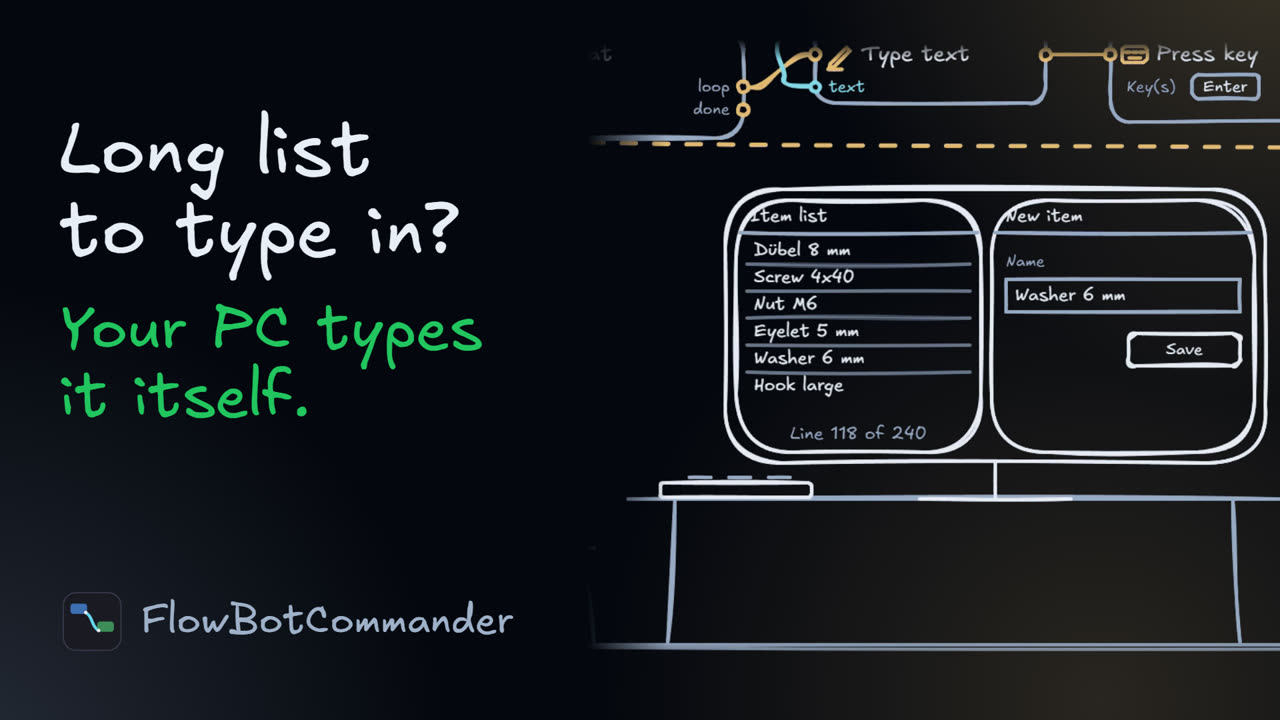 Play video1:54
✋ Drag (A→B) Subscription
Drags with the mouse button held from point A to point B (drag & drop) — e.g. to move an item.
Inputs: in (flow), fromX, fromY, toX, toY · Outputs: next (flow)
| Field | Type | Default | Meaning |
|---|---|---|---|
| Start X | Integer (px) | 0 |
Start point X (where the item is). Often wired from the 'Find image' node. |
| Start Y | Integer (px) | 0 |
Start point Y. |
| Target X | Integer (px) | 0 |
Target point X (where it is dragged to). |
| Target Y | Integer (px) | 0 |
Target point Y. |
| Waypoint 1 | Yes/No | off | On = the mouse passes through waypoint 1 (with the button held) on its way from A to B. Waypoints run in order 1→4. Inactive ones are skipped. Use them to drag around obstacles or along a path. |
| WP 1 X | Integer (px) | 0 |
Waypoint coordinate (same reference as A/B — absolute or window-relative). Only visible if Waypoint 1 = on. |
| WP 1 Y | Integer (px) | 0 |
Waypoint coordinate (same reference as A/B — absolute or window-relative). Only visible if Waypoint 1 = on. |
| Waypoint 2 | Yes/No | off | On = the mouse passes through waypoint 2 (with the button held) on its way from A to B. Waypoints run in order 1→4. Inactive ones are skipped. Use them to drag around obstacles or along a path. |
| WP 2 X | Integer (px) | 0 |
Waypoint coordinate (same reference as A/B — absolute or window-relative). Only visible if Waypoint 2 = on. |
| WP 2 Y | Integer (px) | 0 |
Waypoint coordinate (same reference as A/B — absolute or window-relative). Only visible if Waypoint 2 = on. |
| Waypoint 3 | Yes/No | off | On = the mouse passes through waypoint 3 (with the button held) on its way from A to B. Waypoints run in order 1→4. Inactive ones are skipped. Use them to drag around obstacles or along a path. |
| WP 3 X | Integer (px) | 0 |
Waypoint coordinate (same reference as A/B — absolute or window-relative). Only visible if Waypoint 3 = on. |
| WP 3 Y | Integer (px) | 0 |
Waypoint coordinate (same reference as A/B — absolute or window-relative). Only visible if Waypoint 3 = on. |
| Waypoint 4 | Yes/No | off | On = the mouse passes through waypoint 4 (with the button held) on its way from A to B. Waypoints run in order 1→4. Inactive ones are skipped. Use them to drag around obstacles or along a path. |
| WP 4 X | Integer (px) | 0 |
Waypoint coordinate (same reference as A/B — absolute or window-relative). Only visible if Waypoint 4 = on. |
| WP 4 Y | Integer (px) | 0 |
Waypoint coordinate (same reference as A/B — absolute or window-relative). Only visible if Waypoint 4 = on. |
| Reference | Choice: Absolute (screen), Window-relative | Absolute (screen) | absolut = screen pixels, fensterrelativ = relative to the captured window. Absolute (screen) — Real screen pixels. Window-relative — Relative to the last captured window (captureX/captureY). |
| Mouse button | Choice: Left, Right, Middle | Left | Which mouse button is held during the drag. Left — Normal drag (default). Right — Drag with the right button. Middle — Drag with the middle button. |
| Bring target window to front first | Yes/No | off | Brings the target window to the front before grabbing. Worth switching on: a drag that lands in the wrong window can move files or rearrange things there — a stray click usually cannot. |
| Target window | Window | — | Leave empty to use the target window from the start note. Only visible if Bring target window to front first = on. |
| Windows in front of the target | Choice: Leave, Minimize, Minimize, then bring back | Leave | What to do with windows covering the target. „Minimize, then bring back" clears the way for the drag and restores everything afterwards — even if the run is stopped in between. Leave — Only bring the target to front. Minimize — Minimize them and leave them minimized. Minimize, then bring back — Minimize for the drag, restore afterwards. Only visible if Bring target window to front first = on. |
| Movement profile | Choice: Direct, Human, Cautious | Human | Character of the drag movement. Direct — Fast & straight. Human — Natural curve (default). Cautious — Slower, more scatter. |