Read text (OCR)
Read numbers and words off the screen — set the region, adjust upscaling and contrast, turn it into a usable number with "Number from text".
After this article your bot reads gold amounts, levels and messages from the screen — and you know why OCR sometimes returns "L". 1" instead of "Lv. 1" and how you still get to the 1.
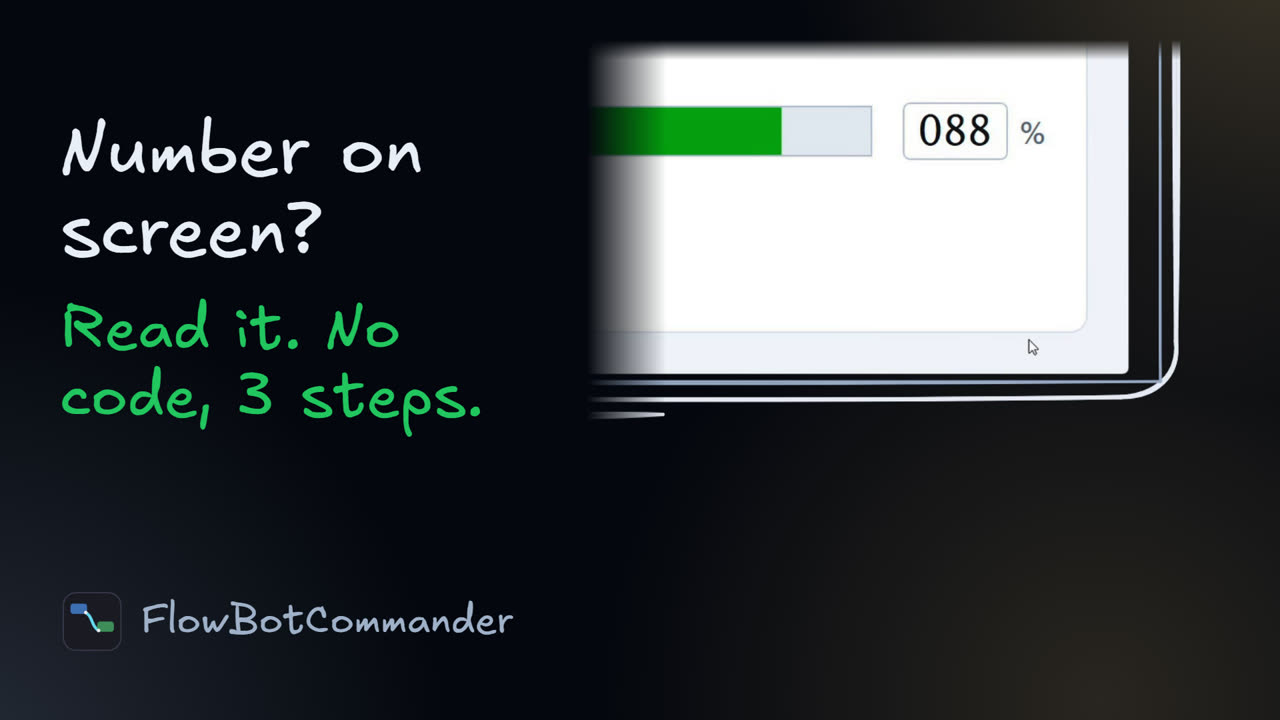 Play video3:28
When OCR, when image?
Text recognition (OCR) is slower and more error-prone than "Find image". Use it when the content changes — numbers, names, countdowns. For fixed icons and buttons "Find image" is the better choice.
Step 1 — Set the region
Create a Read text (OCR) node, click Region… in the properties panel and drag a rectangle tightly around the text. The less surroundings, the less nonsense the OCR reads along.

The region is stored in pixels of the window image. If the interface moves, make it relative to an anchor — then it moves along.
Step 2 — Adjust readability
| Field | Default | When to change |
|---|---|---|
| Upscaling | 2x | small text: 3x. (4x is noticeably slower.) |
| Grayscale | on | off if only colour separates the characters |
| Invert | on | light text on dark background → on. Dark text on light background → off |
| Contrast | 1 | 1.5–2 for pale text |
| Threshold | off | "automatic (Otsu)" for busy backgrounds (patterns, gradients) |
The data output text contains the result, lines the individual lines. With a Log output
Read: {Read text (OCR).text} you see immediately what arrives.
Step 3 — Number from text
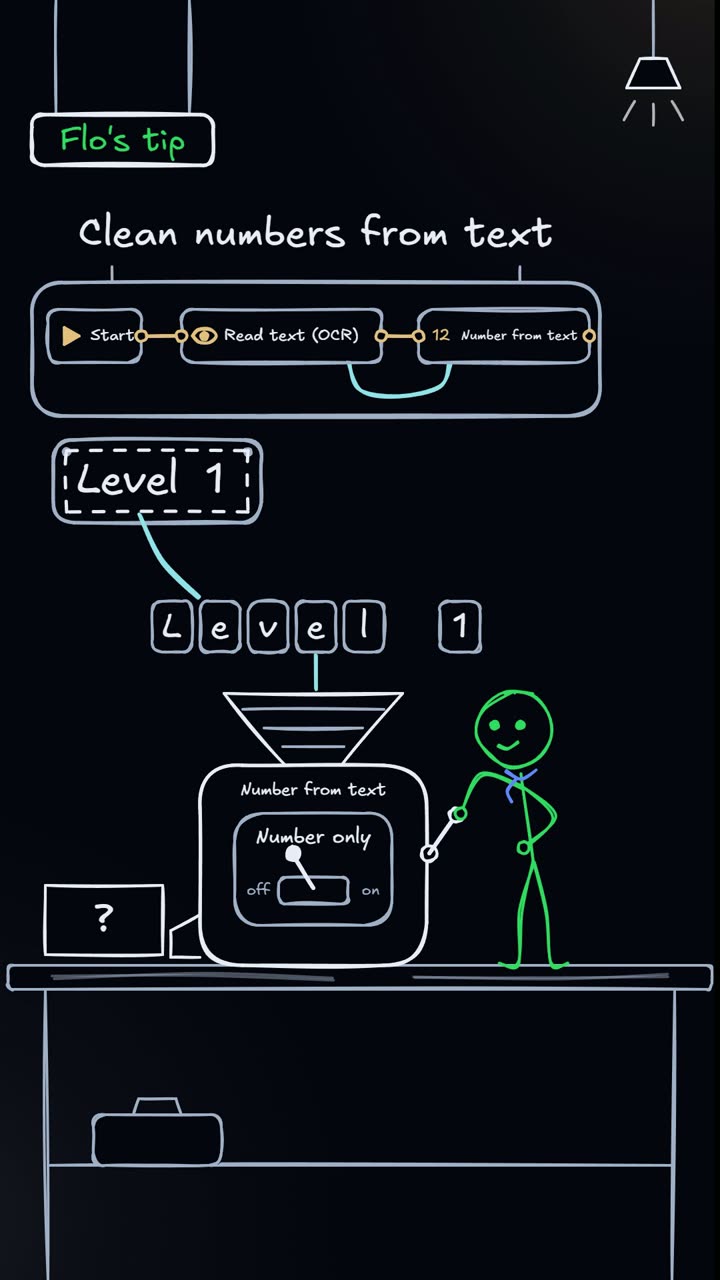 Play video0:41
The Number from text node (Data) turns the read text into a number (data output value):
- Normal mode: takes the first sequence of digits in the text.
Grove L"; 1becomes1,Gold: 1.250becomes1250. Right when the region also contains words. - Number only (OCR fix): expects the region to contain only a number and corrects typical mix-ups (O→0, l→1, S→5, B→8). Ideal for pure number fields like the gold amount — wrong for text with letters, because then every "l" becomes a 1.
- Decimal number for values like
2.992,9. Minimum/Maximum value discard implausible results (→ 0).
Connect text → text with a blue line or enter {Read text (OCR).text}. Store the value with Set variable
(level) or use it directly as {Number from text.value}.
In references the technical port name counts (text, value) — in the editor the ports are labelled "Text"
and "Value". The { } button next to every field inserts the correct notation.
Waiting and checking
- Wait for text waits until a certain text appears in the region (loading screens, "Ready").
- Check text (Conditions) returns true/false if the read text contains a word — or matches a pattern that forgives OCR mix-ups like "O" instead of "0" (Regular expressions).
- Find text (position) (subscription) returns x/y of a word — for clicking menu items without a template.
If it doesn't work
The detailed guide: OCR reads wrong. Short version: tighter region → upscaling 3x → invert to match the text colour → threshold automatic → check with a log output what is really read.