Safety and control
Emergency stop with one key, pause, automatic end, dry run — how you stay in control, and what you should know about game rules and privacy.
A bot moves your mouse and presses keys. After this article you know how to stop it at any time, how to keep it from getting out of control in the first place — and what it knows about you (almost nothing).
 Play video1:34
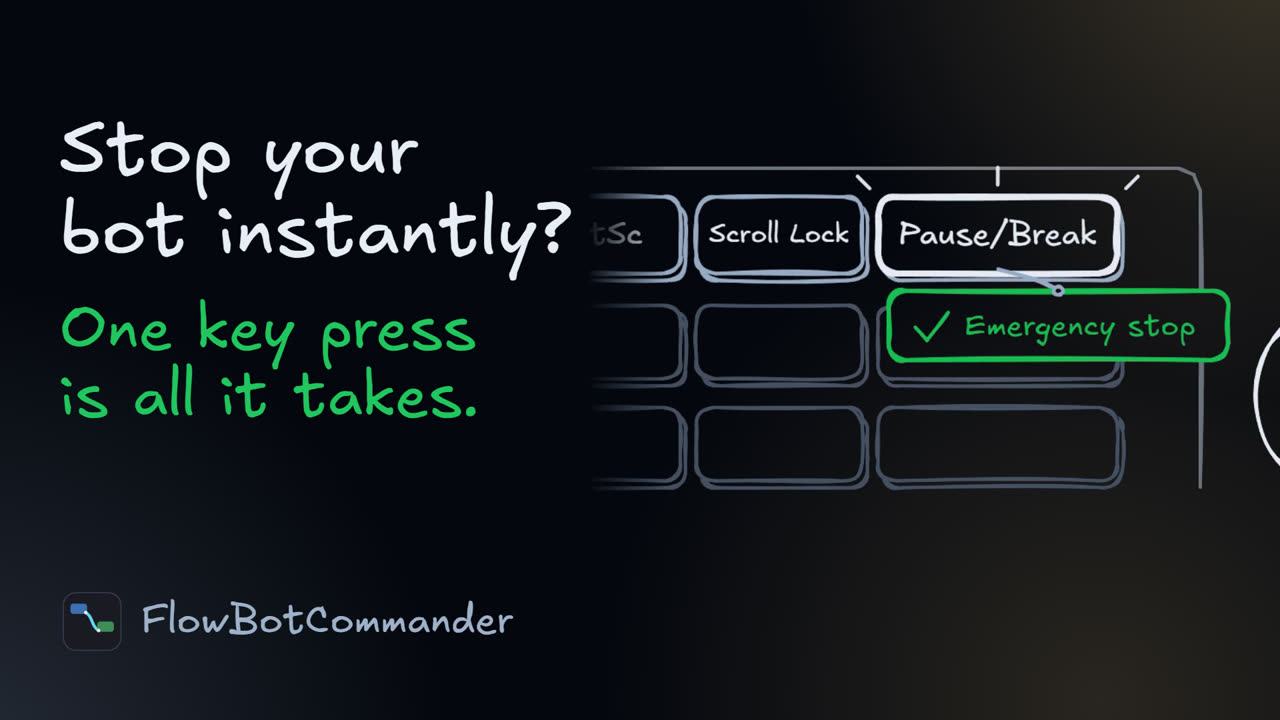
Emergency stop: the Pause key
 Play video0:30
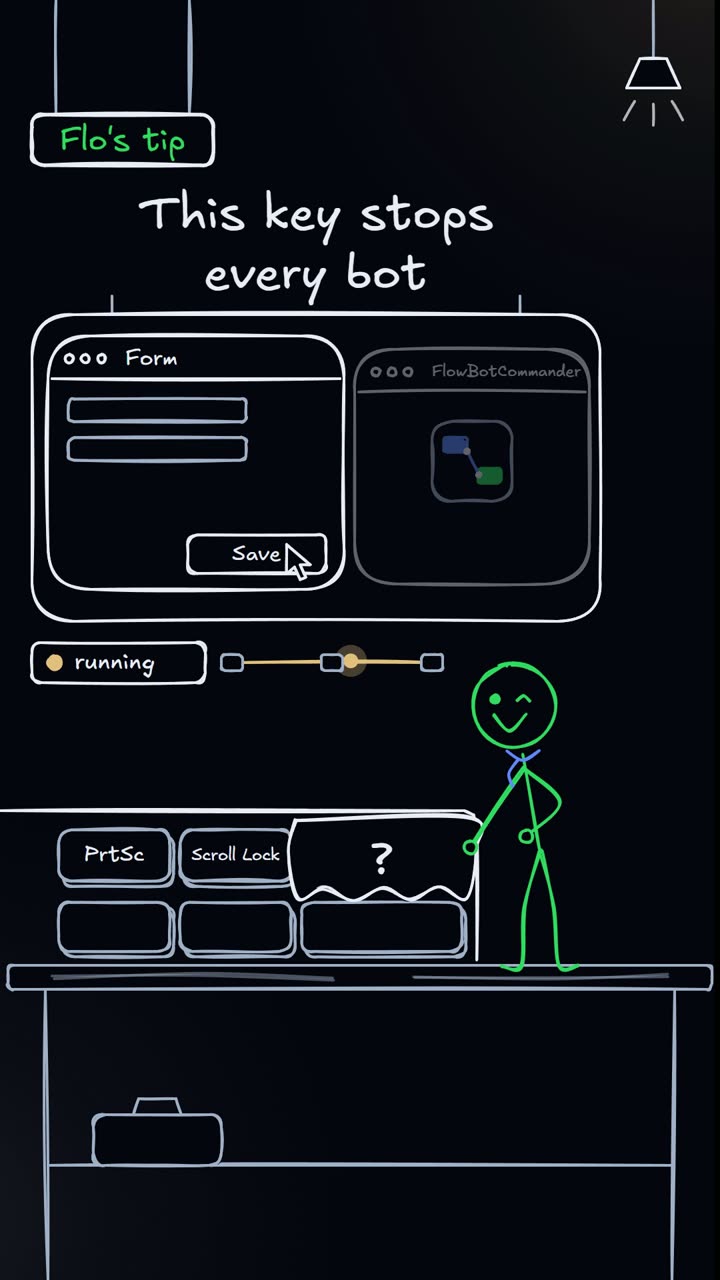
The Pause key (on some keyboards "Pause/Break", top right) immediately stops all running bots in all open tabs, no matter which window is in front. This is the emergency stop. Remember this key before you start a bot that clicks for the first time.
Scroll Lock pauses the bot in the tab currently shown, together with the profiles it has called, and resumes it at the same place when pressed again — handy to step in briefly yourself.
Both keys can be reassigned under Tools → Settings…, for instance if your keyboard has no Pause key.
Automatic end
Put the Runtime limit node right after Start: after the set time (fixed or random) the bot ends by itself. That way nothing runs on endlessly unattended. The Clicker Heroes bots "Auto-clicker" and "Buy a hero" have a limit of 15 minutes, "All together" one of 30 minutes.
For loops: prefer Repeat with a count over an endless return — and if it must be endless, put a runtime limit in front.
Dry run: look first, click later
 Play video0:36
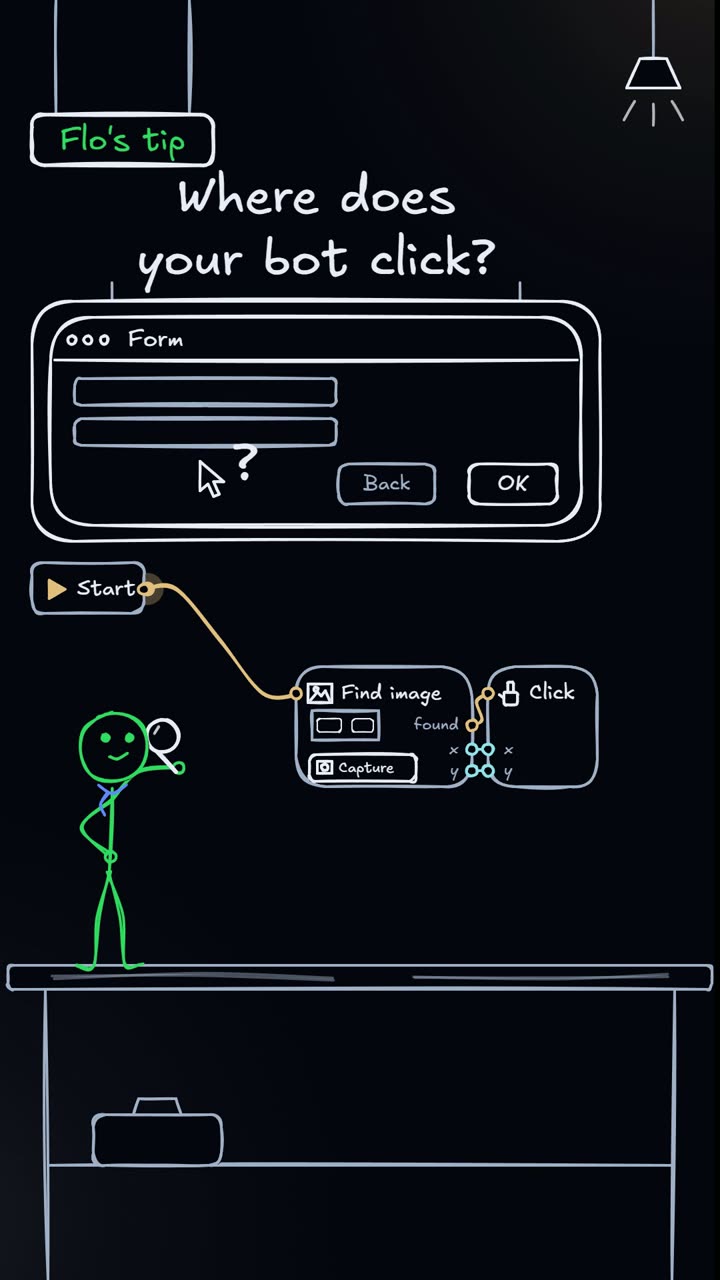
The Dry run node (Flow category) switches off the mouse and keyboard actions: Move mouse, Click, Drag (A→B), Sweep area, Scroll, Press key and Type text only write to the log what they would do. Perception (find image, OCR) keeps running normally. The dry run also applies in the profiles your bot calls (see Profiles and templates). Ideal for letting a new bot run through once completely and checking in the log where it would click.
Just as helpful: Step (F10) executes one node after the other, and the target preview next to the coordinate fields of a click node shows the planned click point on screen.
Failsafe and safe mode
 Play video0:41
- Failsafe (emergency stop) checks a condition you define (e.g. "image X is visible"). If it is violated, an alarm is written to the log and the run ends. Alternatively it pauses or continues via the verletzt output into a fallback. Typical use: "If the game window has disappeared, stop immediately." For this, place the Window there? node before the failsafe in the flow and connect its found output to the bedingung input (check "Input is true").
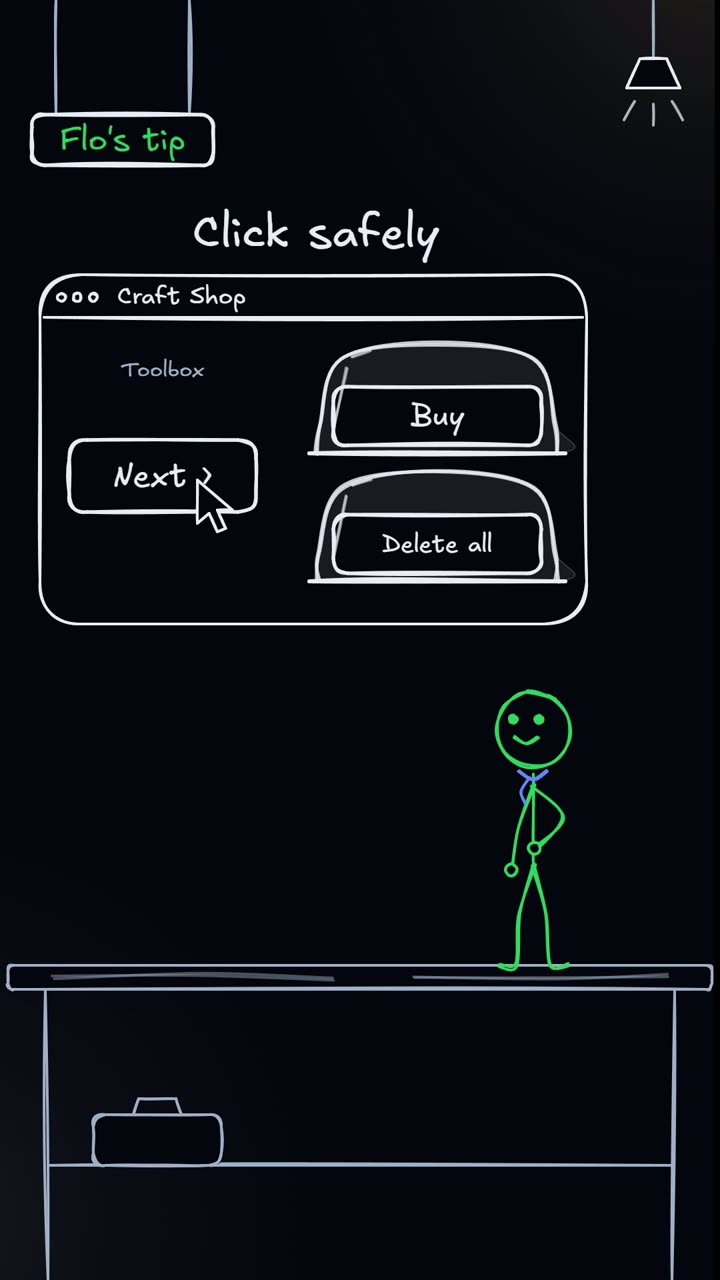
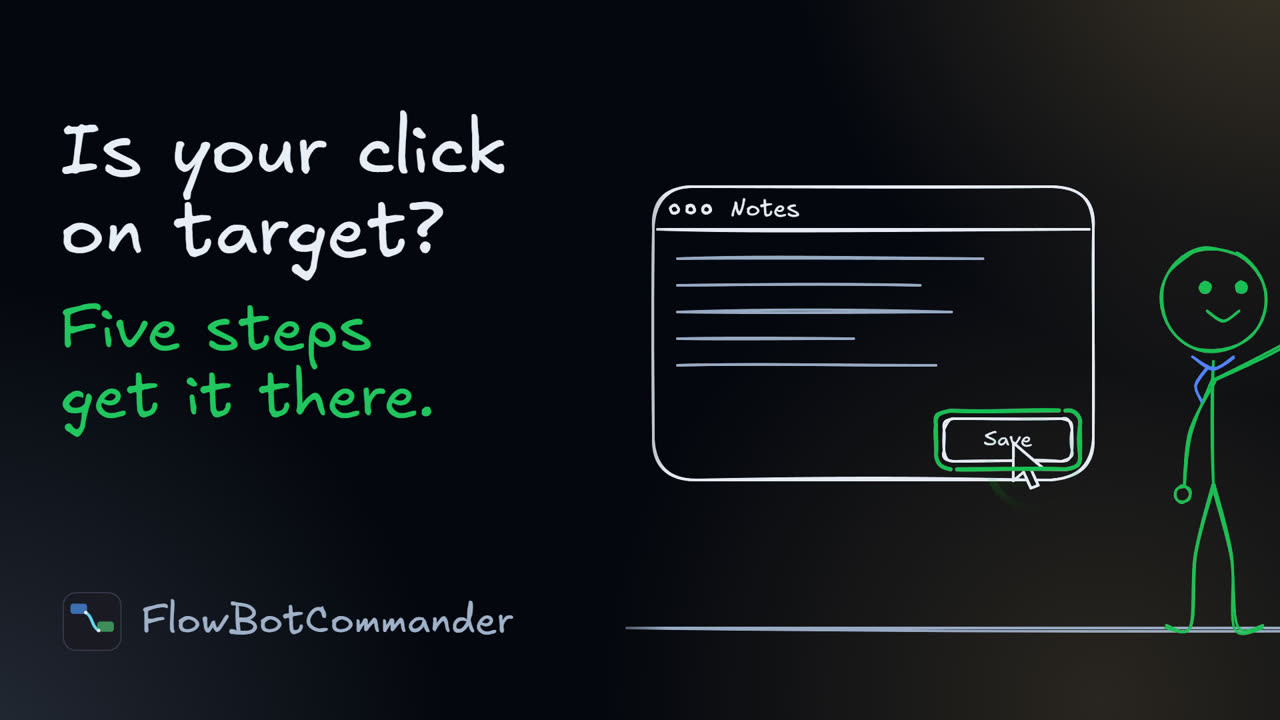
- Safe mode checks the targets of Move mouse, Click, Drag (A→B) and Sweep area (clicking and dragging), plus the grab point of Mouse cursor with "Resize window". Click checks the spot where the pointer stands before every single click, and with "Move there first" (or connected x/y) it already checks the target point before the mouse sets off. It skips suspicious targets: (0,0) or points outside the last captured window, as they arise when "Find image" found nothing and a click would still happen. Areas your bot should never click you additionally define as No-click zones (see Click doesn't arrive).
Game rules and fair play
FlowBotCommander is made for your programs, single-player games and your own workflows. Fair play means: you play online, multiplayer and competitive games yourself, and protection systems such as anti-cheat stay untouched. That is how the Terms of Service (§ 6) and the Fair Play policy put it. Before the first run, take a quick look at the terms of use of the program or game you automate. You are responsible for what your bot does there, including your account and your in-game items.
Privacy
The app reads your screen via image and text recognition — only in memory, on your PC. Screen contents, recognised texts, window titles, keyboard input and the content of your bots are never transmitted to us. What we receive is the licence check and the number of runs. Details: privacy notes of the app.
If it doesn't work
 Play video2:15
- Pause key does not react: some keyboards only send it together with Fn. Reassign the emergency stop under Tools → Settings… in the Keys (system-wide) section, row Stop / Panic, with Capture to a key you don't otherwise need (recommended: F13–F24). Windows keeps F12 for itself, so the app does not accept it.
- The bot clicks in the wrong place: stop, then check with Dry run and the target preview where the coordinates come from. If you set the Reference of fixed click coordinates to Window-relative, they follow the window. If the content shifts inside the window, an anchor helps.