Installation
Install FlowBotCommander in two minutes — download, setup, first start, updates.
After this article FlowBotCommander runs on your Windows PC and you know how updates arrive.
Requirements
- Windows 10 or 11 (64-bit).
- About 200 MB of free disk space. Nothing else needs to be installed — the setup brings everything the app needs.
- No account needed: the free FREE plan works right after installation.
Step 1 — Download the setup
Click Download at the top right of the start page or open
flowbotcommander.com/download directly. There, click the green button
Download FlowBotCommander-win-Setup.exe. The download starts right away, you need no account and no e-mail
address. You get the file FlowBotCommander-win-Setup.exe.
Rather have the link by e-mail? You find this section further down the download page. There you can enter your address if you like and click Send me the download link by e-mail. You first receive a confirmation link (valid for 48 hours), then the download link (valid for 7 days). That's handy if you want to install on another PC later. You also need it if you want to link the free version to your e-mail address in the app. You only receive news if you tick the box for it. No mail? Check your spam folder.
Step 2 — Run the setup
 Play video0:33
Double-click the downloaded file. The setup runs without questions, creates a shortcut in the Start menu and then
starts FlowBotCommander automatically. It installs into your user profile (%LocalAppData%\FlowBotCommander) —
no administrator rights required.
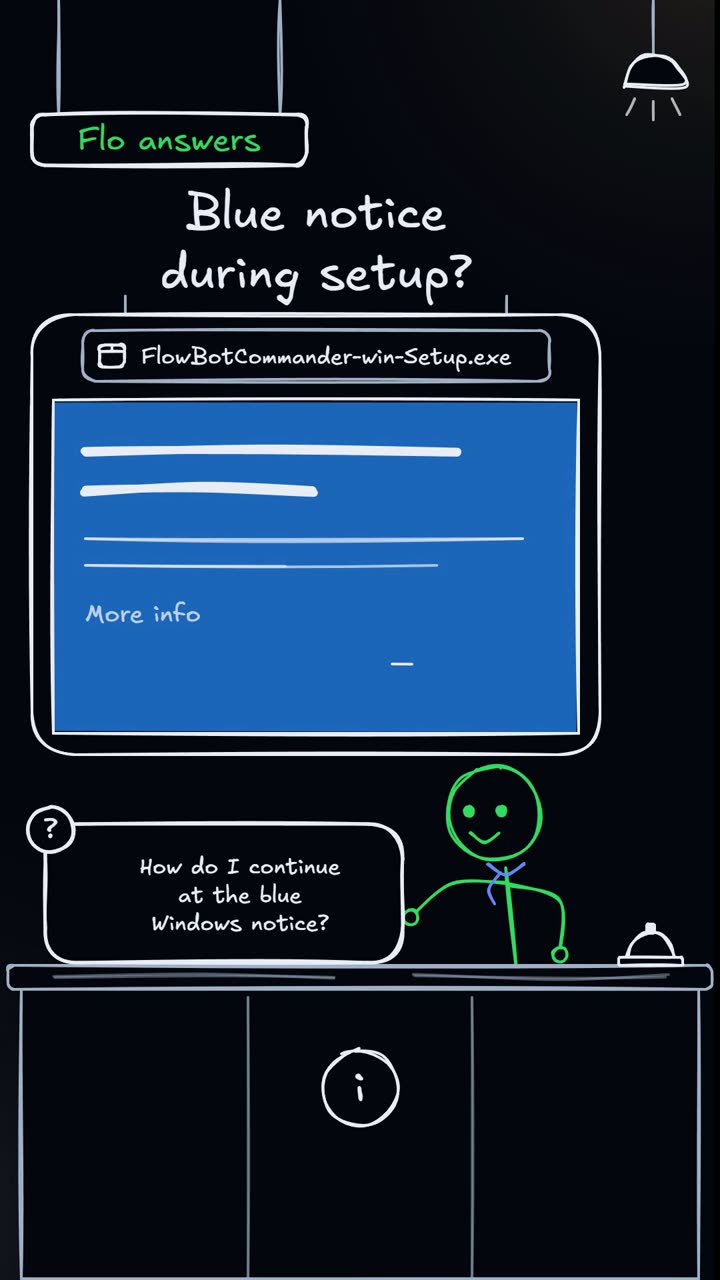
Does Windows SmartScreen show a blue notice "Windows protected your PC"? Click More info and then Run anyway. This happens with new programs Windows has not seen often yet.
Step 3 — First start
On the first start the Before you start window appears first. Read the notes, tick the box (notes read, Terms of Service accepted) and click Continue. Quit closes the app. A few seconds later the app offers once to link the free version to your e-mail address. Later skips this step (see Licence and plans).
Then you see the editor. The Start node is already on the canvas in the middle, on the left is the palette with all modules and at the bottom the log. How to find your way around is shown in the next article The interface.
Prefer a neutral window title? Under Tools → Settings… you switch on the option for the window title. The app then shows a neutral name instead of FlowBotCommander in the taskbar, Alt-Tab and Task Manager. You can enter your own name or leave the field empty, and the app picks a random one. The change takes effect after a restart.
Updates
FlowBotCommander checks for a new version at every start and downloads it in the background. Then the app asks: Install it now? Yes closes the app and restarts it, asking about unsaved changes first. No applies the update the next time you close the app. Want the latest version right away: Help → Check for updates… If there is one, the app offers to restart immediately.
What changed in each version is listed under News.
Uninstall
Windows Settings → Apps → Installed apps → FlowBotCommander → Uninstall. Your bot files (*.bot.json)
are kept, because they live wherever you saved them.
If it doesn't work
- The setup doesn't start: check that the download is complete (download the file again). Some virus scanners block unknown setups for a moment — wait a bit or start it again.
- The app starts but the window stays empty or black: update the graphics driver, then restart the app.
- Still problems: write to service@flowbotcommander.com — with your Windows version and a short description of what you saw.