Image is not found
Step by step from "not found" to a match — read the score, check the template, similarity, scaling, window, region.
"Find image" reports not found although the image is there? Work through this list from top to bottom — in nine out of ten cases it is points 1 to 3.
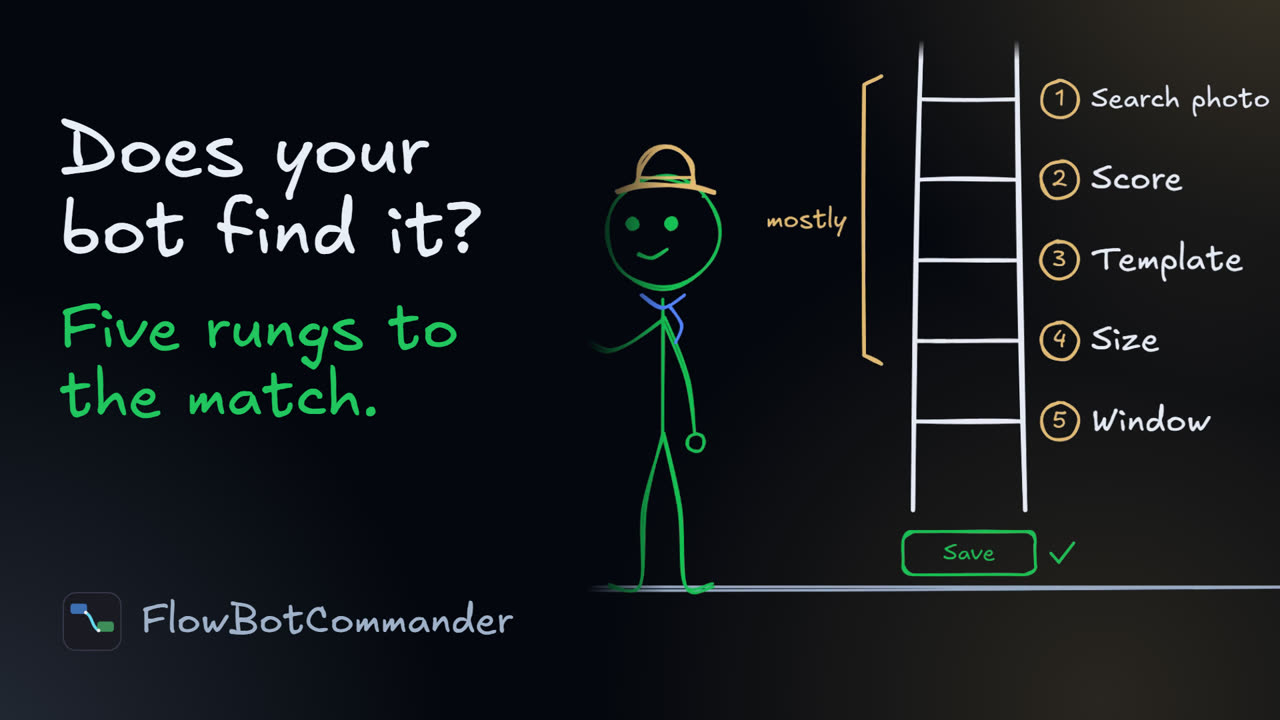 Play video2:05
First: look at the failure image
 Play video0:43
When an image or anchor node finds nothing, FlowBotCommander automatically saves a picture of the attempt — and that usually answers the question by itself. It shows:
- the screen as the node saw it (not as it looks now),
- the most similar spot outlined in orange, with the score it reached,
- the search area as a yellow dashed frame, if one is set,
- the template being looked for, small in the top right corner for direct comparison,
- node, score and configured threshold in the header.
The path is written straight into the log line. Tools → Failure images… opens the folder. The last 50 images are kept, older ones disappear by themselves.
What you typically see at a glance: the game was still in the main menu, another window was in front, or the spot simply looks different now than in the template.
1. Read the score
The log doesn't just say "not found" but also how close: not found (score 0.78).
- Score above 0.7: the template is basically right, just judged too strictly → set Similarity to a value just below the score (here 0.75). If the score stays around there permanently, it is usually the size that is off (point 3).
- Score below 0.5: the template does not fit at all — wrong window, wrong region, or the element looks different than in the template (points 2, 4, 5).
2. Look at the template
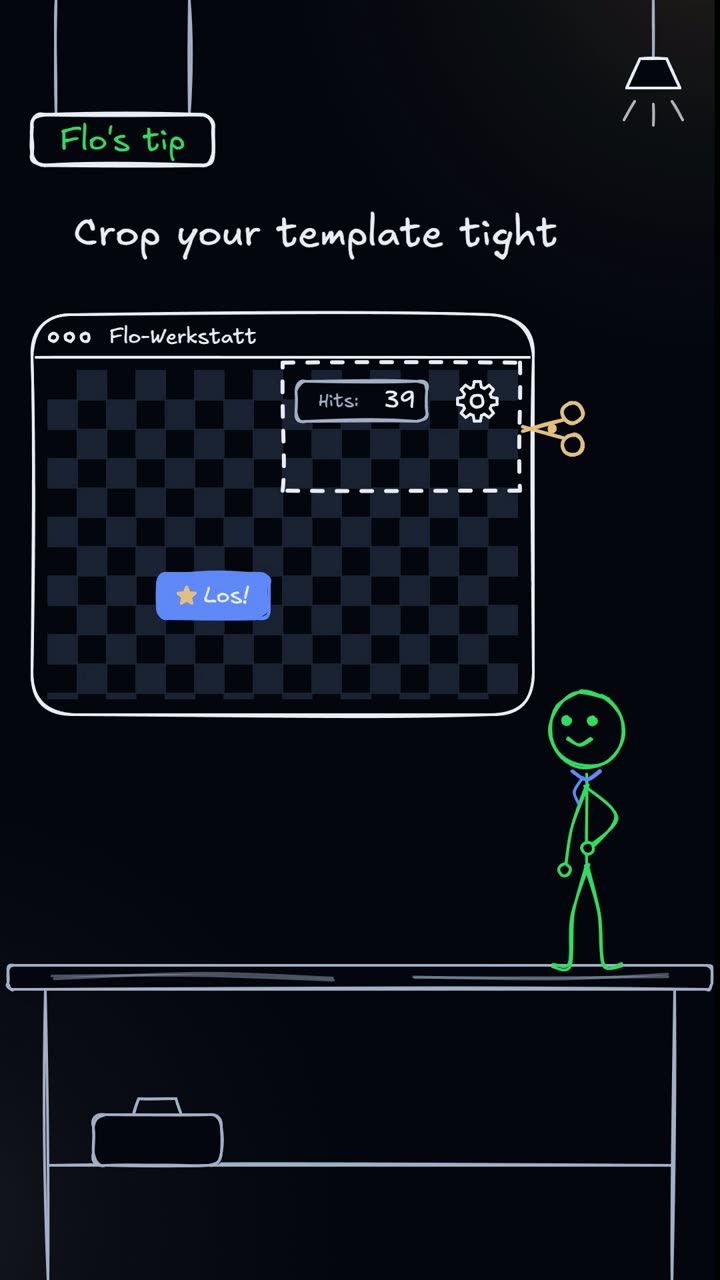 Play video0:44
Preview… next to the template field. Typical mistakes:
- Too much background — a cut-out with a border that changes (shadow, gradient, text behind it). Capture again, tighter.
- Semi-transparent surface — the nastiest one, because the cut-out seems to show only the element. Many game and app interfaces lay bars, frames or panels over the background with slight transparency. The template then looks right in one setting and wrong in the next — over a bright background the very same cut-out stays far below the threshold. The fix: pick a part that is genuinely opaque (an icon, a coin, a button label) instead of the surface around it.
- Hover state — the mouse was on the button while capturing. Capture without the mouse.
- Moving element — animations, blinking icons. Choose a calmer detail.
- Too small — below about 15 × 15 pixels there are too many similar spots. Capture larger.
3. Size: scale-tolerant
If the game runs in a different window size or Windows scaling than when capturing, the template is too big or too small. Turn on Scale-tolerant (searches 0.8 to 1.2 times). If that is not enough (e.g. full screen instead of window), capture the template again at the new size.
4. The right window?
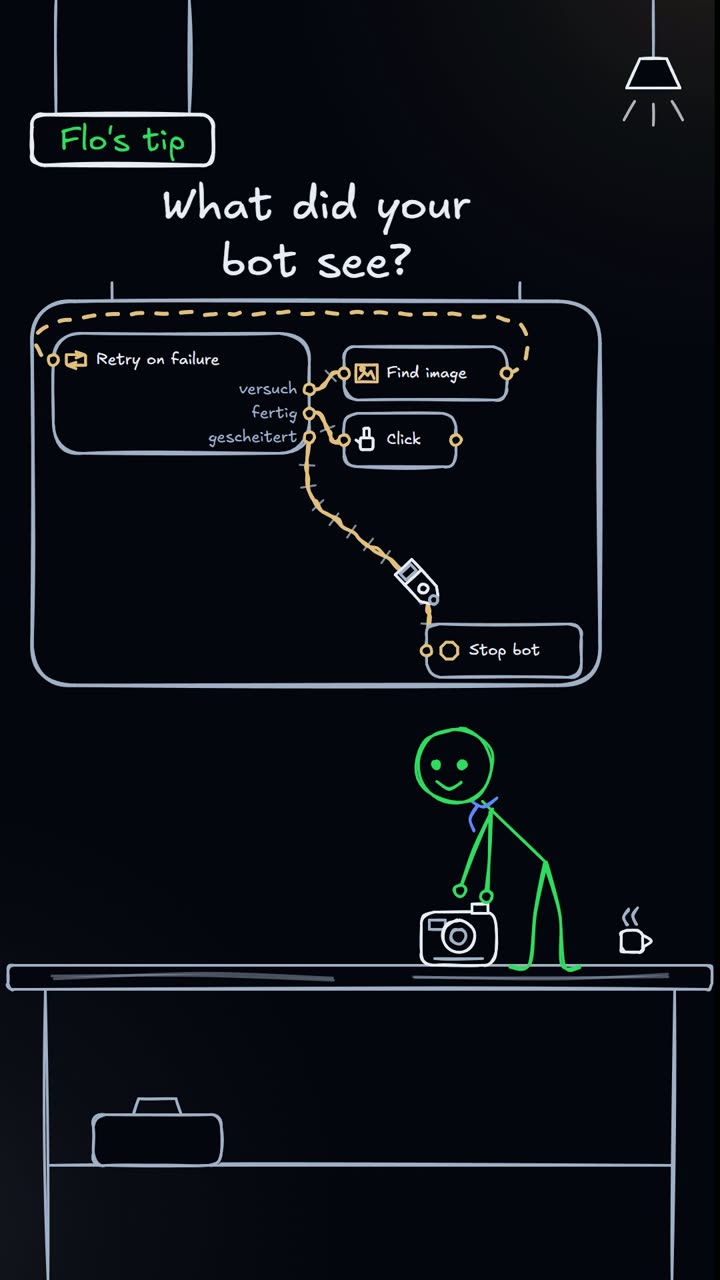 Play video0:39
Save screenshot shows what the app really sees. Is it another window (a second tab, a launcher with a similar
title)? Then make the title part in the Start node more distinctive. Is the image black? See
Window and image source.
5. Region too tight
If a region is set in "Find image", only that region is searched. Set the region to 0/0/0/0 (= whole image) and check whether it works then. If so: drag the region again — perhaps relative to an anchor.
6. Colour or brightness
Day/night changes, overlays, greyed-out states: turning on Grayscale makes the search insensitive to colour. Conversely — if a darkened state is wrongly found — turn on Only active (bright) matches.
7. Timing
 Play video1:32
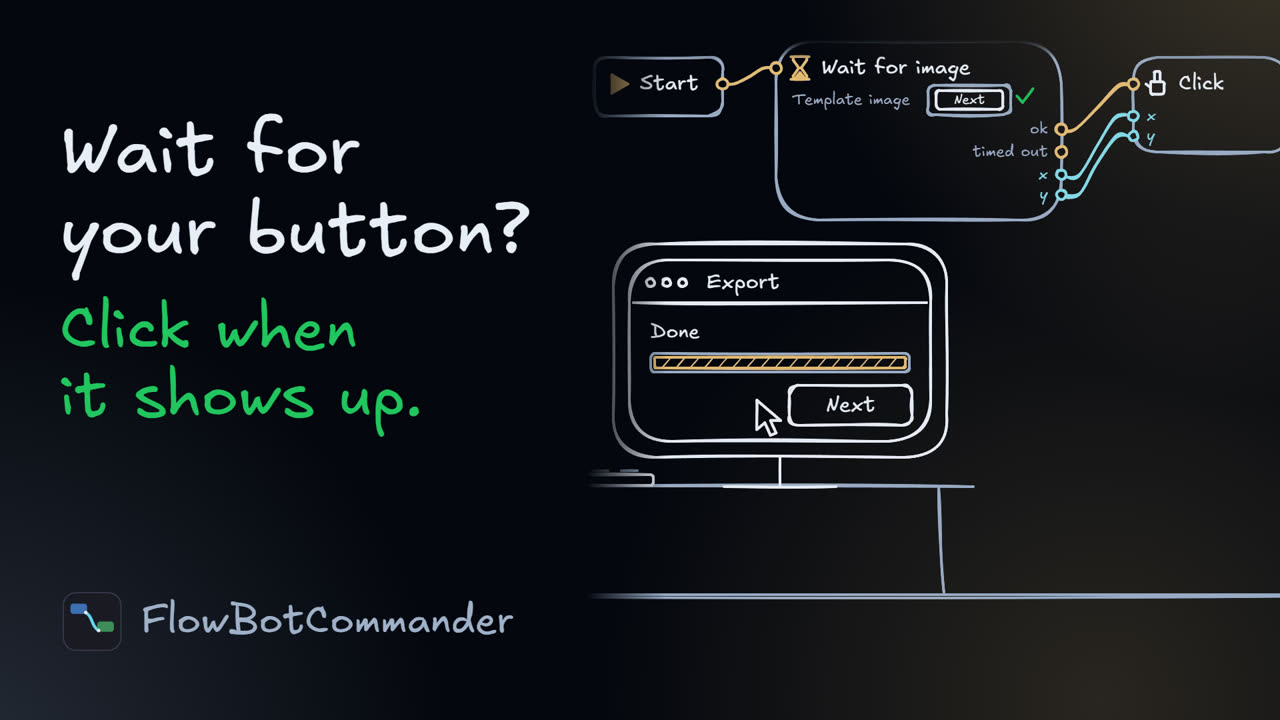
The element is sometimes not there yet (loading time, animation). Instead of "Find image" use Wait for image with a time limit — or a short Wait before the search.
8. Template is completely black
If the preview shows a purely black image, Windows delivered nothing to the capture. Two cases:
- Game in exclusive full-screen or with its own graphics output (DirectX/Vulkan): since version 1.3.15 the app then takes the image straight from the screen — the window must stay visible and uncovered. If that does not help, switch the game to windowed or borderless mode.
- Capture lock (e.g. Roblox): the window deliberately excludes itself from every screen capture, screenshot tools and OBS included. The app detects this and reports it when capturing and in the log. Templates, regions and colours cannot be read from such a window. That program is therefore not meant for automation, see Safety and control and Fair Play.
Still nothing?
Write to service@flowbotcommander.com — best with the screenshot from point 4, the template and the log line with the score.