Notifications and service credentials
How to get messages from your bot on Discord, Telegram or via webhook — and store the credentials only once, safely encrypted.
A bot that runs unattended should be able to report: "I found something", "I'm done", "here is an error". That is what the Notify node is for — it sends a message to Discord, Telegram or any webhook URL (Slack, Mattermost, your own server). Notify is part of the subscription. In the FREE plan your bot makes itself heard with Alarm or Play sound.
So you don't have to retype webhook URLs and bot tokens in every bot, there is the service manager: there you create a credential once and just pick it from the list in every Notify node.
 Play video1:55
Why a service manager?
- Enter once, use everywhere. A credential is called e.g. "My Discord" — every node picks it by name.
- Safe. Tokens and URLs are stored encrypted for your Windows account (Windows Data Protection API). Nobody who only copies the file can read them.
- Never in the bot file. A
.bot.jsoncontains only the name of the credential. So you can pass on or share bots without your token travelling along.
On another PC you simply create the credential again under the same name — the bot then finds it. If it is missing, the node goes via its error output and writes to the log which credential is missing.
Step 1: Create a credential
- Open Tools → Service credentials… (or click Manage… next to "Saved credential" in a Notify node).
- Click New and enter a descriptive name, e.g.
Discord alarm channel. - Choose the service:
- Discord: server settings → Integrations → Webhooks → New webhook → copy webhook URL and paste it here.
- Telegram: create a bot with @BotFather — it gives you the bot token. The chat ID is your user or group ID (e.g. via @userinfobot). Write "Hello" to your bot once, otherwise it is not allowed to reply to you.
- Webhook: a URL that accepts a POST with JSON
{"text": "…"}(Slack/Mattermost compatible).
- Click Send test message — "Test message from FlowBotCommander ✅" should arrive in the channel.
- Save.
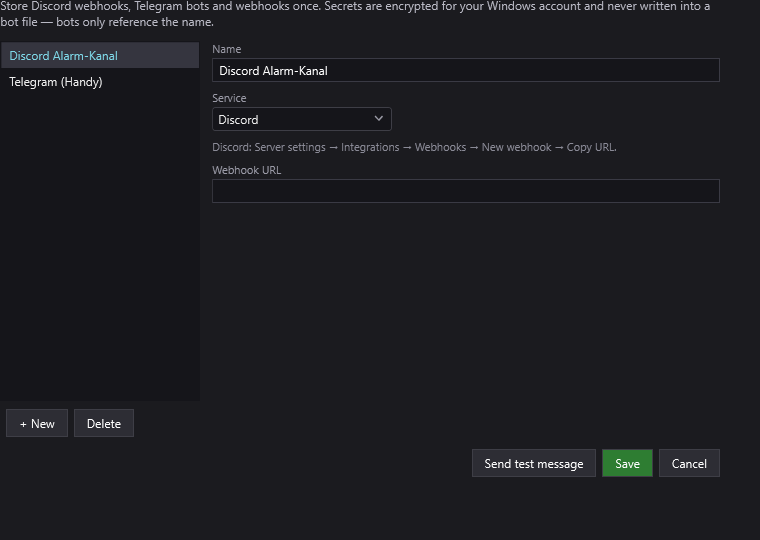
The secret field stays empty the next time you open it — that is on purpose: the stored value is kept as long as you don't enter something new. The hint "(saved — leave empty to keep)" shows you that something is stored.
Step 2: Pick it in the node
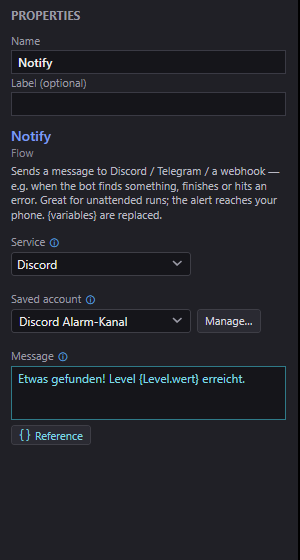
- Drag the Notify node (Flow category) onto the canvas and connect it where the bot should report — e.g. after "Find image" at the found output.
- Choose the service (Discord/Telegram/Webhook).
- Under Saved credential choose your entry. The URL/token/chat ID fields disappear — they now come from the manager.
- Write the message.
{variables}are replaced:Level {Level.wert} reached!
Without the manager (as before)
If you leave "Saved credential" empty, you can still enter URL or token and chat ID directly in the node. Older bots keep running unchanged — but beware: then the secret is in plain text in the bot file.
If it doesn't work
- "Credential … is not stored on this computer" in the log: the name from the bot file does not exist here. Tools → Service credentials… → New, same name.
- "Secret … not readable": the credential was saved under a different Windows account. Enter token/URL again.
- HTTP 401/403/404: token or URL wrong or expired — check in the manager with Send test message.
- Telegram stays silent: send the bot a message yourself first (otherwise it may not start), check the chat ID.
- The node has two outputs: out (sent) and error — attach e.g. an Alarm to error so you still notice.
Sending a picture along
 Play video0:31
Since 1.6.1 the Notify module can also send a screenshot. Telegram and Discord receive it as a real picture, not as a link, and your message becomes its caption.
Set Send a picture too:
- the captured image — what the bot sees right now. No file, no detour: the window from „Capture window“ or the target window of the Start note goes out directly.
- a file — a saved PNG or JPG. Handy behind the Save screenshot module: it writes the picture and
hands the file name out on
pfad. Connect that output to thebildinput of the Notify module and you do not have to type anything.
Two typical builds:
| You want … | How to do it |
|---|---|
| see instantly what the bot sees | „Send a picture too“ = the captured image |
| keep the picture as well | Save screenshot → pfad into bild of the Notify module |
On the error branch this is worth its weight in gold: your phone does not just say „template not found“, it shows the picture — and you see whether a window was in the way or the game sat somewhere else entirely.
A picture is much larger than a line of text. If you report every second, do not attach one to every message — only where you will actually look at it.