Browser game: wait for a button and press it
The basic pattern for every browser game — capture your own template, wait for the button with "Wait for image", click, report. Practice ground jetztspielen.de.
After this guide you can target any button in any browser game — with a template you capture yourself in a minute. Practice ground: jetztspielen.de, a portal with hundreds of small games (any similar portal works too). Pick one you like — the pattern is always the same.
Unlike the Clicker Heroes examples, this bot has no template embedded — every game has a different button. Capturing it is part of the exercise.
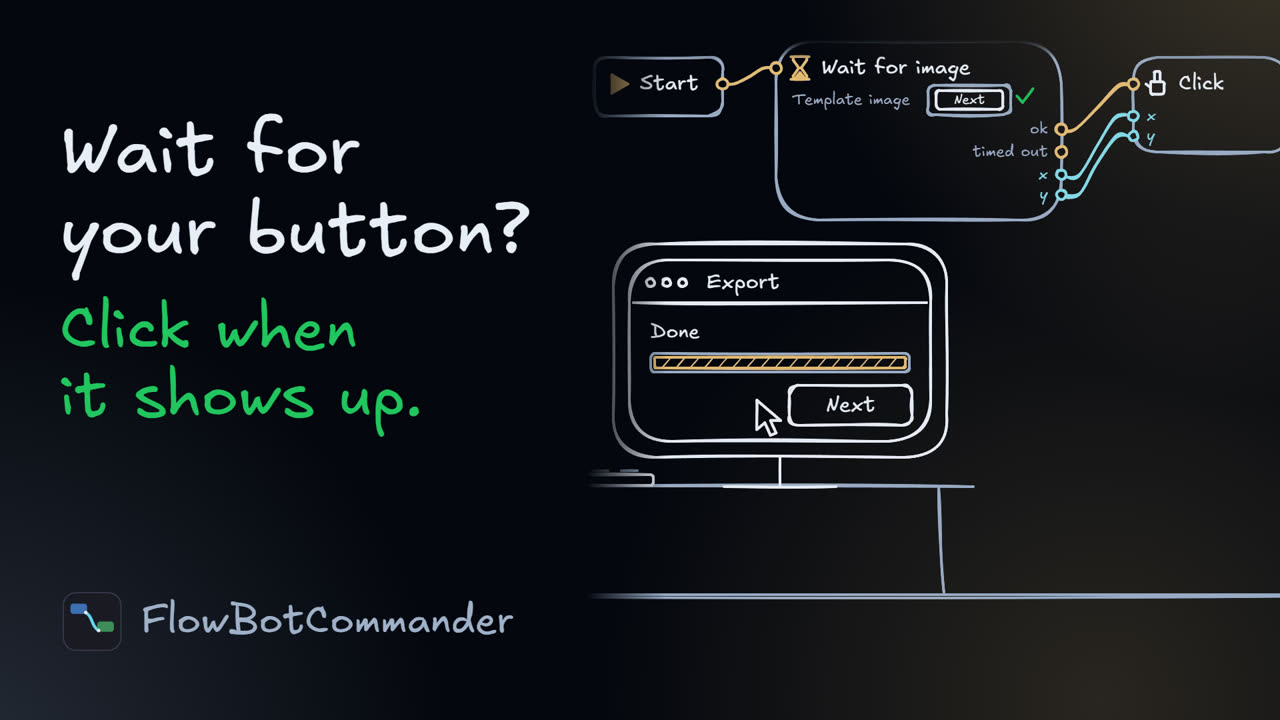 Play video1:32
Step 1 — Open the game, enter the window
 Play video1:27
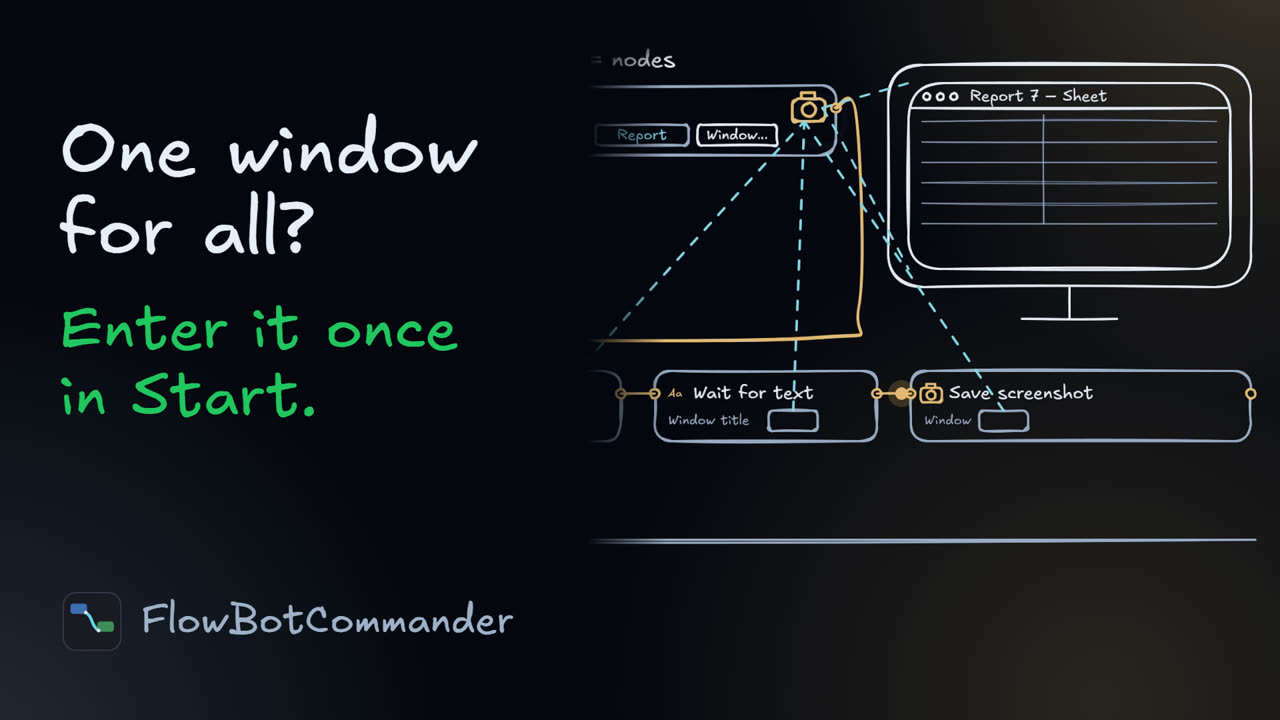
Open a game on the portal and let it load up to the start screen (usually a big "Play" button). In the editor: new bot, in Start choose the browser tab with Window… — the title contains the game name or the portal name.
After Start, add a Runtime limit from Flow with After 10 and unit Minutes — after ten minutes the bot stops by itself.
Step 2 — Capture a template of the button
 Play video0:44
- Put the Wait for image node (Perception) after the runtime limit.
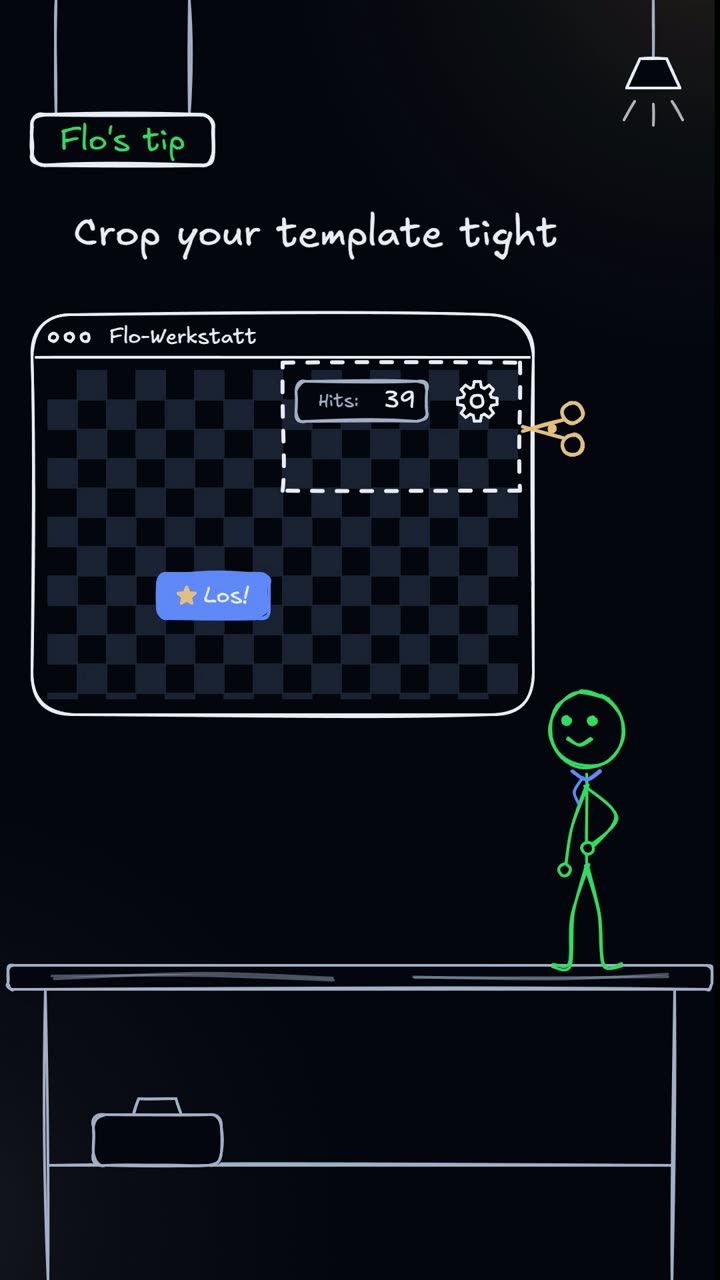
- Template image → Capture, drag a tight rectangle around the button — only the button, not the border around it.
- Preview… shows what you captured. Is the button clearly visible without background? Then the template is good.
- Similarity
0.85, Time limit 60 seconds, Check interval 500 ms, Scale-tolerant on.
Buttons with a hover effect change their look when the mouse is over them. Capture the template without the mouse resting on the button — the bot sees it that way first, too.
Step 3 — Click and report
- Click at the ok output, Move there first on, profile Human, blue lines x/y.
- After it Log output ("Game started — your turn now.") and Alarm — the bot calls you when the game is ready.
- At timed out a log output with the hint to check the template.
Step 4 — Try it
Reload the game page, start the bot: it waits until the button appears, clicks it and beeps. This is exactly how you bridge loading screens, "Continue" dialogs and ad breaks in every game.
Building on it
- Second button (level selection, "Go"): another "Wait for image" + Click.
- Wait for color instead of image if a field only changes its colour (green = ready).
- Visible? + Branch if a dialog appears only sometimes ("Skip ad").
- Anchors as soon as you need fixed regions — browser windows like to wander.
If it doesn't work
- "timed out" although the button is there: look at the template with Preview… — often there is too much background in it. Capture again, tighter. Similarity 0.8.
- The click hits but nothing happens: some games first need a click into the game area to get the keyboard. A second click node before it, or "Wait afterwards" 1 s.
- The game runs in full screen: use window mode or
{bildschirm}as window, see Window and image source.