Anchors — regions that follow the game
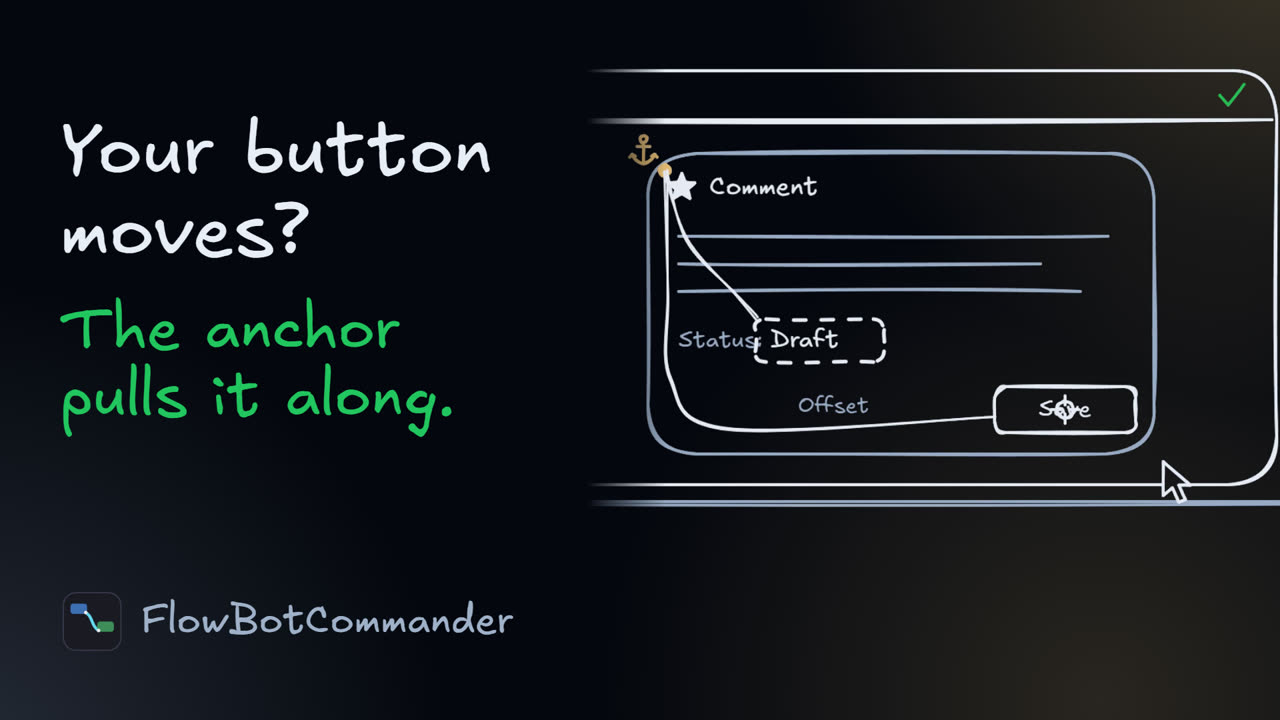
An anchor ties search regions and click targets to a fixed element of the interface instead of pixel coordinates — if the interface shifts inside the window, everything moves with it.
After this article your bots keep running even when the game interface shifts inside its window, for example because you enlarge the window or open the game in a different browser window. The anchor moves the regions by the same amount. If the size of the interface itself changes (a different scaling), you drag the regions again once, and the distances to the anchor fit again.
 Play video1:32
The problem
Most perception nodes work on a rectangle: "read the text in this box", "look for this image in that region". The app stores these rectangles relative to the target window: if you move the window, they move along by themselves. It gets tricky when the interface shifts inside the window, for example when you maximise it, resize it or the game rearranges its display. Then every region points to the wrong place, and clicks with fixed coordinates miss.
The solution
An anchor is a small, unmistakable, always visible element of the interface — a corner of a frame, a fixed icon. The Find anchor (image) node looks for it and remembers the location as a reference point. Regions and click targets marked as relative to anchor are no longer stored as absolute coordinates but as an offset to this point. If the interface moves, the anchor is found at the new place on the next "Find anchor" — and everything relative moves by the same amount.

Set up in five steps
- Put Find anchor (image) early in the flow — right after Start or before the first node that should follow
the anchor. Give it a name in the Anchor name field, e.g.
HUD. - Capture the anchor template: with Capture drag a rectangle tightly around the fixed element.
- Check Similarity (default 0.95). If the anchor is missed, lower it a bit. If it hits the wrong thing, raise it. Turn on Scale-tolerant if the window size can change.
- In every region node — Find image, Read text (OCR), Search color, Visible?, Case distinction, Health bar, also Click with "Move there first" — turn on Region relative to anchor and choose the name in the Anchor field. Then drag the region as usual: the app automatically stores it as an offset.
- Mind the order: "Find anchor" must run before the relative nodes, wired at the found output. Connect the not output to a safe fallback — wait and search again, or stop cleanly.
Several anchors
Anchors are named: you can have several "Find anchor" nodes with different names (HUD, Inventory,
Minimap) and choose for every relative node which one applies. If you leave the Anchor field empty, the last
one found applies — so older bots keep behaving as before.
A concrete example
In Clicker Heroes: read the level the gold coin at the top left is the anchor "HUD". The OCR region for "Grove Lv. 1" is stored relative to it (about 955 px to the right, 66 px below). If you open the game tomorrow in a smaller browser window, "Find anchor" finds the coin at the new place, and the read region still sits on the zone display — without you dragging anything again.
Tips and pitfalls
- Stable and unique. The anchor image must never move and must not repeat elsewhere on the screen — no number, no background, no element that blinks.
- Always handle "not". If the anchor is not found, its old reference point stays and relative regions do not move along. Better wait and search again than carry on blindly.
- Use the target preview. The Target… button on a click node shows anchor, computed target point and the line between them on screen — so you see at once whether the offset is right.
Rule of thumb: one "Find anchor" on the "found" branch, then all relative nodes. Set the anchor once — the rest of the flow follows by itself.