Control API: drive bots from outside (scripts and AI)
The app's local HTTP interface — switch it on, copy the token, read status and log, and load, start, pause and stop bots from PowerShell, your own program or an AI assistant.
After this article you can operate FlowBotCommander from outside: from PowerShell, from a program of your own, or from an AI assistant that starts and stops your bots via "function calling". No programming knowledge needed — the examples below can be copied as they are.
 Play video4:05
What the control API is
The app contains a small HTTP server. It runs only on your computer (address 127.0.0.1), is off by
default and lets nobody in without your token. Through this interface a script can
- query the state (running, paused, which bot is loaded),
- follow the log,
- list the bots in the bots folder,
- load, start, pause and stop a bot.
What it deliberately cannot do: edit bots, set variables or create nodes — that stays in the editor. The panic hotkey (Pause key) stops the bot at any time, whatever the API is doing.
Step 1 — Switch it on and copy the token
- Open the menu Tools → Control API….
- Tick Enable control API (opt-in).
- Leave the port (8765) or change it if another program uses it.
- Click Copy next to the token — you need it in a moment. New creates a fresh token. The old one stops working.
- Apply. The bottom shows "● Running on http://127.0.0.1:8765" and the log gets a 🌐 line with the address.
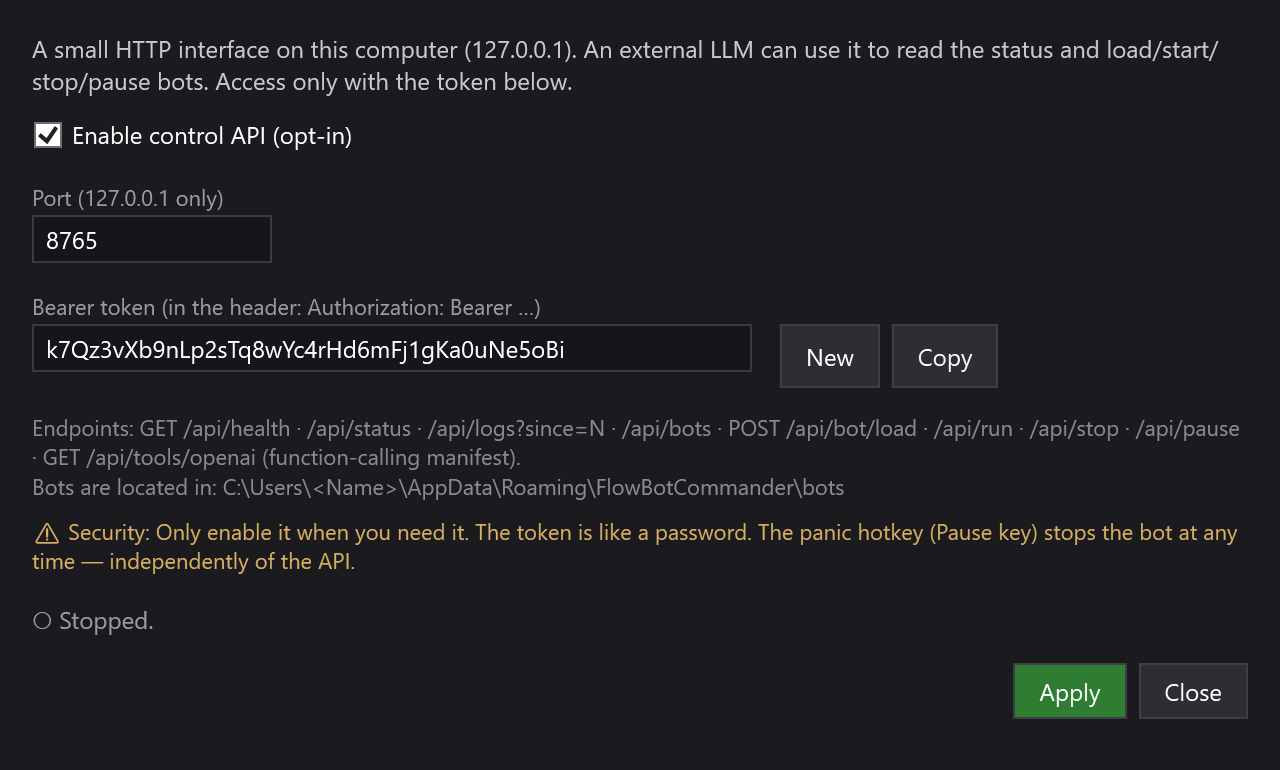
The setting is saved: the next time the app starts, the API runs again until you remove the tick. The token is stored encrypted on your computer — never inside a bot and never on our server.
Step 2 — Put bots into the bots folder
The API lists and loads bots only from the folder %AppData%\FlowBotCommander\bots. To get there:
Win+R, type %AppData%\FlowBotCommander\bots, Enter (create the folder the
first time). Save your bots there with File → Save as… — each one is called name.bot.json.
Step 3 — The first request
Open PowerShell and insert your token:
$token = "YOUR-TOKEN-HERE"
$h = @{ Authorization = "Bearer $token" }

Invoke-RestMethod http://127.0.0.1:8765/api/health              # works without a token
Invoke-RestMethod -Headers $h http://127.0.0.1:8765/api/status  # everything else needs the token
The answer to /api/status looks like this:
{ "running": false, "paused": false, "nodeCount": 14, "logCount": 12, "loadedBot": "clicker-heroes-komplett.bot.json" }
The token goes into the header Authorization: Bearer <token> — with a space after "Bearer". If it is missing
or wrong, the API answers with 401 and {"error":"unauthorized"}.
Step 4 — Load, start, pause, stop a bot
# Which bots are there?
Invoke-RestMethod -Headers $h http://127.0.0.1:8765/api/bots

# Load a bot — name with or without .bot.json, part of the name is enough
Invoke-RestMethod -Headers $h -Method Post -ContentType "application/json" `
    -Body '{ "name": "clicker-heroes-komplett" }' http://127.0.0.1:8765/api/bot/load

# Start
Invoke-RestMethod -Headers $h -Method Post http://127.0.0.1:8765/api/run

# Pause and resume
Invoke-RestMethod -Headers $h -Method Post -ContentType "application/json" `
    -Body '{ "paused": true }'  http://127.0.0.1:8765/api/pause
Invoke-RestMethod -Headers $h -Method Post -ContentType "application/json" `
    -Body '{ "paused": false }' http://127.0.0.1:8765/api/pause

# Stop
Invoke-RestMethod -Headers $h -Method Post http://127.0.0.1:8765/api/stop
Every action answers with { "ok": true, "message": "…" } or { "ok": false, "message": "reason" } — for
example "Already running." or "Bot 'xyz' not found." The messages come in the language of the app (from
version 1.4.1).
Following the log
/api/logs?since=N returns the log lines from line N on (0 = all). Remember how many lines you have read and
ask from there next time — that way you only get what is new:
$lines = Invoke-RestMethod -Headers $h "http://127.0.0.1:8765/api/logs?since=0"
$lines.Count        # e.g. 12
Invoke-RestMethod -Headers $h "http://127.0.0.1:8765/api/logs?since=12"   # only the new lines
The count starts over: The log is cleared whenever a bot is loaded (including via POST /api/bot/load), and at every start if "Clear the log before every restart" is on in the settings. A since=N from the previous run then returns nothing. After loading or starting, read from since=0 again — or compare with logCount from /api/status: if it is smaller than your N, start at 0.
All endpoints at a glance
| Call | Purpose | Token needed |
|---|---|---|
GET /api/health |
sign of life of the app | no |
GET /api/status |
running/paused, number of nodes and log lines, loaded bot | yes |
GET /api/logs?since=N |
log lines from N on | yes |
GET /api/bots |
bots in the bots folder (name, path, size, modified date) | yes |
POST /api/bot/load { "name": "…" } |
load a bot into the editor | yes |
POST /api/run |
start the loaded bot | yes |
POST /api/stop |
stop the run | yes |
POST /api/pause { "paused": true/false } |
pause or resume | yes |
GET /api/bot/check |
check the profile without running it: unknown parameters, ports leading nowhere, missing template files, unreachable nodes | yes |
GET /api/stats |
Run overview per node: runs, outputs taken, average duration, last error — answers "how often did the node find nothing?" without searching the log | yes |
GET /api/nodes |
All nodes of the loaded bot with their parameters | yes |
POST /api/node/param { "nodeId": "…", "name": "threshold", "value": "0.80" } |
Set one parameter — adjust a bot without editing its file. Rejected while running | yes |
GET /api/nodetypes |
The catalogue: every module type with category, title, ports, fields (type, default, limits, allowed values, help text) and plan (minTier: free or subscription, locked: false = usable in your current plan). Without it an AI has to guess module names |
yes |
GET /api/screenshot |
The current image of the image source as PNG — see what the bot sees. 503 if there is no target window (the message says why) | yes |
GET /api/failshots |
The failure shots: when, which module, which value, which threshold | yes |
GET /api/failshot/{file} |
A single failure shot as PNG — shows the closest match and explains why the template did not hit | yes |
GET /api/variables |
Variables and counters at runtime | yes |
POST /api/bot/save { "name": "…", "json": "…" } |
Saves exactly the bot JSON you send (the complete content of the .bot.json) under the name in the bots folder. The editor stays unchanged. Invalid JSON or unknown module types are rejected with "ok": false and nothing is written. Without a json field, the bot currently open in the editor is saved. Writes only to the bots folder — paths with .., subfolders and network shares are rejected |
yes |
GET /api/tools/openai |
ready-made function-calling manifest for AI assistants | yes |
The control API is available in the FREE plan and with the subscription. A start via /api/run counts as one run, just like a click on "Start". You can start bots whose modules all belong to your plan. In the catalogue you recognise these modules by locked: false.
Connecting an AI assistant
GET /api/tools/openai returns a ready-made tool list in OpenAI format ("tools"). It describes every function —
get_status, get_logs, list_bots, load_bot, run_bot, stop_bot, pause_bot — so that a language
model calls them correctly on its own. The usual setup:
- Your script fetches the manifest and hands it to the AI service as tools.
- You tell the AI: "Start the bot clicker-heroes-komplett and tell me when an error shows up in the log."
- The AI answers with a tool call (e.g.
run_bot), your script performs the matching HTTP request and returns the result.
The app itself calls no AI service — the bridge between AI and API is your script. That way your token stays on your computer.
Have Claude Code build a bot
This is the path the endpoints above are meant for. An AI like Claude Code or Codex works with files
anyway — so it writes the .bot.json itself and uses the API to check, run and look. The flow:
- Get the catalogue:
GET /api/nodetypes. Now the AI knows every module name, port and field with its allowed values — nothing to guess. - Write the bot: put a
.bot.jsoninto%AppData%\FlowBotCommander\bots(or save it viaPOST /api/bot/save). - Have it checked:
GET /api/bot/check. This finds exactly the mistakes that happen when writing by hand: unknown fields, connections into nowhere, missing template images, unreachable modules. - Load and run:
POST /api/bot/load, thenPOST /api/run. - Watch:
GET /api/logs?since=Nfor the log,GET /api/statsfor "how often did the module find nothing?",GET /api/variablesfor counter values. - Look:
GET /api/screenshotshows what the bot sees. And when a template does not hit,GET /api/failshotsexplains why, with a picture — closest match, value reached, threshold required. - Adjust:
POST /api/node/paramchanges a value without touching the file.
Why there are no endpoints for assembling single modules (add_node, connect): every intermediate state
would be a half-finished, broken graph, and the check could only run at the very end. The file route is complete
in one step, checkable — and the natural one for these tools.
GET /api/screenshot and GET /api/failshot/… return screen content. Anyone who enables the control API and
hands the token to a cloud service may be sending parts of their screen there. For an assistant running on the
same machine, everything stays local.
Security
- The API is reachable only from your own computer. Other devices on the network cannot get in — this is intentional and cannot be changed.
- The token is like a password: do not share it, do not put it into bots or screenshots. If in doubt click New and Apply.
- Switch the API off when you do not need it.
- Pause always stops the bot — even in the middle of an API action.
If it does not work
- "Connection refused" — the API is not switched on, the app is not running, or the port is different (see the Control API… window).
- 401 unauthorized — the token is missing or wrong, or the word "Bearer" is missing from the header.
- A "❌ Control API: …" line in the log when applying — usually the port is in use. Enter another port (e.g. 8767 — 8766 is already used by the webhook receiver for triggers) and apply again.
- "Bot 'xyz' not found." — the bot is not in
%AppData%\FlowBotCommander\botsor has a different name.GET /api/botsshows what the API sees. - "Cannot start (no Start node?)." — the loaded bot has no Start node or is already running.