Data modules
Calculate, counters, time, split and compose text: create and transform values.
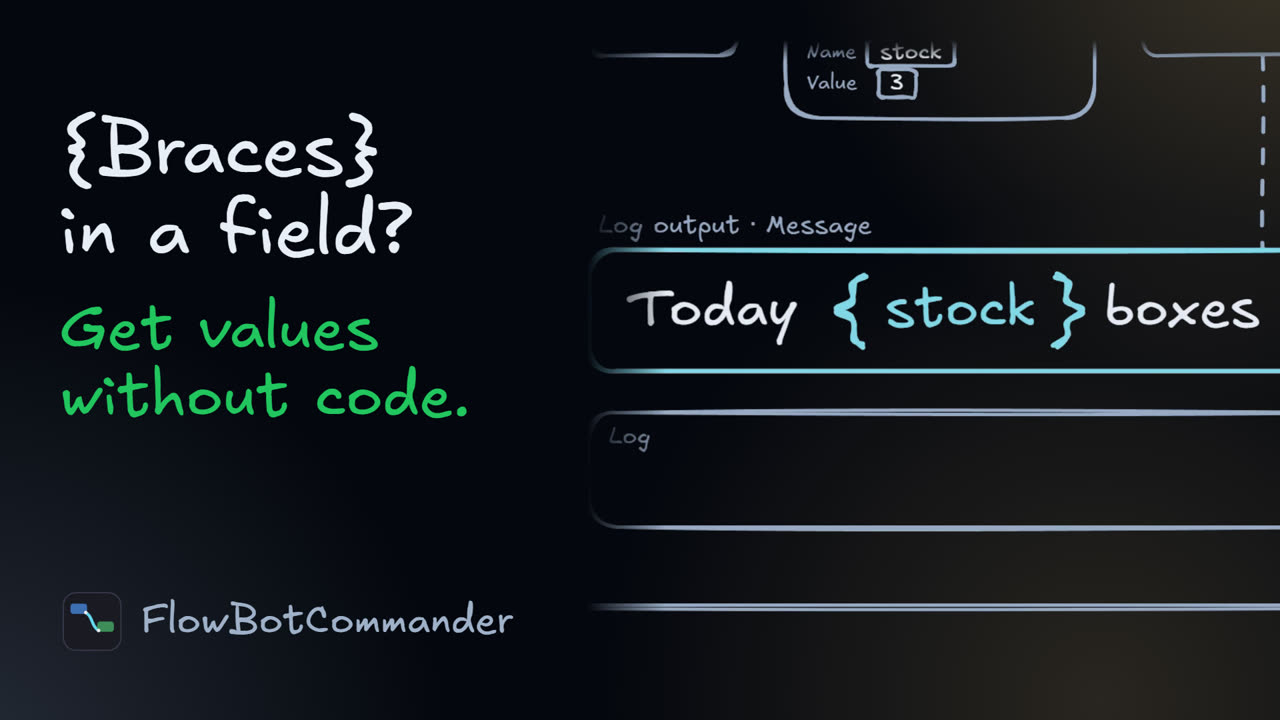
Data modules deliver and change values. You can use their outputs as references in any field of other nodes ({Counter.wert}, {Current time.stunde}). In number fields you may also calculate directly: 10*{level} or round({x}/2).
Which one when?
| You want to … | Module |
|---|---|
| count how often something happened | Counter |
| turn one number into another | Calculate |
| turn read text into a number | Number from text |
| build a text with placeholders (e.g. for a log line) | Compose text |
| use time or date | Current time |
| generate a random value (e.g. for pauses) | Random number |
All modules of this category
🕒 Current time Free
Outputs the current time: hour, minute, second and as text.
Inputs: in (flow) · Outputs: next (flow), stunde, minute, sekunde, zeit
🧮 Count matrix Subscription
Counts occurrences of a label in the whole matrix → 'anzahl'.
Inputs: in (flow), matrix · Outputs: next (flow), count
| Field | Type | Default | Meaning |
|---|---|---|---|
| Label to count | Text | — | Label/value whose occurrences in the matrix are counted (e.g. 'red'). Example: red |
| Case-sensitive | Yes/No | off | Off (default): 'Red' and 'red' are the same label. |
🔲 Matrix cell Subscription
Reads a cell (row/column) from a matrix → 'wert'.
Inputs: in (flow), matrix, row, column · Outputs: next (flow), value, x, y
| Field | Type | Default | Meaning |
|---|---|---|---|
| Row | Integer | 0 |
Row index (0 = first row). Ignored when a 'zeile' data input is connected. |
| Column | Integer | 0 |
Column index (0 = first column). Ignored when a 'spalte' data input is connected. |
➕ Calculate Free
a (op) b → result. Operator: + - * /
Inputs: in (flow), a, b · Outputs: next (flow), result
| Field | Type | Default | Meaning |
|---|---|---|---|
| Operation | Choice: Plus (+), Minus (−), Times (×), Divided (/) | Plus (+) | How inputs a and b are combined. Plus (+) — a + b Minus (−) — a − b Times (×) — a × b Divided (/) — a ÷ b (dividing by 0 yields 0) |
✂️ Split text Free
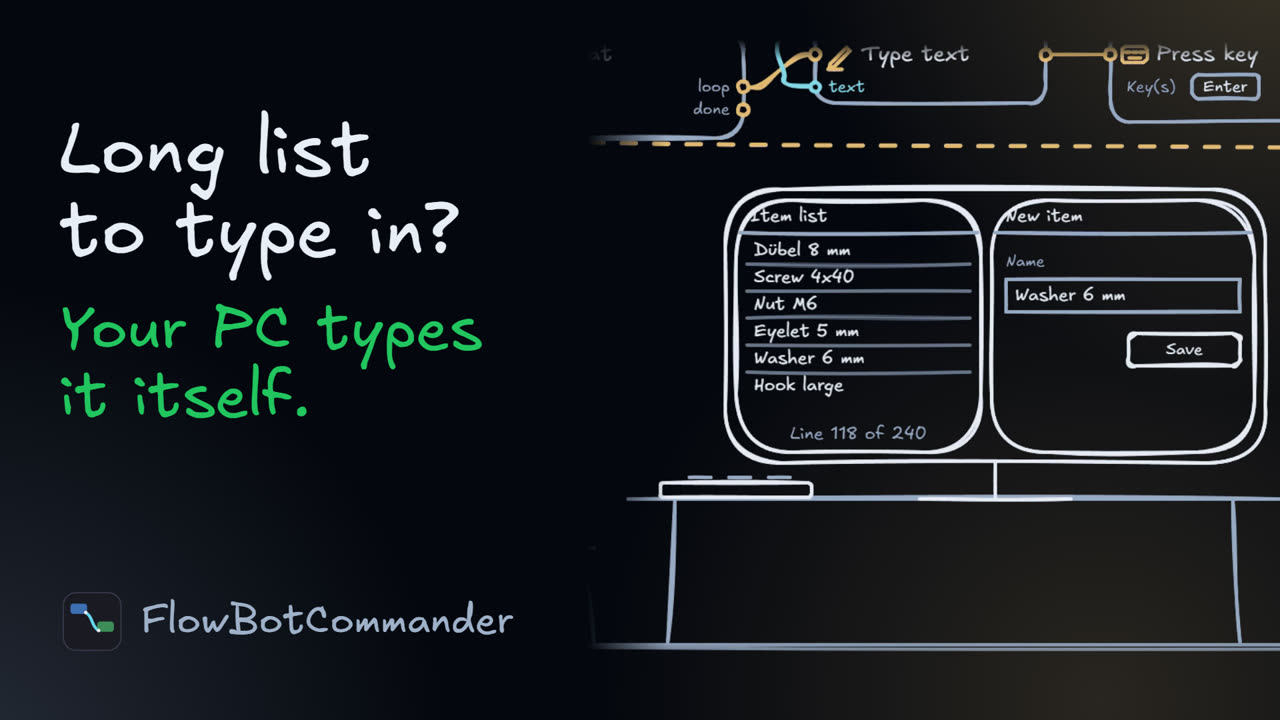
Splits text (clipboard or data input) at the separator into parts. Outputs: teile (list), anzahl, teil (at index). The tool button shows a preview of the current clipboard.
Inputs: in (flow), text, index · Outputs: next (flow), teile, count, teil
| Field | Type | Default | Meaning |
|---|---|---|---|
| Source | Choice: Clipboard, Data input | Clipboard | Where the text to split comes from. Clipboard — Read text from the Windows clipboard. Data input — Take text from the data input 'text'. |
| Separator | Choice: Line break, Comma, Semicolon, Tab, Space, Custom… | Line break | What the text is split at. 'Preview' shows the result for the current clipboard. Line break — Split at each new line (default). Comma — Split at each comma. Semicolon — Split at each semicolon. Tab — Split at each tab. Space — Split at each space. Custom… — Specify a custom separator below. |
| Custom separator | Text | , |
Any string as separator. Only visible if Separator = „Custom…“. |
| Trim whitespace | Yes/No | on | On = remove leading/trailing spaces from each part. |
| Remove empty parts | Yes/No | on | On = discard empty parts (e.g. from double separators). |
| Part index | Integer | 0 |
Which part is additionally output individually as 'teil'. 0 = first. The data input 'index' takes precedence. |
 Play video1:54
🧩 Compose text Free
Combines several inputs (name + type freely configurable) into one text — as a template with {name} placeholders or as a JSON object. Fields can also be filled with variables or node references.
Inputs: in (flow) · Outputs: next (flow), text
| Field | Type | Default | Meaning |
|---|---|---|---|
| Fields (one per line: name=type) | Text (multi-line) | titel=text wert=zahl |
Types: text, zahl (number), bool, liste (comma-separated list). Use “Fields…” to edit comfortably. Each field is an input port and a parameter field. Example: titel=text preis=zahl aktiv=bool |
| Output | Choice: Template, JSON object | Template | Template: free text with {name} placeholders. JSON: an object with one key per field, typed. Template — Free text. {name} inserts a field, other {…} references work too. JSON object — {"name": value, …} — numbers, booleans and lists keep their type, text is escaped. |
| Template | Text (multi-line) | {titel}: {wert} |
Text with {name} placeholders for the fields. {variable} and {Node.output} are resolved as well. Example: {titel}: {wert}Only visible if Output = „Template“. |
| Indent JSON | Yes/No | on | Pretty-printed (multi-line) instead of a single line. Only visible if Output = „JSON object“. |
🔡 Read value from JSON Subscription
Picks a single value out of a JSON text — e.g. from the reply of „Call webhook“. Path like daten.status or liste[0].name.
Inputs: in (flow), json · Outputs: next (flow), not found (flow), value, zahl, jaNein
| Field | Type | Default | Meaning |
|---|---|---|---|
| JSON text | Text (multi-line) | — | Leave empty to take the text from the data input instead — that way a webhook reply can be plugged straight in. |
| Path | Text | — | Dot for fields, square brackets for lists. Empty returns the whole text. Example: data.status |
🔢 Number from text Free
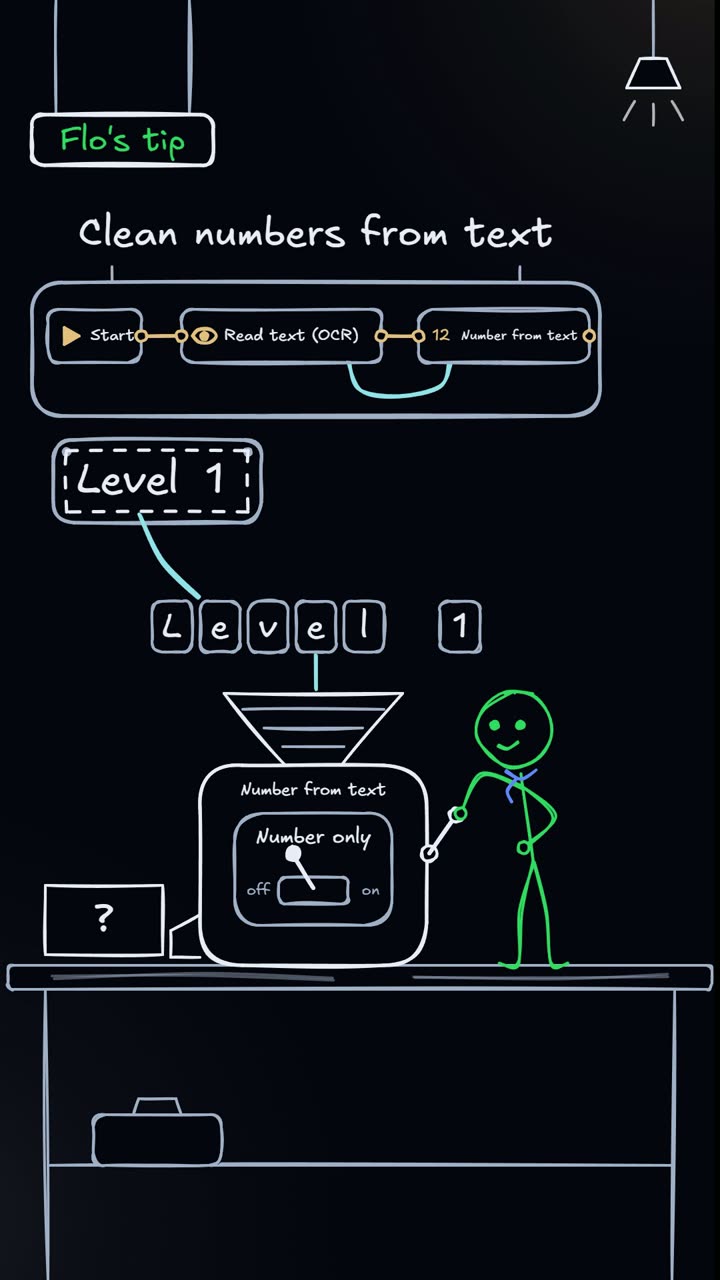
Reads the first number from the text input → 'value'.
Inputs: in (flow), text · Outputs: next (flow), value
| Field | Type | Default | Meaning |
|---|---|---|---|
| Decimal number | Yes/No | off | On = read a decimal number (German format 2.992,9 → 2992.9). Off = whole number (397.000.000 → 397000000). |
| Number only (OCR fix) | Yes/No | off | On = 'only a number expected': common OCR mix-ups are corrected (O/o→0, l/I→1, S→5, B→8, Z→2, G→6) and all characters except digits/separators are discarded. Ideal for prices, quantities, item counts. Off = previous behavior. |
| Minimum value | Text | — | Plausibility (optional): values SMALLER than this are discarded as 'no number' (→ 0). Empty = no lower bound. Only visible if Number only (OCR fix) = on. |
| Maximum value | Text | — | Plausibility (optional): values LARGER than this are discarded as 'no number' (→ 0). Empty = no upper bound. Only visible if Number only (OCR fix) = on. |
 Play video0:41
#️⃣ Number constant Free
Outputs a fixed number as a data value.
Inputs: in (flow) · Outputs: next (flow), value
| Field | Type | Default | Meaning |
|---|---|---|---|
| Value | Number | 0 |
Fixed number output as a data value — a central knob (e.g. a threshold). |
📄 Select line Free
Selects one of the OCR lines by index (line[0], line[1] …).
Inputs: in (flow), lines, index · Outputs: next (flow), text
| Field | Type | Default | Meaning |
|---|---|---|---|
| Line no. | Integer | 0 |
0 = first line. Ignored when an 'index' data input is connected. |
🎲 Random number Free
Random whole number between min and max.
Inputs: in (flow) · Outputs: next (flow), value
| Field | Type | Default | Meaning |
|---|---|---|---|
| Minimum | Integer | 0 |
Smallest possible value (inclusive). |
| Maximum | Integer | 100 |
Largest possible value (inclusive). |
📋 Read clipboard Free
Reads the current text from the Windows clipboard → data 'text'.
Inputs: in (flow) · Outputs: next (flow), text
🔢 Counter Subscription
Counts something — either just for this run or permanently across restarts (e.g. „47 runs today“). Increase, set or just read.
Inputs: in (flow) · Outputs: next (flow), value
| Field | Type | Default | Meaning |
|---|---|---|---|
| Name | Text | zaehler |
Counters with the same name share their value. Example: runs |
| Action | Choice: increase, set, reset, just read | increase | What happens to the counter. increase — Adds the step (a negative step counts down). set — Sets the counter to the number in „Value“. reset — Sets the counter back to 0 — no field needed. Typical at the start of a loop or after a round is complete. just read — Leaves the counter untouched. |
| Step | Number | 1 |
How much is added per pass. Negative counts down. Only visible if Action = „increase“. |
| Value | Number | 0 |
The number the counter is set to. May be a reference such as {level} or a calculation. Only visible if Action = „set“. |
| Keep across restarts | Yes/No | off | Off: the counter starts at 0 with every run. On: it is stored in your user profile and continues where it left off. |
 Play video1:30